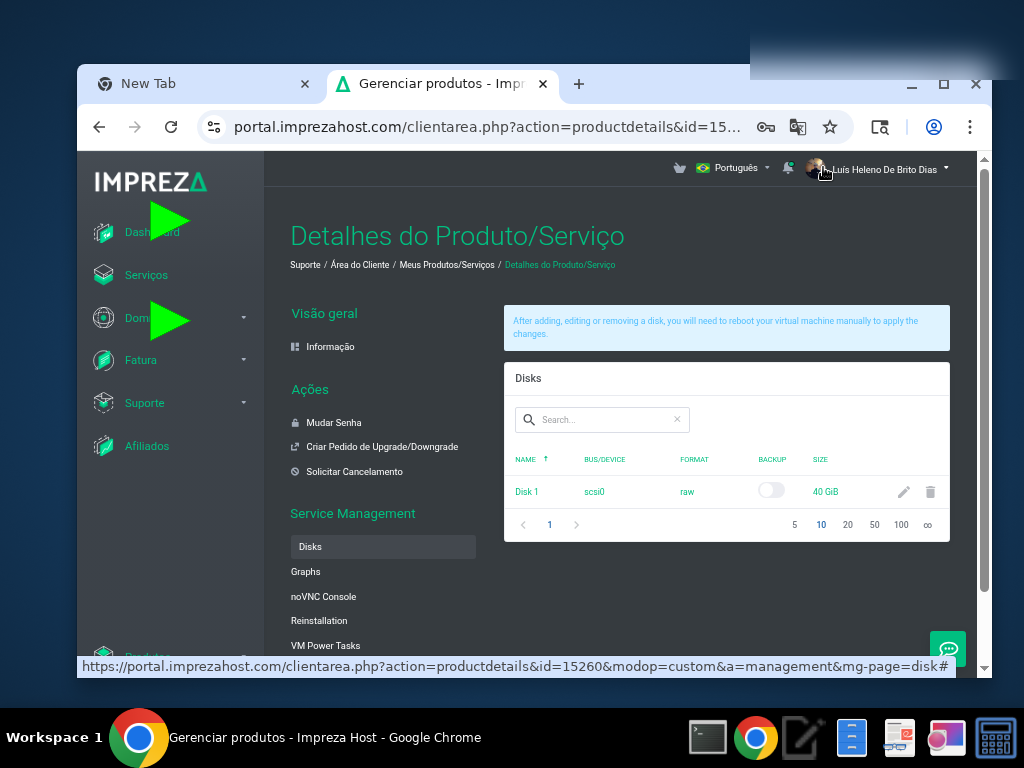
Welcome to this tutorial on How to Manage Virtual Disks on Your VPS. Virtual disk management allows you to add additional storage to your VPS, expand existing disks, and organize your data across multiple volumes. This advanced feature gives you flexibility in managing your storage infrastructure.
Step-by-Step Guide
Viewing Existing Virtual Disks
1° Log in to your client area at https://my.imprezahost.com/ using your credentials.
2° Navigate to Services → My Services from the top menu to view all your active services.
3° Locate your VPS service in the list and click on it to access the VPS management panel.
4° In the VPS control panel, look for the "Virtual Disks" or "Storage Management" section. This may be under an "Advanced" or "Resources" tab.
5° You'll see a list of your current virtual disks showing:
- Disk Name/ID: Identifier for each disk (e.g., vda, vdb, sda, sdb)
- Size: Current disk capacity (e.g., 50GB, 100GB)
- Type: Storage type (SSD, NVMe, HDD)
- Status: Active, Inactive, or Pending
- Mount Point: Where the disk is mounted in your OS (if configured)
Adding a New Virtual Disk
6° In the Virtual Disks section, click the "Add New Disk" or "Create Virtual Disk" button.
7° Configure your new virtual disk:
- Disk Size: Enter the desired size in GB (e.g., 50, 100, 250)
- Storage Type: Select SSD or NVMe if options are available
- Disk Name: Optionally provide a descriptive name for easy identification
8° Review the pricing information. Additional disk space typically incurs an extra monthly charge based on the size and type selected.
9° Click "Add to Cart" or "Continue" to proceed with the order.
10° Complete the payment process if required. Once payment is confirmed, the new virtual disk will be created and attached to your VPS.
11° The new disk will appear in your Virtual Disks list with a status of "Active" once provisioning is complete (usually within a few minutes).
Important: Adding a new virtual disk attaches it to your VPS, but you must still partition, format, and mount it within your operating system before you can use it.
Expanding Existing Disk Space
12° In the Virtual Disks list, locate the disk you want to expand.
13° Click the "Expand" or "Resize" button next to the disk.
14° Enter the new desired size. Note that you can only increase disk size, not decrease it.
15° Review the additional cost for the expanded storage.
16° Click "Confirm" and complete any required payment.
17° The disk expansion will be processed. Depending on your virtualization platform:
- Some expansions apply immediately
- Others may require a VPS reboot
18° After expansion, you'll need to extend the partition and filesystem within your operating system to use the new space.
Mounting and Formatting a New Disk Inside Your OS
After adding a new virtual disk through the control panel, follow these steps inside your VPS:
For Linux Systems:
19° Connect to your VPS via SSH.
20° List all available disks to identify your new disk:
lsblk
or
fdisk -l
21° Identify the new disk (it will typically be unpartitioned and show as /dev/vdb, /dev/sdb, or similar).
22° Create a new partition on the disk:
fdisk /dev/vdb
- Press
n for new partition
- Press
p for primary partition
- Press
1 for partition number
- Press Enter twice to accept default start and end sectors
- Press
w to write changes and exit
23° Format the new partition with your preferred filesystem (ext4 is recommended):
mkfs.ext4 /dev/vdb1
24° Create a mount point directory:
mkdir /mnt/data
25 Mount the new disk:
mount /dev/vdb1 /mnt/data
26° Verify the disk is mounted:
df -h
27° To make the mount permanent (survive reboots), add an entry to /etc/fstab:
echo '/dev/vdb1 /mnt/data ext4 defaults 0 0' >> /etc/fstab
28° Test the fstab configuration:
umount /mnt/data
mount -a
df -h
Extending a Partition After Disk Expansion
If you expanded an existing disk, extend the partition and filesystem:
For Linux with ext4 filesystem:
29° Identify the partition to extend:
lsblk
30° If the partition is the last one on the disk, use growpart:
growpart /dev/vda 1
(Replace /dev/vda and 1 with your disk and partition number)
31° Resize the filesystem:
resize2fs /dev/vda1
32° Verify the new size:
df -h
For Linux with XFS filesystem:
xfs_growfs /
For LVM volumes:
pvresize /dev/vda1
lvextend -l +100%FREE /dev/mapper/vg-root
resize2fs /dev/mapper/vg-root
Tips and Best Practices
💡 Plan your storage layout: Decide whether you need multiple disks or one large disk based on your application requirements.
💡 Use descriptive mount points: Name your mount points clearly (e.g., /mnt/database, /mnt/backups) for easy management.
💡 Backup before expanding: Although disk expansion is generally safe, always backup critical data first.
💡 Monitor disk usage: Regularly check disk space usage with df -h to avoid running out of space.
💡 Consider LVM: For advanced users, LVM (Logical Volume Manager) provides more flexibility for managing multiple disks and resizing volumes.
💡 Document your configuration: Keep notes on your disk layout, mount points, and fstab entries for future reference.
💡 Test after changes: Always verify that your applications can read and write to new or expanded disks.
💡 Separate data from OS: Using additional disks for data allows you to reinstall the OS without affecting your data.
Common Use Cases for Additional Disks
- Database Storage: Dedicated disk for MySQL, PostgreSQL, or MongoDB data
- Backup Storage: Separate volume for backup files
- Application Data: Isolate application data from system files
- Log Files: Dedicated disk for logs to prevent filling up the root partition
- Media Storage: Large disk for images, videos, or user uploads
If you encounter any issues with virtual disk management or need assistance with advanced storage configurations, please contact our support team through the client area ticket system.