Monitoring your VPS resources is essential for maintaining optimal performance, identifying bottlenecks, and planning for future capacity needs. This tutorial will guide you through the monitoring tools available in your Impreza Host client area.
1 Understanding VPS Resource Monitoring
Your VPS has several key resources that need regular monitoring: CPU Usage (processor utilization and load), Memory/RAM (memory consumption and availability), Network Traffic (incoming and outgoing bandwidth), Disk I/O (read and write operations), and Storage Space (disk usage and available capacity).
Regular monitoring helps you detect performance issues before they impact users, identify resource-hungry applications, plan upgrades when approaching limits, troubleshoot slowdowns and bottlenecks, and optimize application performance.
2° Accessing Real-Time Resource Information
From your VPS management dashboard, you can view current resource usage in the information panel. The information section displays CPU Usage (current processor utilization percentage), Memory (RAM usage with used/total values), and Uptime (how long the server has been running continuously).
Note: These values update periodically and show the current snapshot of your VPS resources.
3° Viewing CPU and Memory Usage Graphs
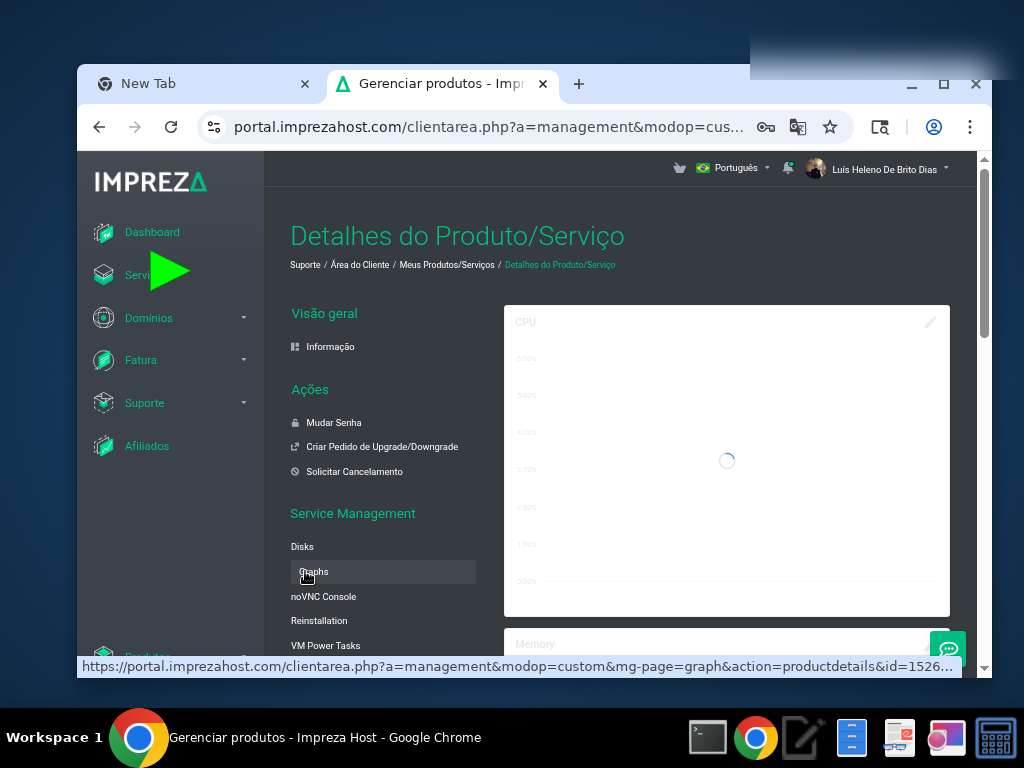
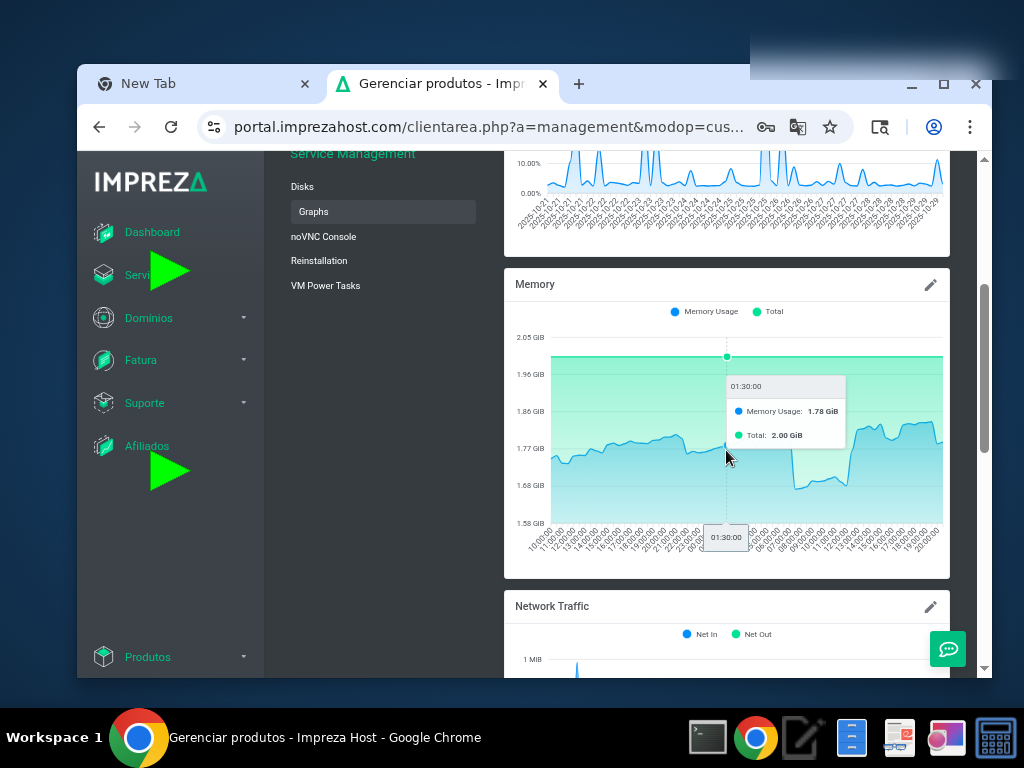
Scroll down to the monitoring section to access detailed usage graphs. The CPU graph shows time-series data (CPU usage over the selected time period), usage percentage (Y-axis shows 0-100% utilization), time range (X-axis displays the monitoring timeframe), and usage patterns to identify spikes and trends.
Interpreting CPU Usage:
- 0-30%: Normal, healthy usage with room to grow
- 30-70%: Moderate usage, monitor for sustained high levels
- 70-90%: High usage, investigate resource-intensive processes
- 90-100%: Critical, may cause performance degradation
Common causes of high CPU: Web server handling traffic spikes, database queries or indexing operations, backup or maintenance tasks, cryptocurrency mining (unauthorized), or runaway processes.
Memory Usage Graph shows RAM consumption over time, helps identify memory leaks, indicates when you're approaching memory limits, and is useful for sizing applications appropriately.
Interpreting Memory Usage:
- Below 80%: Healthy memory usage
- 80-90%: Monitor closely, consider optimization
- Above 90%: Critical, may cause swapping and slowdowns
- Consistent 100%: Urgent, upgrade needed or memory leak present
4° Network Traffic and Performance Optimization
Network Traffic Graph displays incoming and outgoing bandwidth, measured in Mbps or MB/s, shows traffic patterns and spikes, and helps identify unusual network activity.
Interpreting Network Traffic:
- Steady baseline: Normal application traffic
- Regular spikes: Expected traffic patterns (backups, peak hours)
- Sudden spikes: Investigate for DDoS or unusual activity
- Sustained high traffic: May need bandwidth upgrade
Performance Optimization Tips:
CPU Optimization: Identify and optimize resource-intensive processes, use caching to reduce computation, implement load balancing for high-traffic sites, schedule heavy tasks during off-peak hours, consider upgrading to more CPU cores if consistently high.
Memory Optimization: Tune application memory limits, implement caching strategies (Redis, Memcached), optimize database queries, close unused services, upgrade RAM if consistently above 80%.
Network Optimization: Enable compression for web traffic, use CDN for static content, implement rate limiting, optimize image and asset sizes, monitor for bandwidth-heavy applications.
5° Monitoring Best Practices and When to Upgrade
Regular Monitoring Schedule:
- Daily: Quick check of current resource usage
- Weekly: Review graphs for unusual patterns
- Monthly: Analyze trends and plan capacity
- After changes: Monitor impact of new applications or updates
What to Monitor: Sudden spikes in any resource, sustained high usage (above 80%), unusual network traffic patterns, memory usage trends, and disk I/O bottlenecks.
Signs You Need More Resources:
- CPU: Consistently above 70% during normal operations
- Memory: Regularly exceeding 80% usage
- Network: Approaching bandwidth limits regularly
- Disk: Running out of storage space
- Performance: Users reporting slowness or timeouts
Upgrade Options: From your VPS management page, you can access upgrade options to increase CPU cores, RAM allocation, disk storage, network bandwidth, and additional IP addresses.
Note: Impreza Host offers flexible upgrade paths. Review the Upgrade/Downgrade section in your client area for available options and pricing. Use these monitoring tools in combination with the power management and console access features covered in previous tutorials for complete VPS management.[