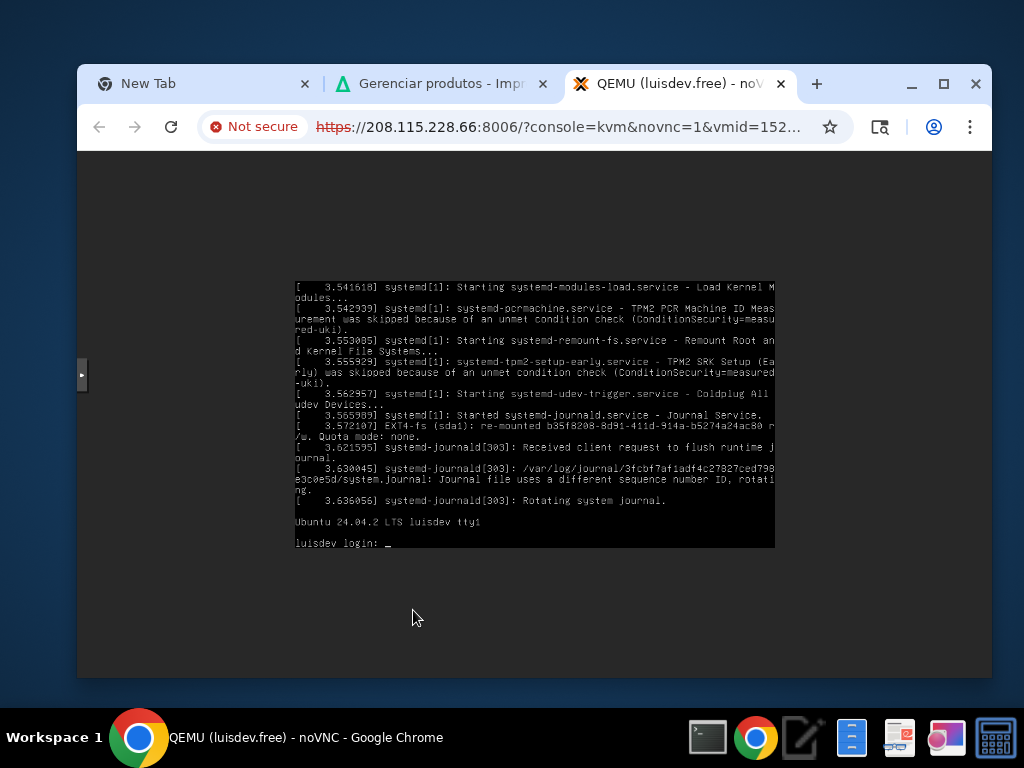
The noVNC console provides direct browser-based access to your VPS, similar to sitting at a physical computer's keyboard and monitor. This tutorial will show you how to open and use the noVNC console for managing your server.
1° Understanding noVNC Console Access
The noVNC console is a powerful tool that allows you to access your VPS even when SSH is unavailable, troubleshoot network connectivity issues, perform emergency recovery operations, view boot messages and system errors, and work directly with the operating system.
Unlike SSH, the noVNC console provides access at the hardware level, meaning you can interact with your VPS even if the network is misconfigured or services are down.
2° Opening the noVNC Console
From your VPS management page, locate the console access option in the Service Management section. Navigate to your VPS management dashboard, look for the noVNC or Console option in the Service Management panel, and click to open the console in a new browser window or tab.
Note: The console opens in your browser using HTML5 technology, so no additional software installation is required.
3° Logging In via the Console
Once the noVNC console window opens, you'll see your VPS display output, just as if you were looking at a physical monitor. Wait for the login prompt to appear (you may see boot messages first), type your username (typically root for initial access), press Enter, type your password (characters won't be displayed for security), and press Enter to complete login.
Important: The password is the root password shown in your VPS information panel. If you've changed it, use your updated password.
4° Using the noVNC Interface
The noVNC console provides several useful features:
Keyboard Input: Type normally as you would in any terminal. Special keys (Ctrl, Alt, etc.) work as expected. Use Ctrl+Alt+Del through the console menu if needed.
Mouse Interaction: Click to focus the console window. Use mouse for text selection (if supported by your OS).
Console Controls: Look for the sidebar or menu for additional options, clipboard integration for copy/paste (browser-dependent), fullscreen mode for better visibility, and connection status indicator.
5° Troubleshooting and Security
Troubleshooting Console Connection Issues:
- Console shows blank screen: Wait 30 seconds for the display to initialize, try pressing Enter to wake the display, check if the VPS is actually running
- Cannot type in console: Click inside the console window to focus it, check if your browser is blocking keyboard input, try refreshing the console window
- Login prompt doesn't appear: The system may still be booting (wait 2-3 minutes), try pressing Enter several times, use the Reboot button from the control panel
Security Considerations:
- Close the console when not in use to free resources
- Don't leave sessions logged in unattended
- Use SSH for regular access (console is for emergencies)
- Monitor console access logs for unauthorized attempts
- Change default passwords immediately after first login
Note: Console access bypasses network-level security, so physical access to your client area credentials is equivalent to physical server access.
6° When to Use noVNC vs SSH
Use noVNC Console when: SSH service is not responding, network configuration is broken, firewall rules are blocking SSH, you need to see boot messages, performing emergency recovery, or troubleshooting kernel panics.
Use SSH when: Performing routine administration, transferring files (with SCP/SFTP), running automated scripts, need better performance, require clipboard integration, or working with multiple sessions.
noVNC Console Screenshot