This tutorial will guide you through the essential power management operations for your VPS. Understanding how to properly start, reboot, and shut down your server is crucial for maintenance, troubleshooting, and ensuring data integrity.
1° Locate the Power Control Panel
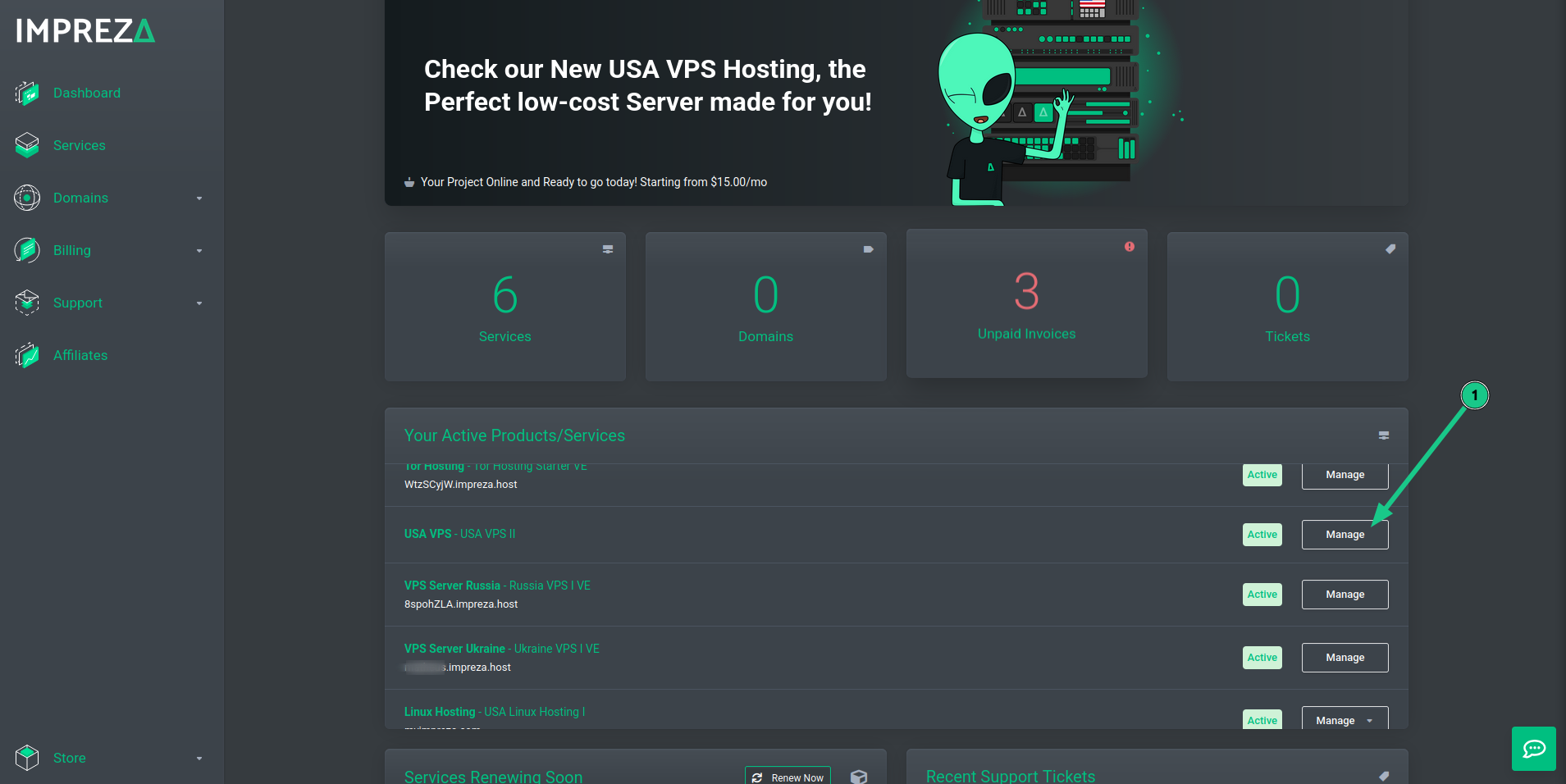
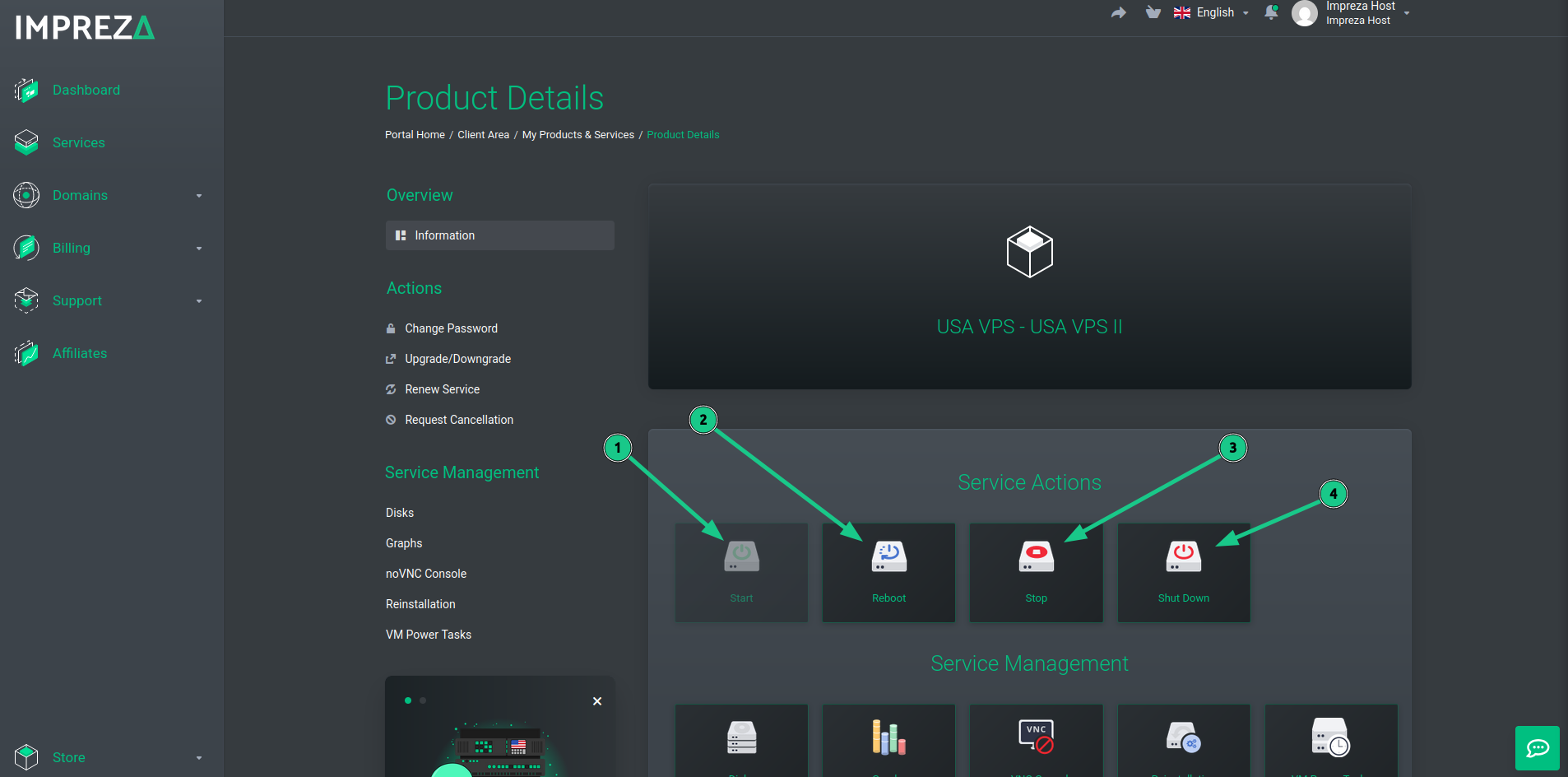
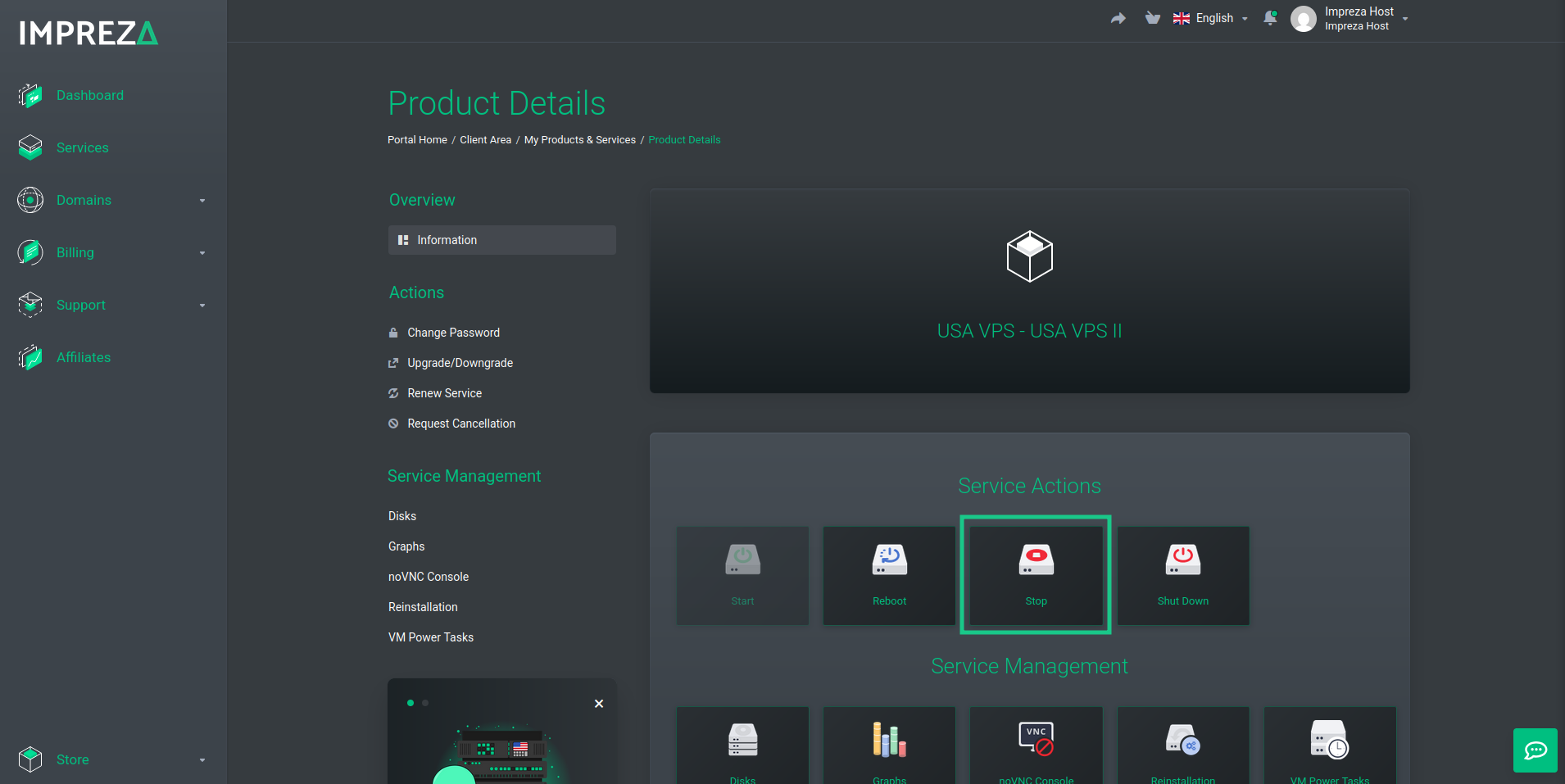
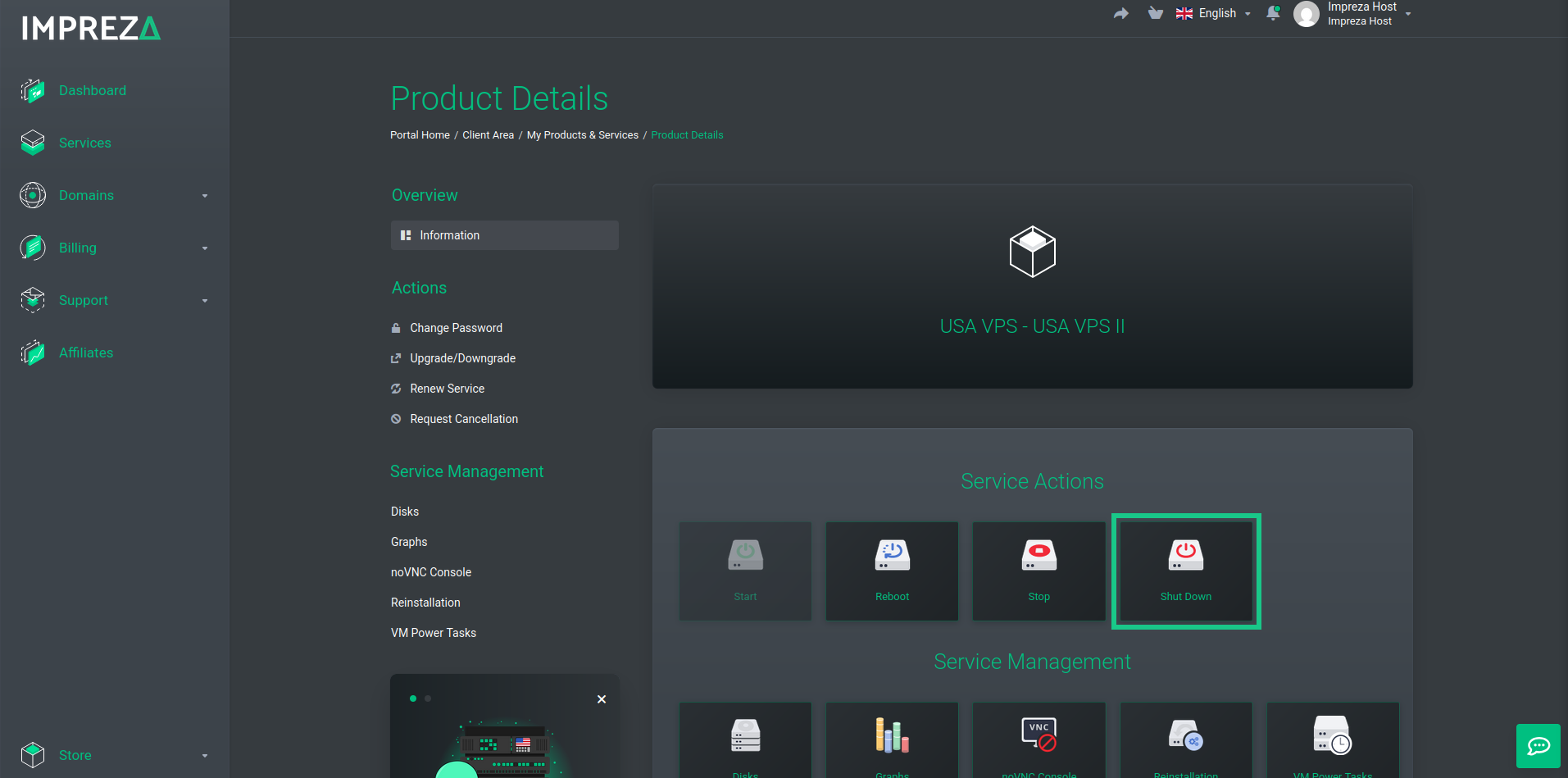
From your VPS management page, find the Service Actions section at the top of the dashboard. This panel contains all the power control buttons you'll need. The Service Actions panel provides four main power operations:
- 1 - Start: Powers on a stopped VPS
- 2 - Reboot: Restarts the VPS (warm reboot)
- 3 - Stop: Forces an immediate shutdown (not recommended for regular use)
- 4 - Shut Down: Performs a graceful shutdown (recommended)
2° Starting Your VPS
If your VPS is currently stopped, you can power it on using the Start button. Click the Start button in the Service Actions panel, wait for the system to initialize (typically 30-60 seconds), and monitor the status indicator to confirm the VPS is running.
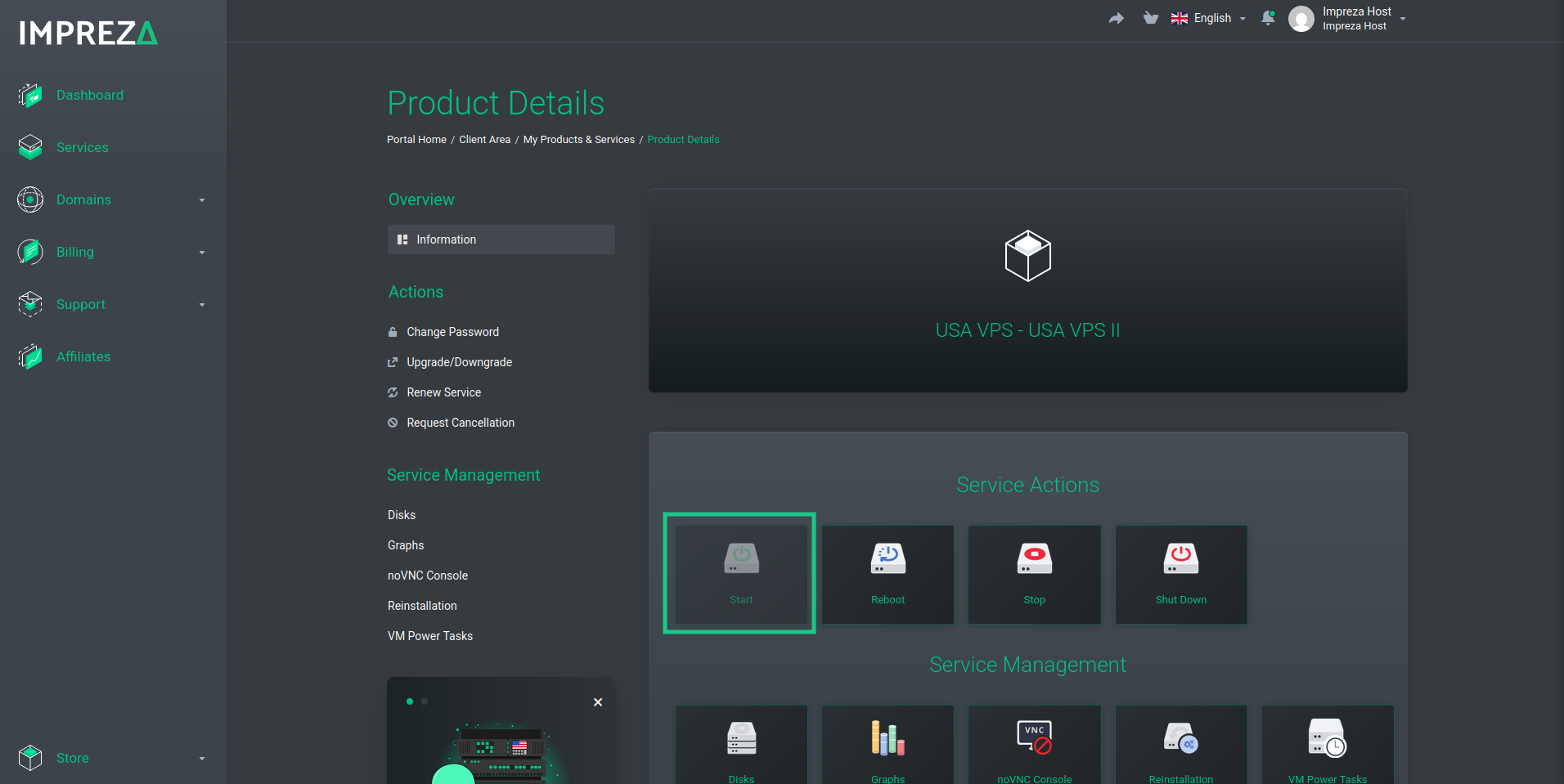
Note: After starting, your VPS will boot the operating system and start all configured services.
3° Rebooting Your VPS
A reboot is useful when you've made system changes that require a restart, such as kernel updates or configuration modifications. Click the Reboot button in the Service Actions panel, confirm the action if prompted, and wait for the VPS to restart (usually 1-2 minutes).
When to use Reboot: After installing system updates, when applying kernel changes, to clear memory and refresh services, or when troubleshooting performance issues.
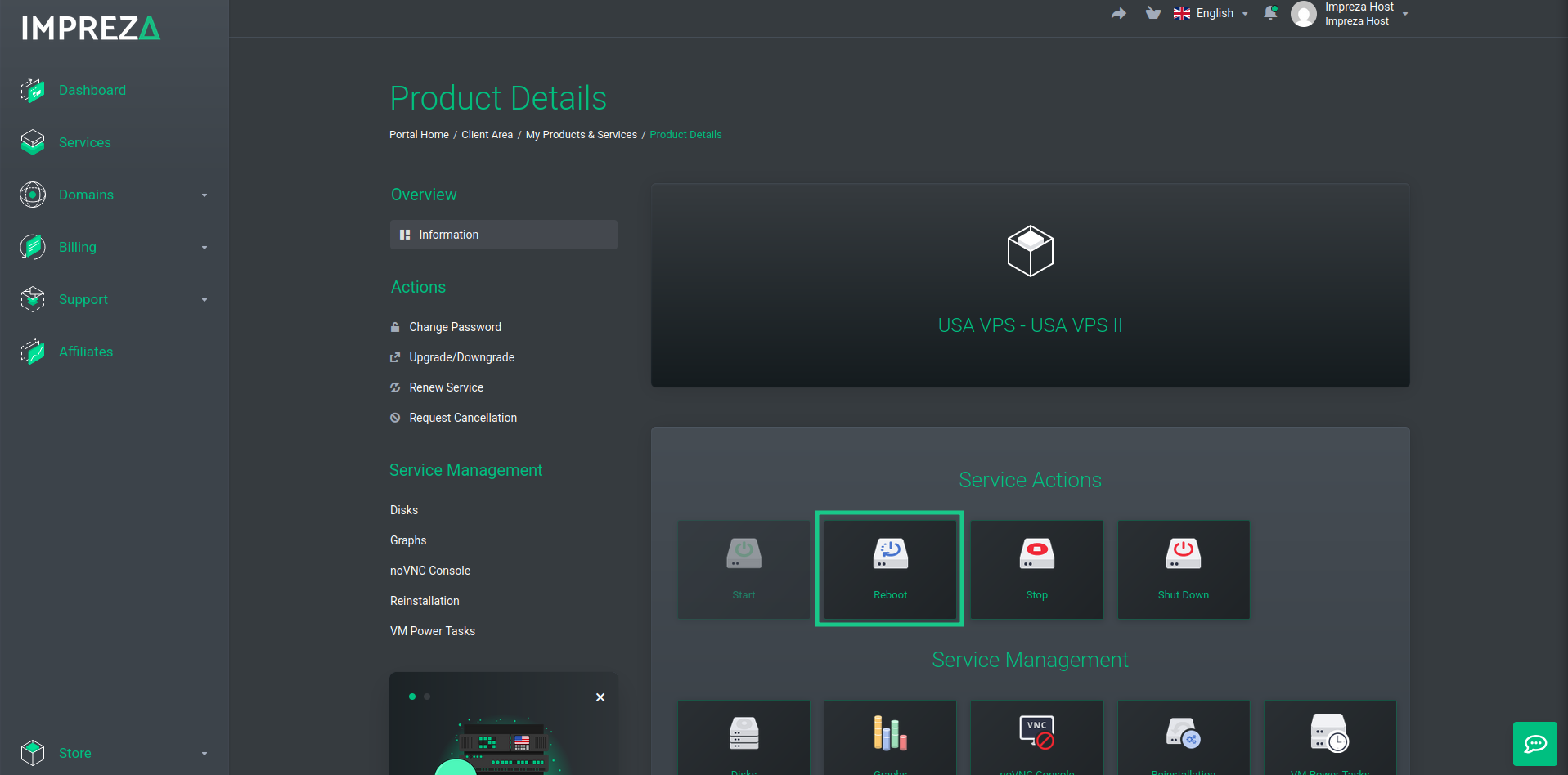
Important: A reboot will temporarily disconnect all active connections. Plan accordingly if you have running applications or users connected.
4° Performing a Graceful Shutdown
The Shut Down option is the recommended way to power off your VPS safely. It sends a proper shutdown signal to the operating system, allowing it to close applications and save data properly. Click the Shut Down button, confirm the action if prompted, and wait for the graceful shutdown to complete (30-90 seconds).
Why use Shut Down instead of Stop: Allows the OS to close files properly, prevents data corruption, stops services in the correct order, and flushes disk caches safely.
5° Emergency Stop and Best Practices
The Stop button performs an immediate power-off, similar to pulling the power cable. This should only be used in emergency situations when the VPS is completely unresponsive or graceful shutdown has failed.
Warning: Using Stop can lead to data loss or file system corruption. Always try Shut Down first.
Best Practices:
- Always use Shut Down for planned maintenance
- Schedule reboots during low-traffic periods
- Notify users before performing power operations
- Wait for completion before performing another action
- Keep backups before major changes requiring reboots
Troubleshooting Unresponsive Servers:
- First: Try accessing via noVNC console
- Second: Attempt a graceful Shut Down
- Third: Wait 5 minutes and try Reboot
- Last resort: Use the Stop button, wait 30 seconds, then Start
Note: If power operations fail repeatedly, contact Impreza Host support for assistance.