Welcome to this tutorial on accessing and understanding your VPS information in the Impreza Host client area. This guide will show you how to locate essential details about your virtual private server, including IP addresses, hostname, operating system, and network configuration.
1° Navigate to Your VPS Management Page
Log in to your Impreza Host client area and navigate to your VPS service. Once you're on the main VPS management page, you'll see an overview of your server's current status and available actions.
The main dashboard displays the Service Actions panel (power controls) and Service Management options. This is your central hub for managing all aspects of your VPS.
2° Access Detailed VPS Information
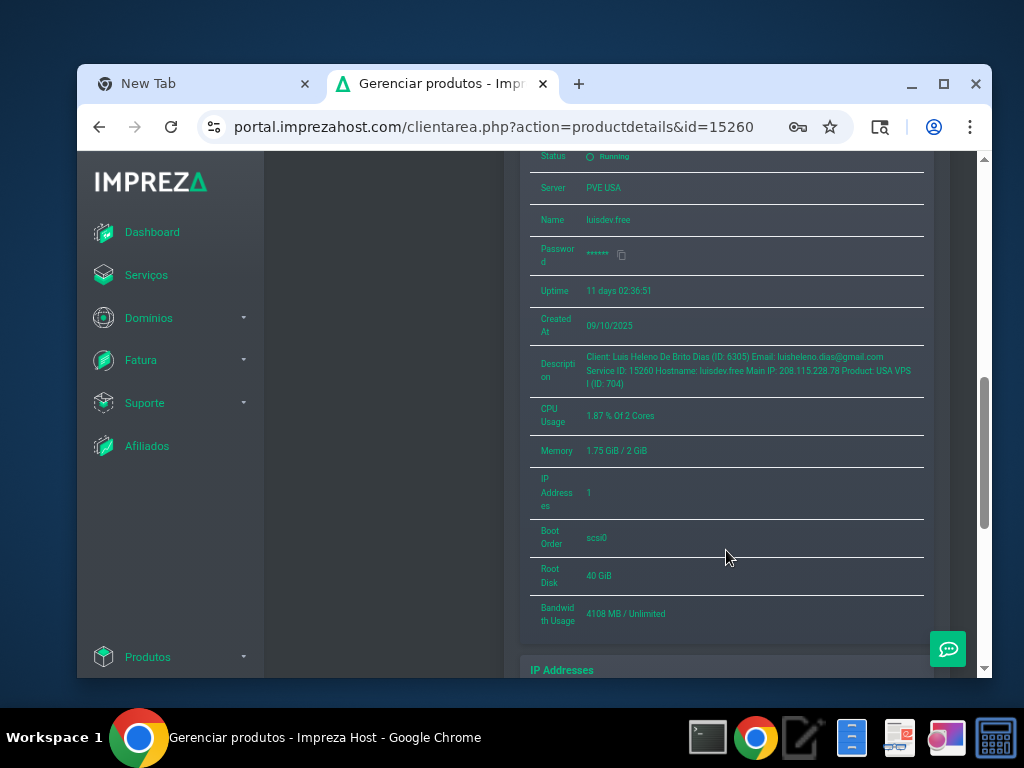
Scroll down to view the detailed information section. Here you'll find comprehensive details about your VPS configuration:
This section displays:
- Server: Your VPS hostname and identifier
- Name: The friendly name assigned to your VPS
- Password: Root password (click to reveal)
- Uptime: How long the server has been running
- Created: When your VPS was provisioned
- Description: Additional notes about your server
- CPU Usage: Current processor utilization
- Memory: RAM usage statistics
Note: Keep your root password secure and change it regularly for better security.
3° View IP Address Information
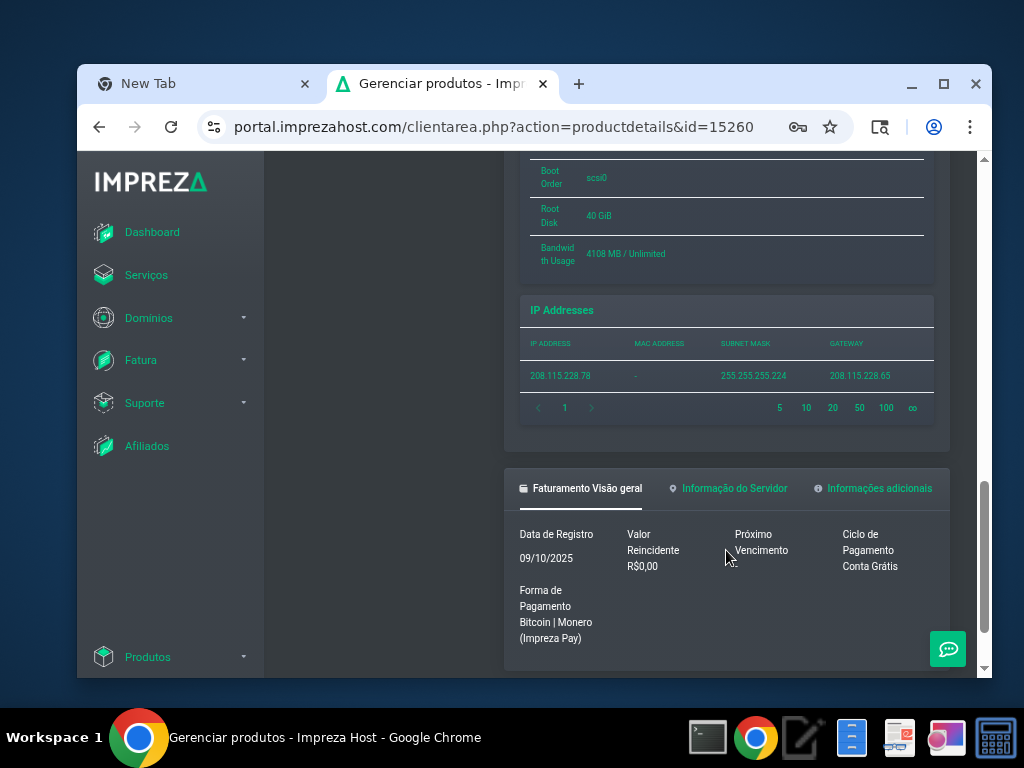
Continue scrolling to locate the IP addresses section, which shows all network interfaces assigned to your VPS.
The IP addresses table includes:
- Primary IP: Your main public IPv4 address
- Network configuration: Subnet mask and gateway information
- Additional IPs: Any extra IP addresses assigned to your service
Important: Your primary IP address is what you'll use to connect to your VPS via SSH or other remote access methods.
4° Understanding Network Configuration
Your VPS comes with a dedicated public IP address that allows external connectivity. This IP is static and will remain assigned to your VPS unless you specifically request a change.
Key Points:
- The primary IP is used for all incoming connections
- DNS records should point to this IP address
- Firewall rules apply to this IP
- You can request additional IPs if needed for your applications
Tips for Managing VPS Information:
- Bookmark the management page for quick access
- Document your IP address in a secure location
- Monitor uptime statistics to track server reliability
- Review resource usage regularly to ensure optimal performance
- Update your VPS description to help identify its purpose[](https://)
Screenshots
VPS Overview: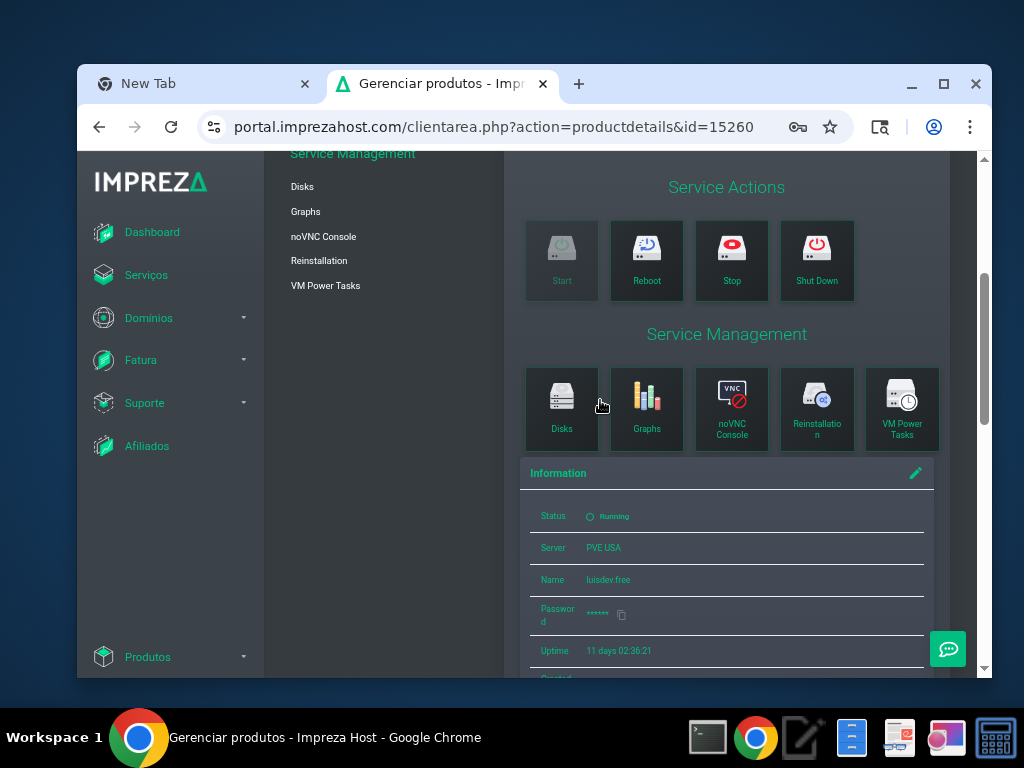
VPS Information Details:
IP Addresses and Billing: