To connect to your IPMI/BMC remote control, you will need a fixed, whitelisted IP. We can achieve this through our VPN.
The VPN panel and access credentials.
To start, go into your service page. In the "Information" tab you will see this panel:
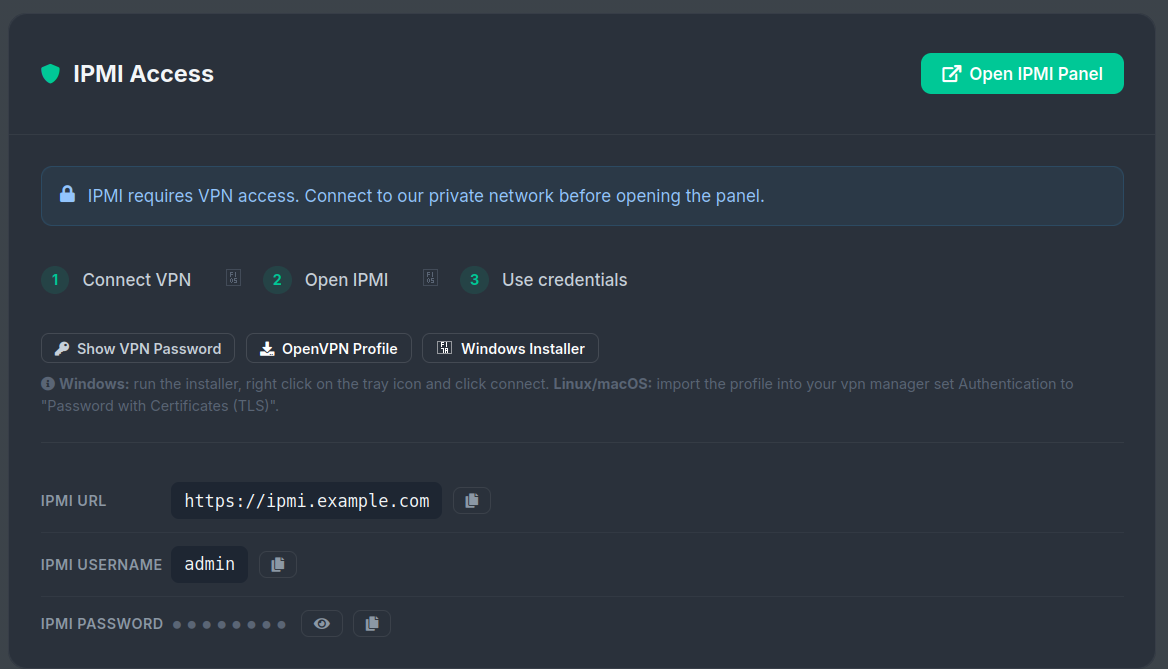
To see the credentials for VPN connection, click on "Show VPN Password":
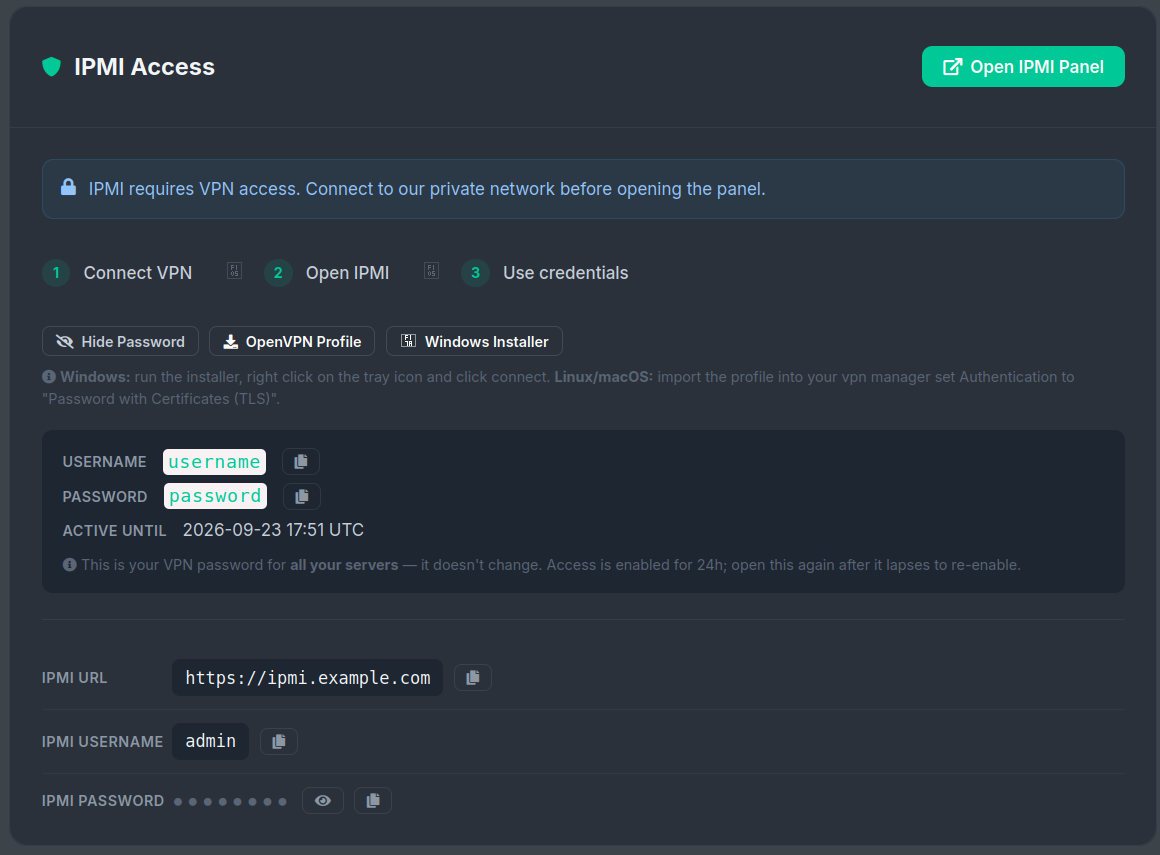
These credentials are valid for all of your services who need the VPN, they're valid for 24h starting from the first click in "Show VPN Password". To re-activate them after the 24h have passed, simply click again on "Show VPN Password"
Copy those credentials to use them in the next step.
Setting up the VPN
To get started, click either in "OpenVPN Profile" (Linux and Mac users) or "Windows Installer"
Linux:
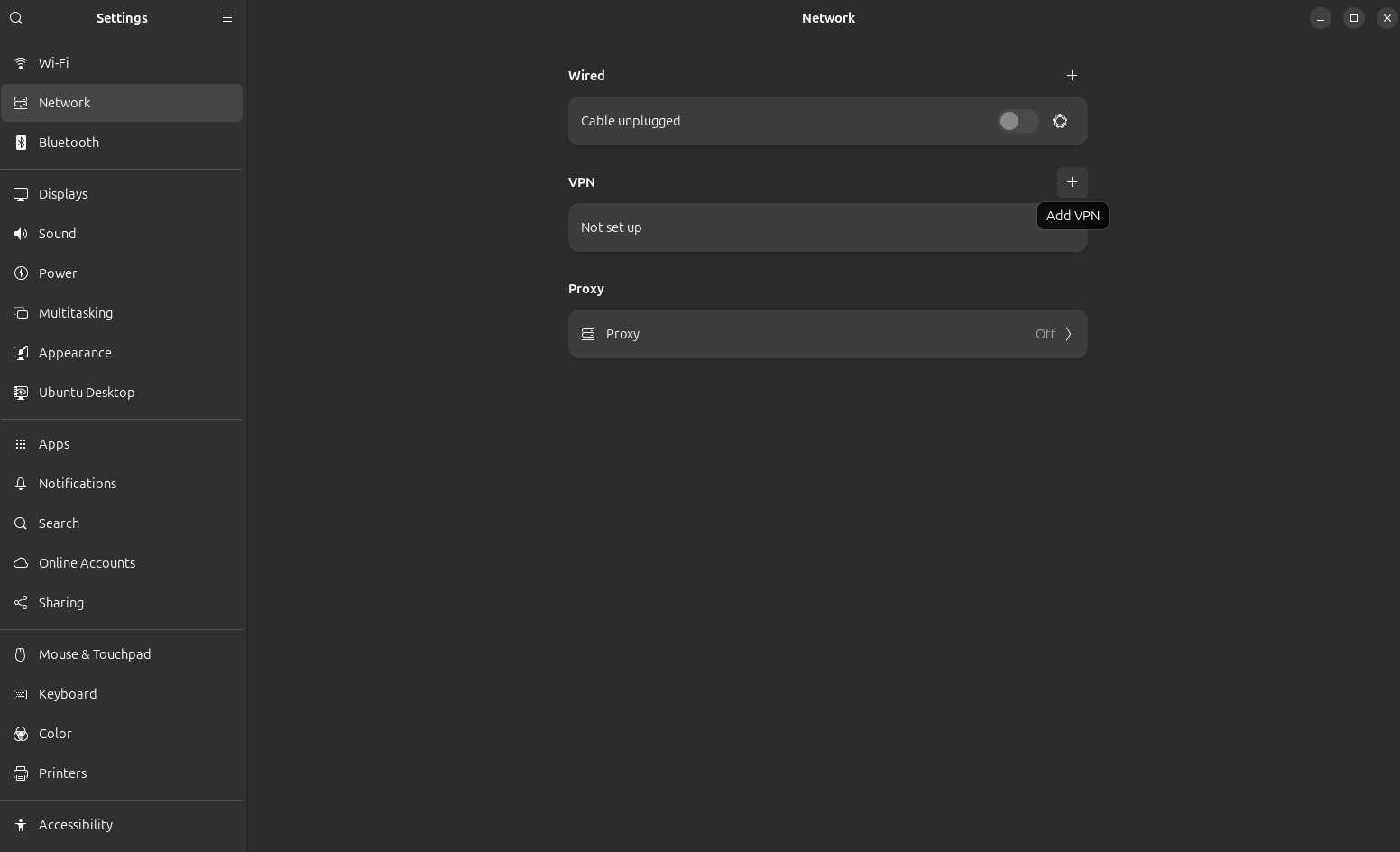
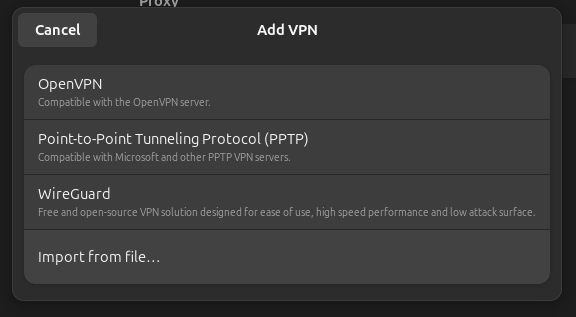
- Click in "OpenVPN Profile" and download the .ovpn file.
- Add it to your preferred VPN manager, we will use Ubuntu's as an example.
Windows:
- Run the .exe installer, click "Install".
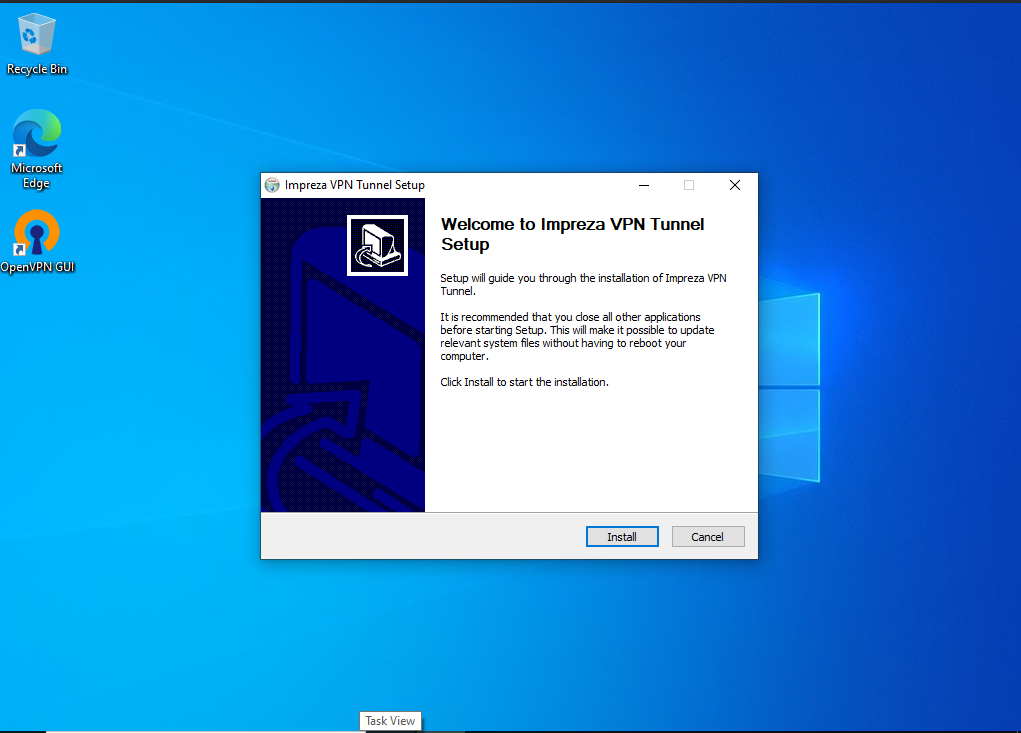
That's it! The VPN is now connected and you can access your IPMI through the URL stated in your panel.
Remember that this VPN is not intended for privacy or traffic masking purposes, it is built just for accessing your IPMI.