Most people think of Tor hosting as a niche product you have to hunt for. On Impreza, it is just a checkbox at checkout — available on any VPS, in any of our locations, at no extra cost. This guide walks you through spinning up a VPS with Tor pre-installed, getting your first .onion address live, and understanding what else you can run on the same box.
Step 1 — Pick any VPS and select Tor Hosting at checkout
When configuring your VPS, you can pick any location — USA, Hong Kong, Iceland, Netherlands, Romania, Russia, Switzerland, Ukraine, Lithuania, and more. Tor Hosting is not tied to a specific region.
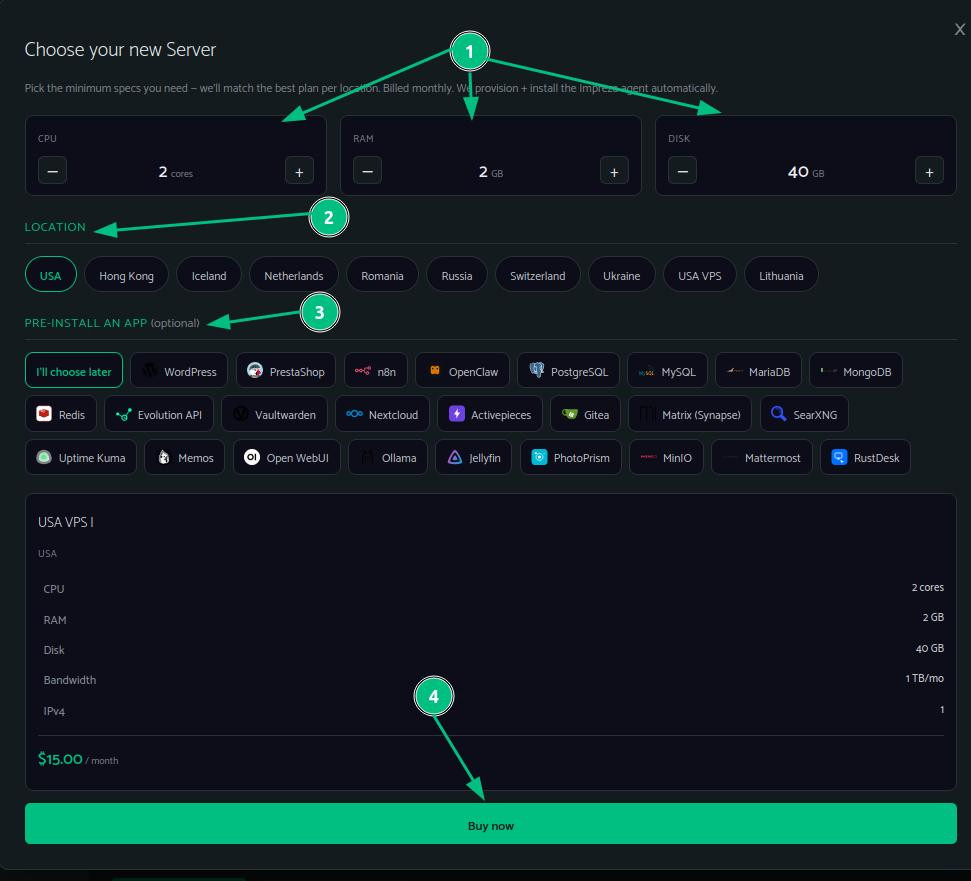
On the same page, scroll to Pre-install an app and select Tor Hosting (fast). This installs aaPanel with the Tor Manager and Onion Guard plugins ready to go. If you also want a full web stack out of the box, pick Tor Hosting + web stack instead.
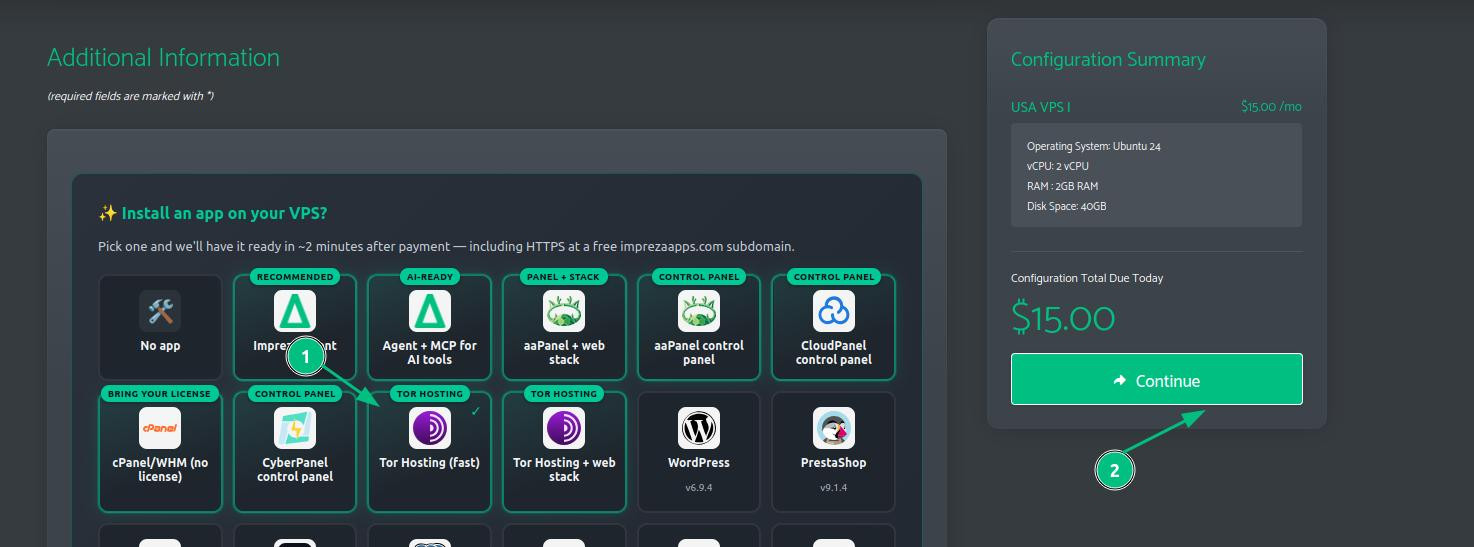
Complete the order. Your VPS will be provisioned and the panel will start installing automatically.
Step 2 — Wait for the panel to install
After payment, go to your server's Product Details page. You will see a progress screen showing the installation steps. Do not reboot or reinstall while this is running.
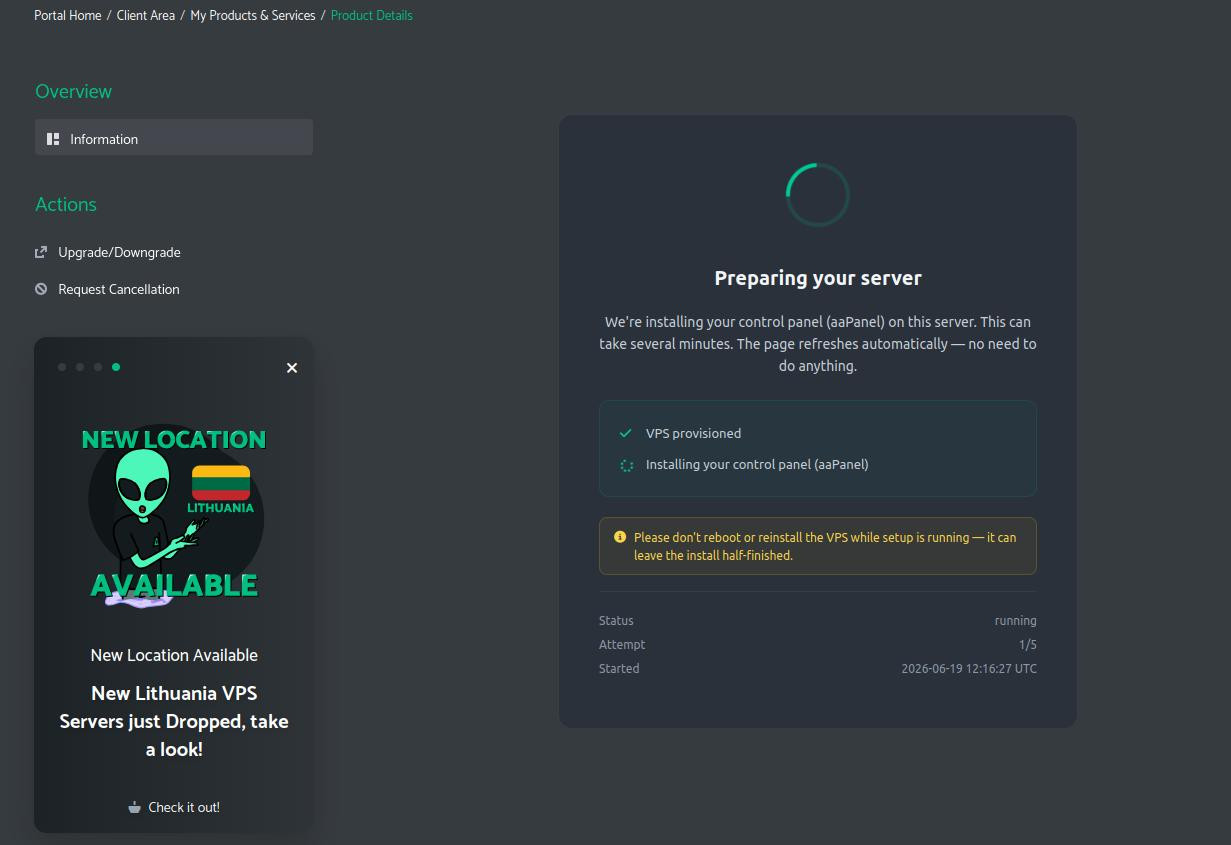
When the installation is done, the page updates with your panel credentials.
Step 3 — Log into aaPanel
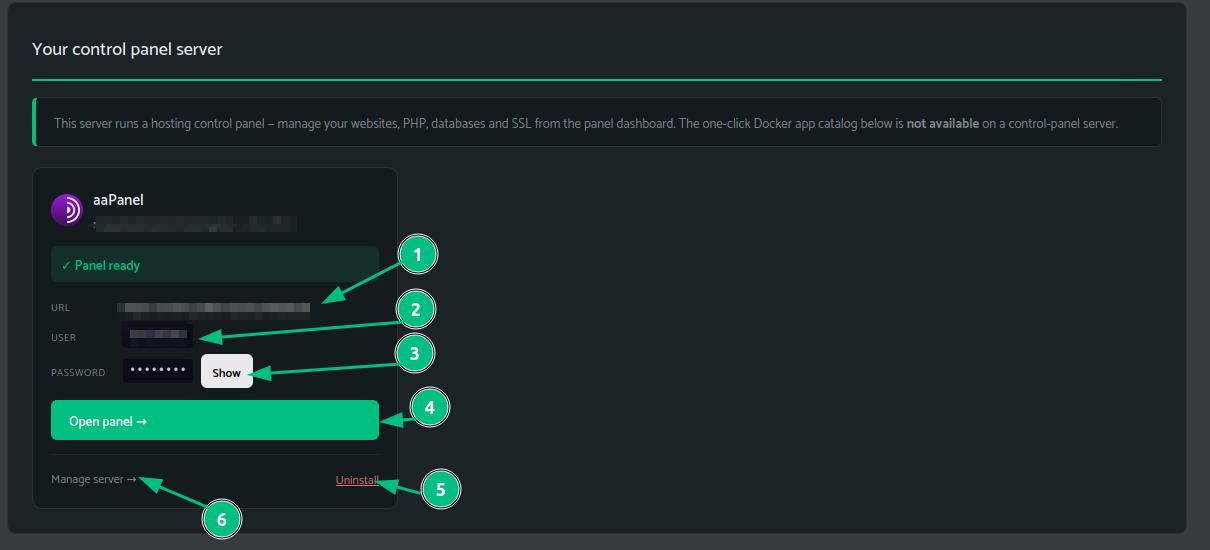
Your My Apps card (or the Product Details page) shows the panel URL, username, and a click-to-reveal password. Click Open panel.
You are now inside aaPanel. The dashboard shows live CPU, RAM, disk, and network stats. In the Software section you will already see Tor Manager and Onion Guard installed and ready.
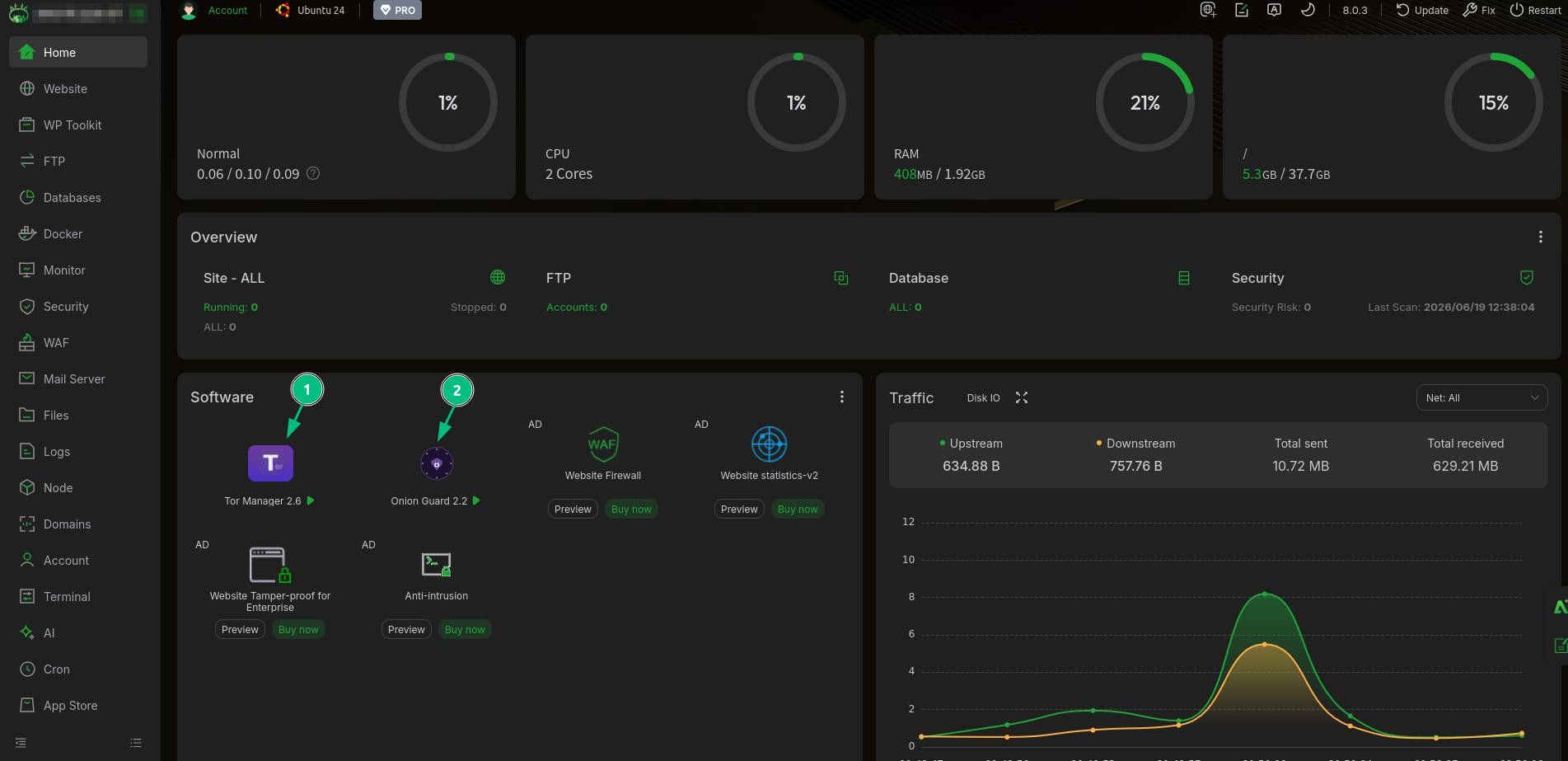
Step 4 — Install the Tor service
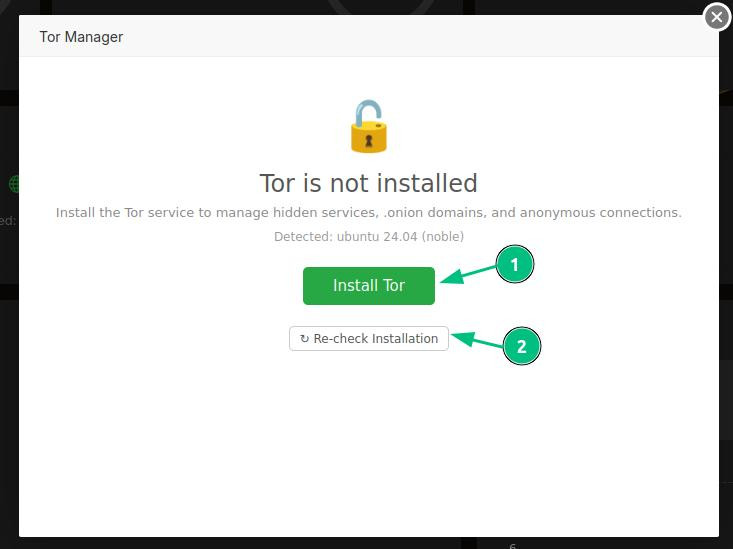
Click Tor Manager in the Software section. If Tor is not yet installed on the system, you will see the install prompt. Click Install Tor.
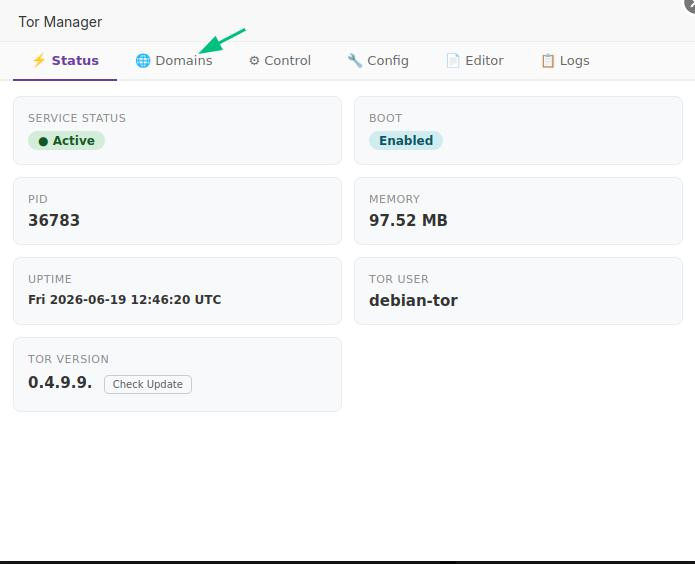
Once installed, Tor Manager shows the service status as Active, the current Tor version, uptime, memory usage, and the system user it runs as.
Step 5 — Install Onion Guard (recommended)
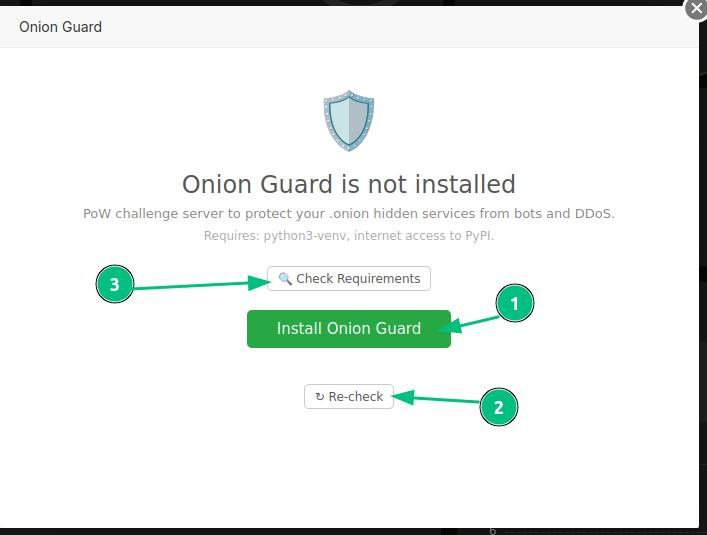
Onion Guard is a Proof-of-Work challenge server that protects your .onion hidden services from bots and DDoS. Click it in the Software section and hit Install Onion Guard.
Step 6 — Install Nginx and PHP
If you want to serve web content over your .onion address, go to App Store in aaPanel and do a quick install of Nginx and PHP. Pick your versions and click Quick install.
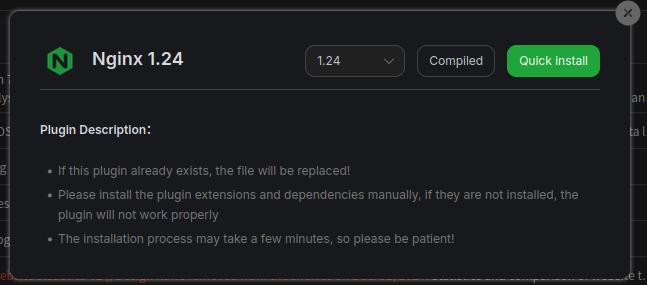
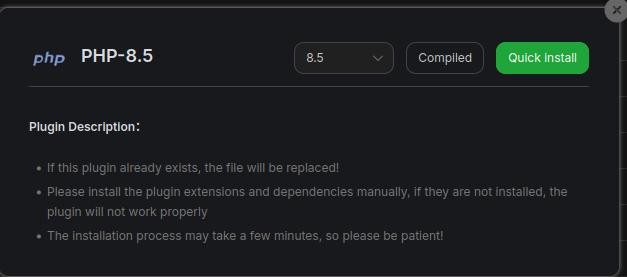
Your Software section will now show both Tor Manager and Onion Guard active alongside your web stack.
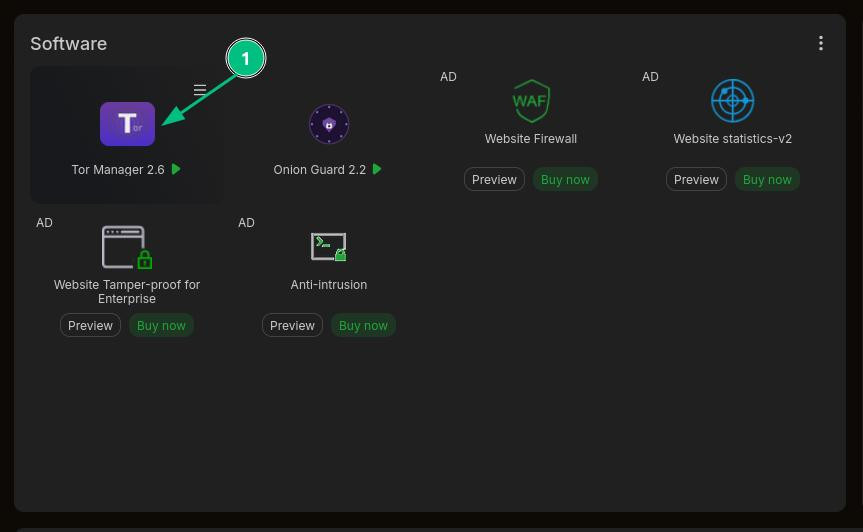
Step 7 — Create your .onion address
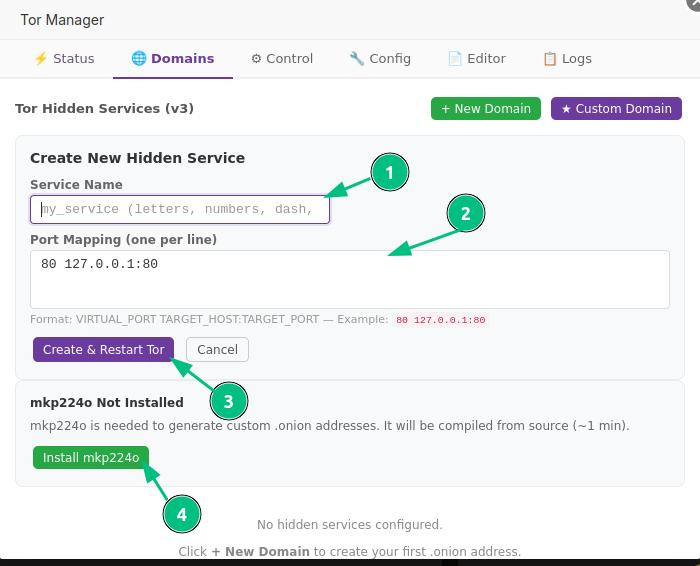
In Tor Manager, switch to the Domains tab. Click + New Domain.
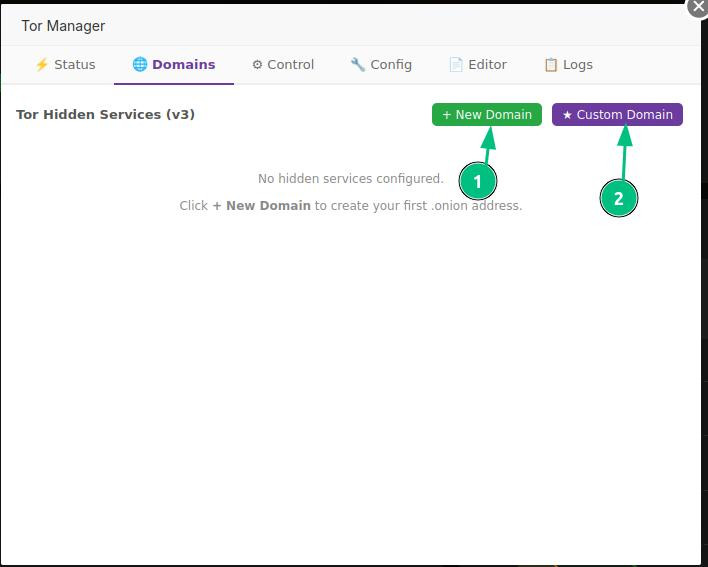
Give your hidden service a name and set the port mapping. The standard format is 80 127.0.0.1:80 to route .onion port 80 to your local web server. Click Create & Restart Tor.
If you want a custom vanity .onion address (one that starts with specific characters), install mkp224o from the same screen — it compiles from source in about a minute.
Your .onion address is generated and shown as Active. Copy it with the Copy button.
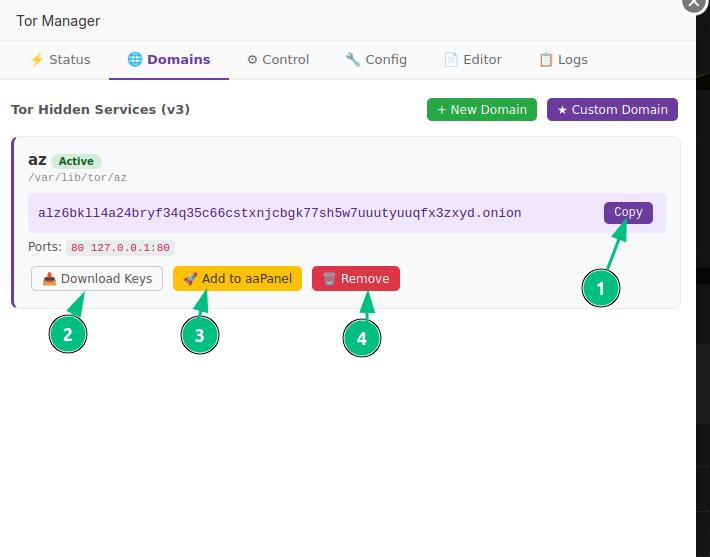
Step 8 — Add the .onion site to aaPanel
Click Add to aaPanel on your hidden service card. This creates a static website entry in aaPanel pointing to your .onion address, so you can manage it like any other site.
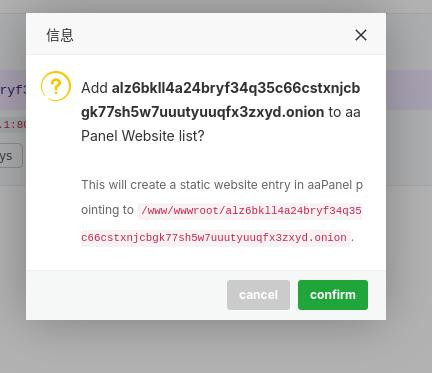
The site appears in your Website list as a Tor Hidden Service with Static type and Perpetual expiration.

This is just the start
Tor Hosting is one of many things you can run on an Impreza VPS. The same server that hosts your .onion site can also run the Impreza Agent — giving you one-click installs from the app catalog (WordPress, Nextcloud, n8n, Vaultwarden, and 20+ more), automatic HTTPS, and full AI-driven deployment via Claude Code and the Impreza MCP.
You are not choosing between Tor hosting and everything else. You are getting a full Linux box that can do all of it.