This guide covers what actually runs on an Impreza server and how to use it — no AI, no CLI, just the web UI. If you bought a VPS with the agent pre-installed, or you just finished installing the agent manually, this is your starting point.
Two server personalities
When you spin up an Impreza server, it runs in one of two modes. Pick one at checkout — they do not mix.
Agent mode — A small daemon runs on the box, apps run in Docker containers, and you manage everything from the My Apps web UI (or the CLI, API, or an AI). This is what this guide covers.
Panel mode — A classic hosting control panel (aaPanel, CyberPanel, CloudPanel, or cPanel/WHM) takes over the whole machine. No agent, no Docker catalog. You manage sites, mail, DNS, and SSL from the panel's own dashboard. More on this at the end of the guide.
Getting a server with the agent
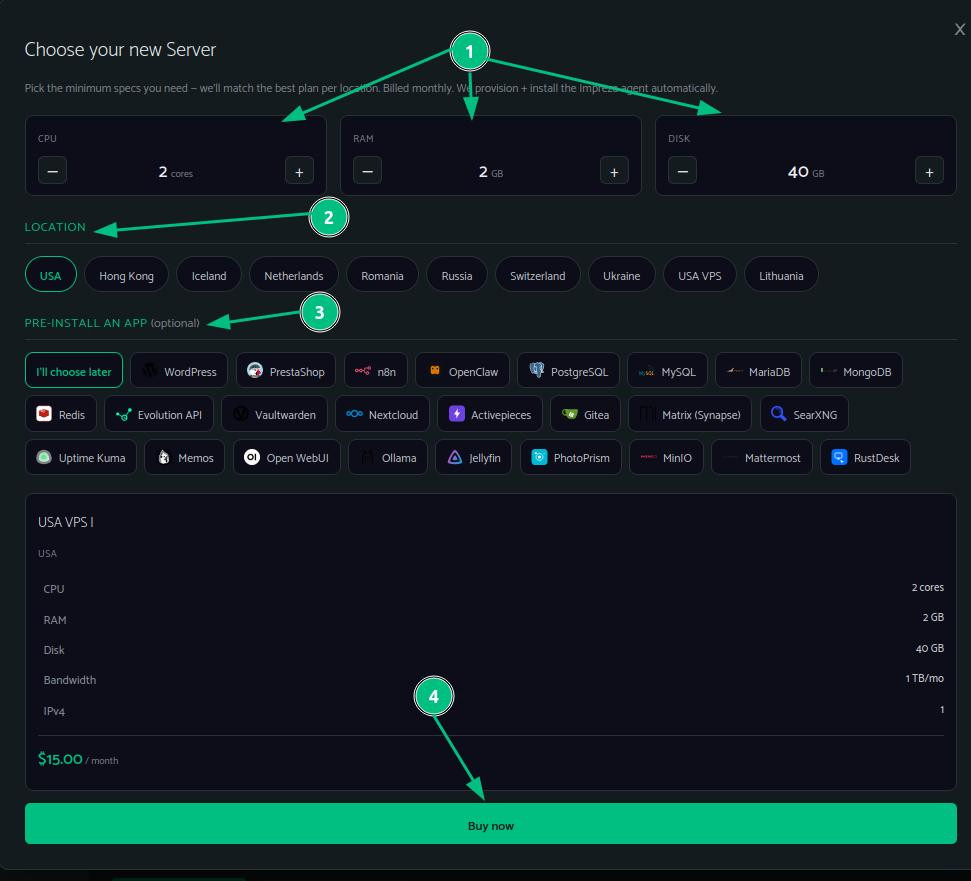
When buying a new VPS, configure your CPU, RAM, and disk, pick a location, and optionally select an app to pre-install. The agent is provisioned automatically — it will be running by the time your server is ready.
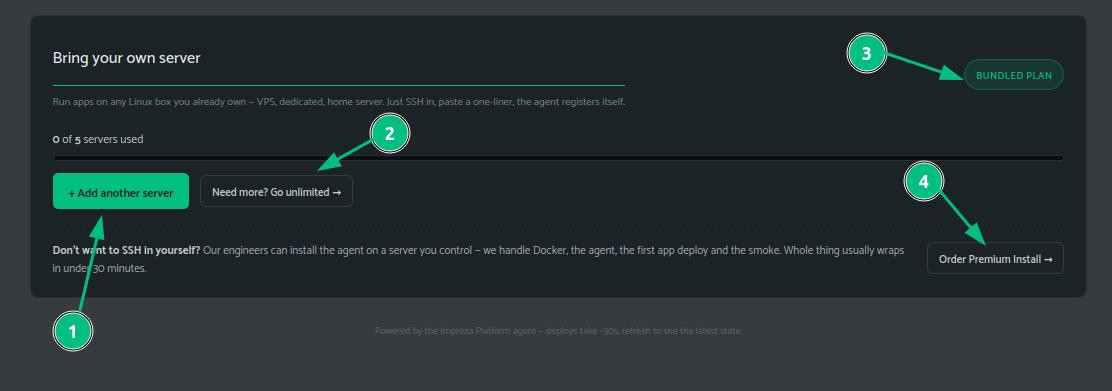
If you already have a Linux server and want to bring it to Impreza, use the Bring your own server option. You can add up to 5 servers on the bundled plan, or go unlimited. If you would rather not SSH in yourself, the Premium Install option has Impreza's team handle the whole setup for $39.
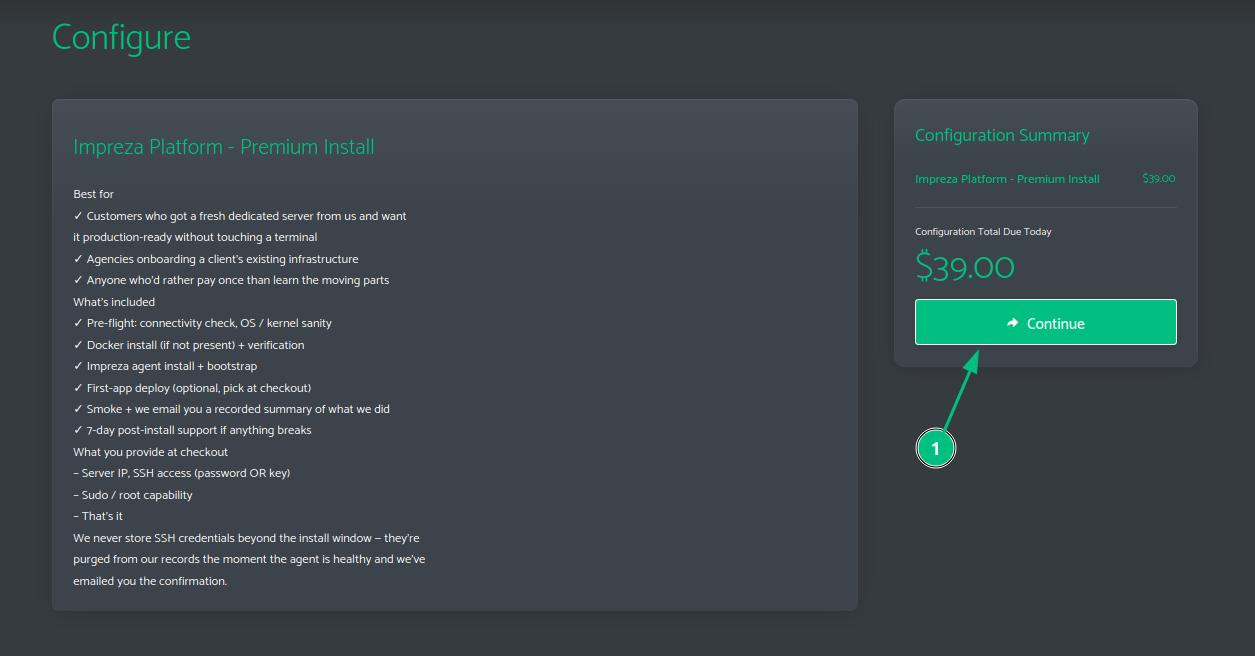
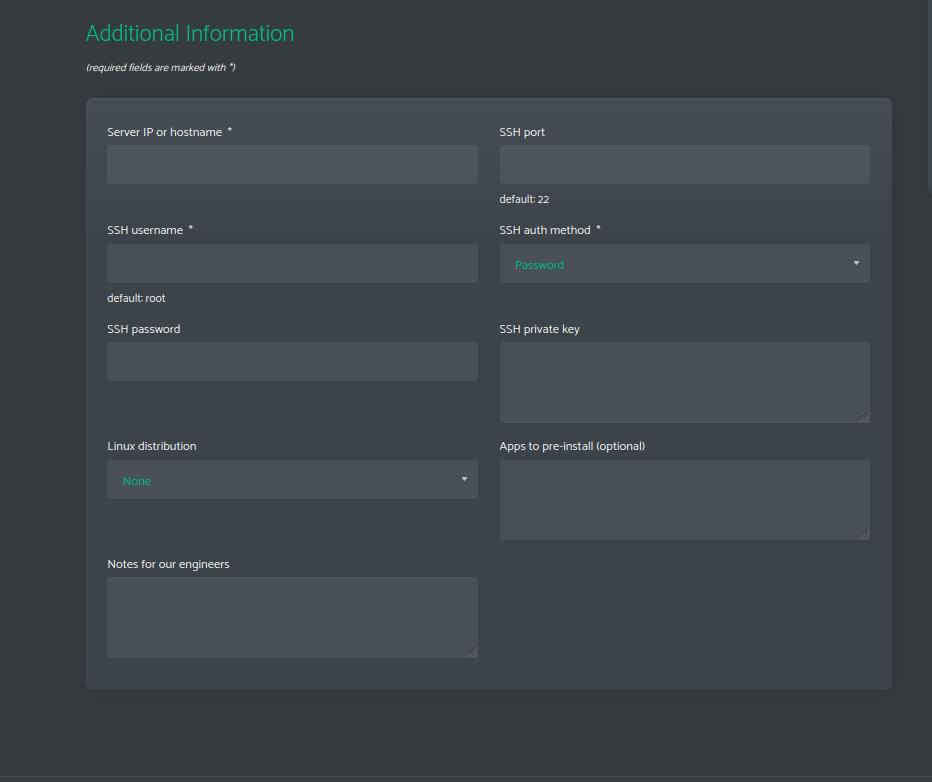
The Premium Install covers the pre-flight check, Docker install, agent bootstrap, an optional first app deploy, and 7-day post-install support. You provide the server IP and SSH credentials at checkout — they are purged from Impreza's records the moment the agent is confirmed healthy.
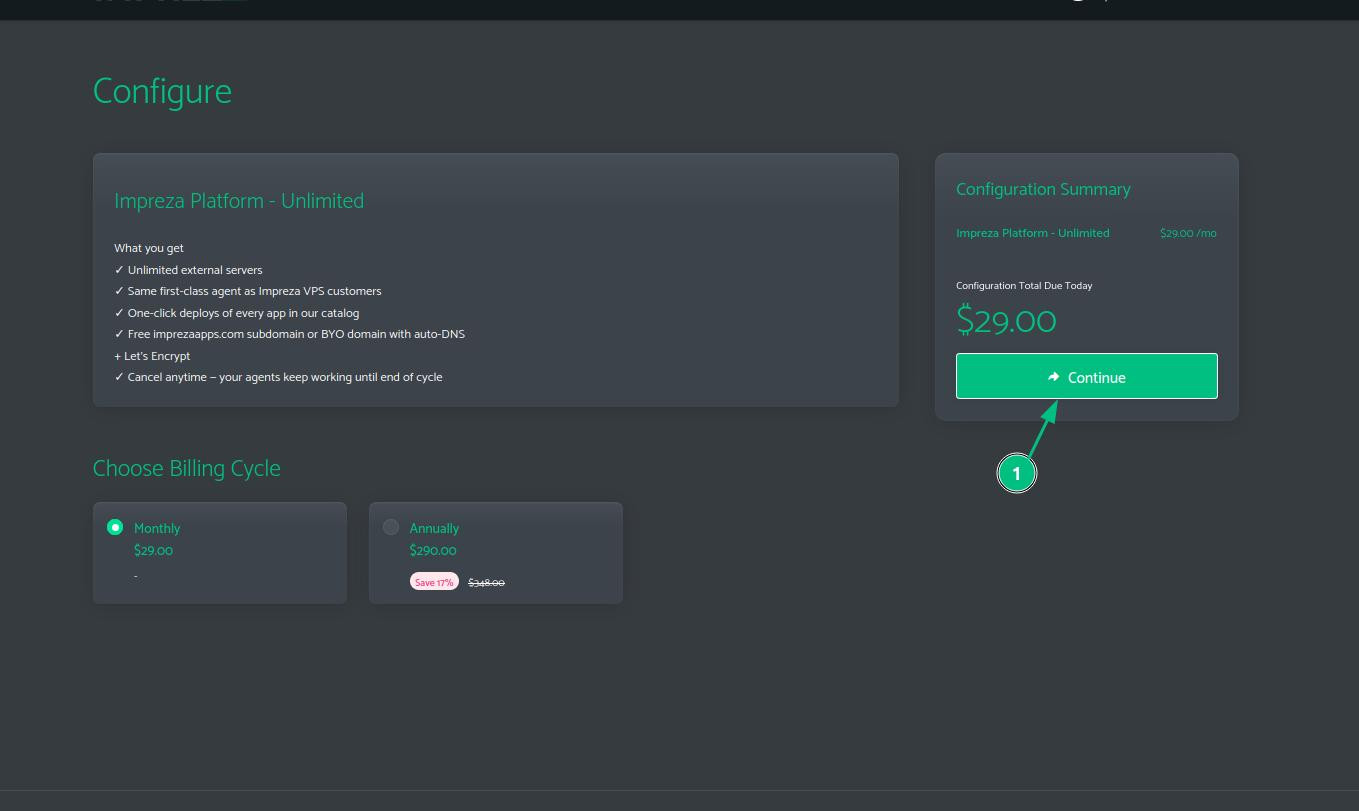
For the unlimited external servers plan, billing is $29/month or $290/year.
Installing the agent manually
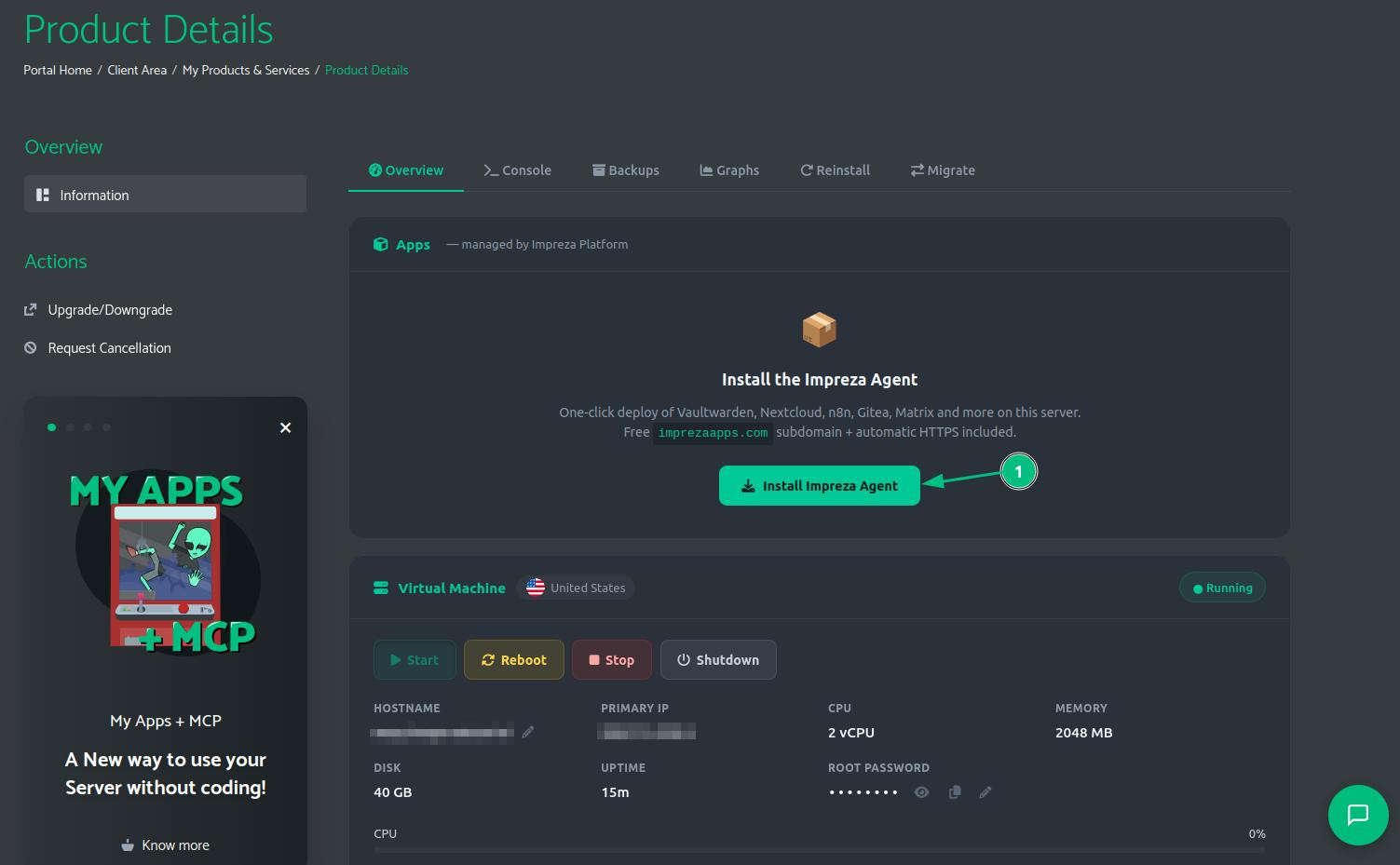
If your server exists on your account but does not have an agent yet, go to its Product Details page and click Install Impreza Agent.
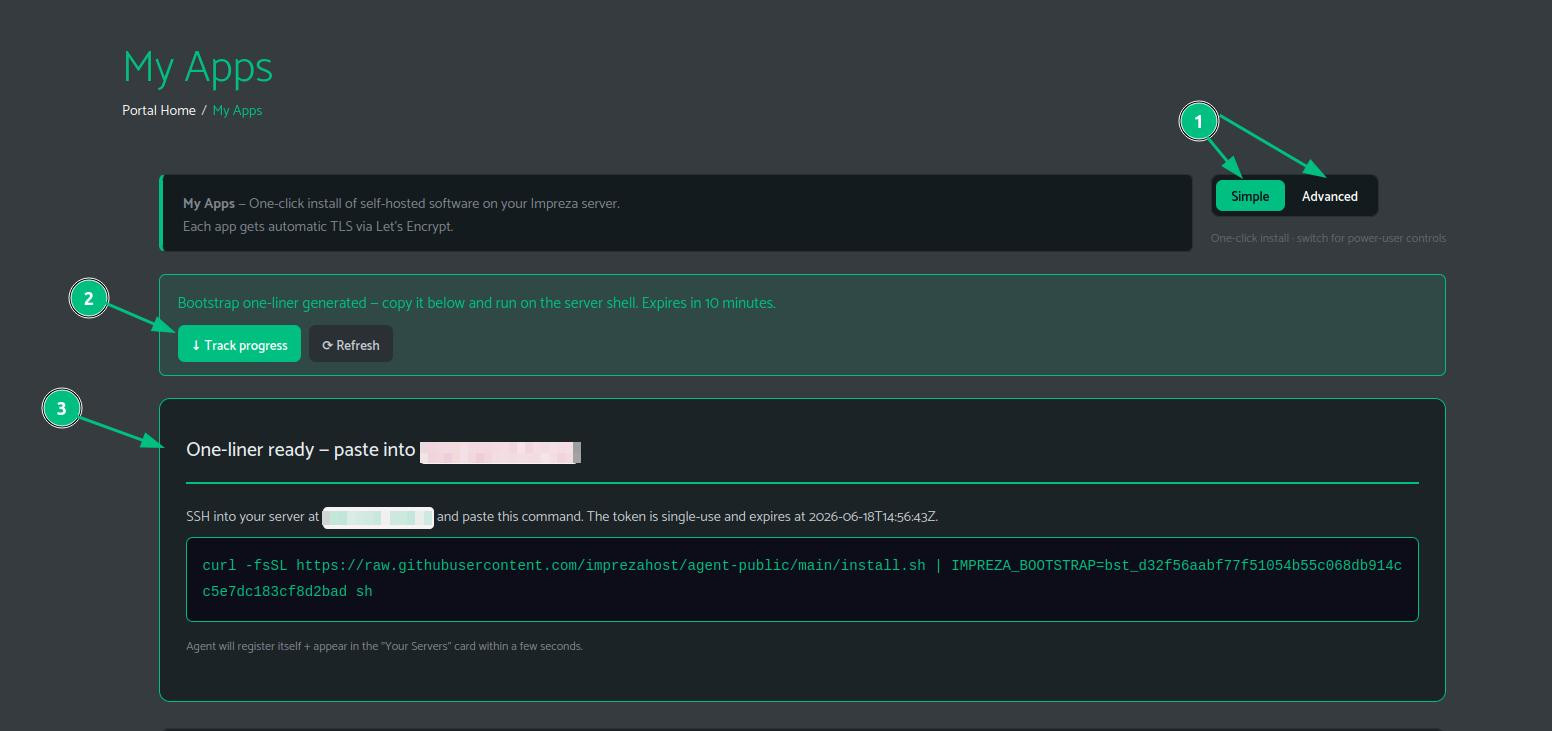
My Apps generates a bootstrap one-liner with a token that expires in 10 minutes. Copy it immediately.
SSH into the server as root and paste the command.
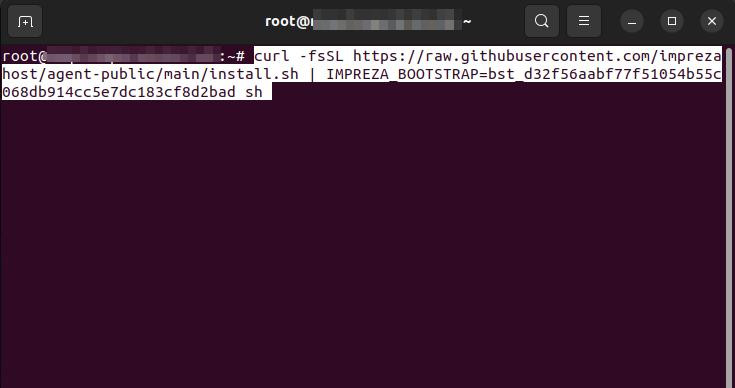
The script installs Docker if missing, drops the agent binary, and starts the service. Your server shows up as Ready to Deploy within seconds.
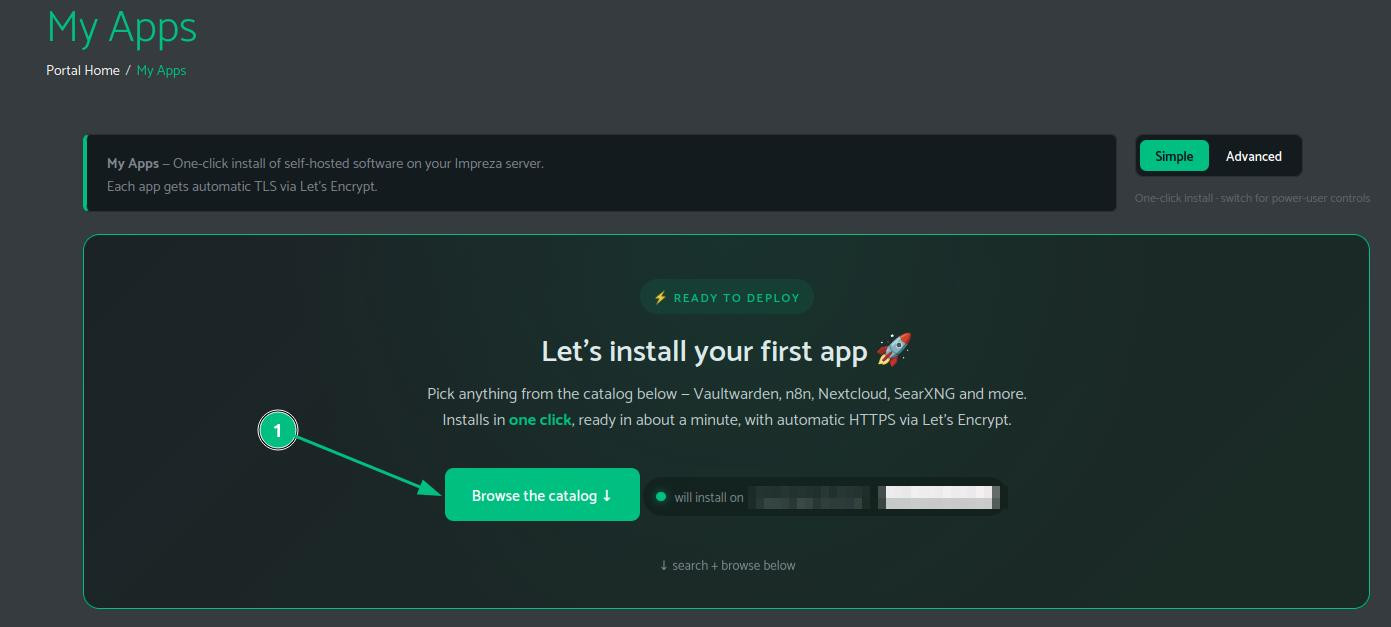
Installing an app from the catalog
Once the agent is online, click Browse the catalog to see everything available.
The marketplace has 25+ apps including WordPress, PrestaShop, n8n, Nextcloud, Vaultwarden, Gitea, Matrix, Jellyfin, managed databases, and more. Use the search bar to filter by name or category. Click + Buy a new Server if you want a fresh box for a specific app.
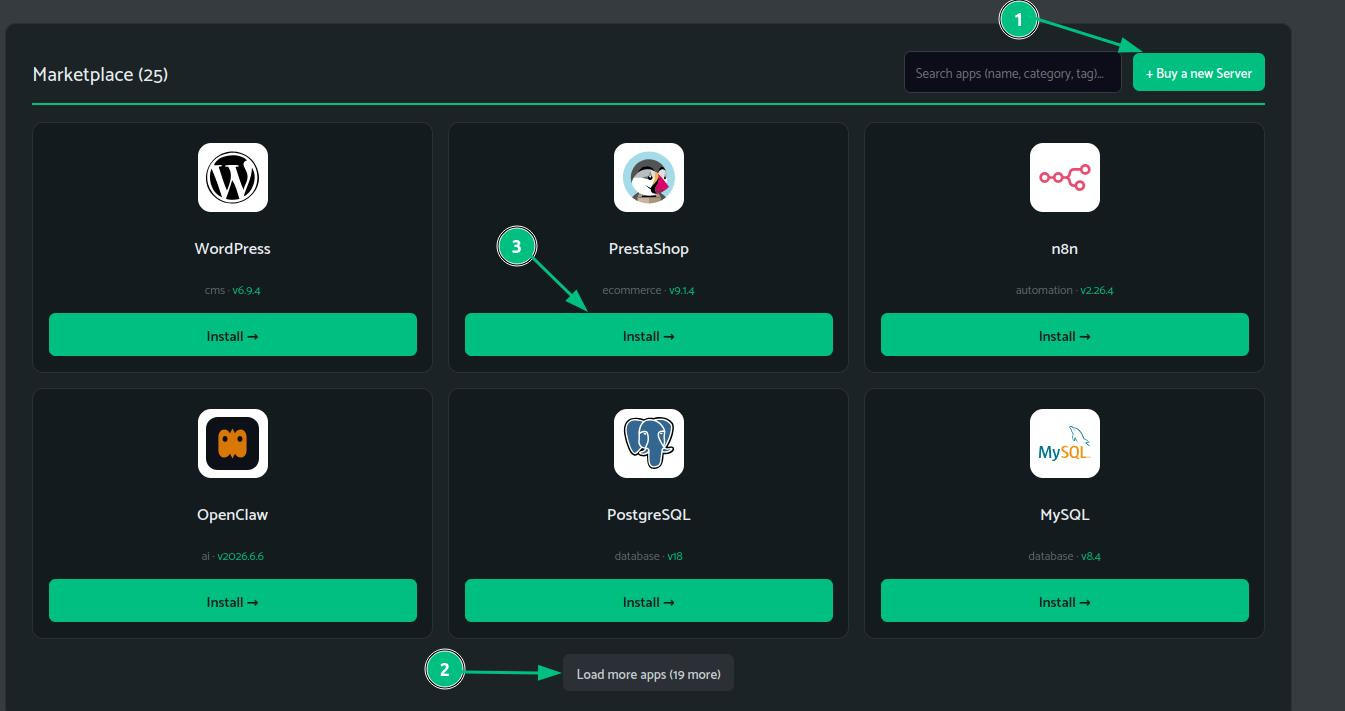
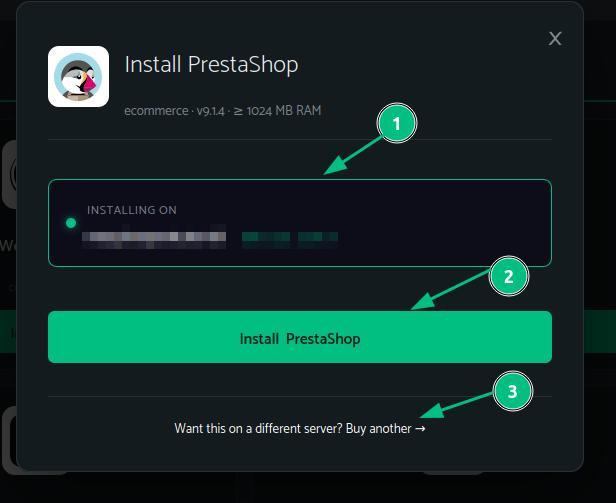
Click Install on any app. A modal shows you which server it will install on. Confirm and click Install [App name].
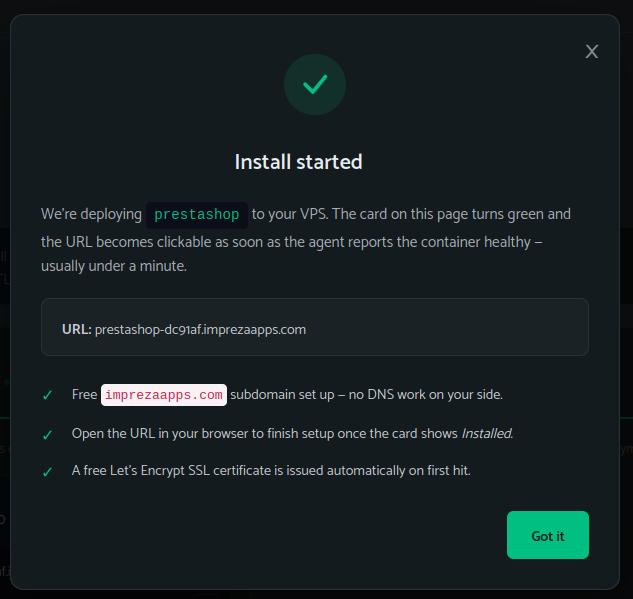
An install confirmation appears with the URL that will be live once the container is healthy — usually under a minute. You get a free *.imprezaapps.com subdomain automatically, no DNS work required. A Let's Encrypt certificate is issued on first hit.
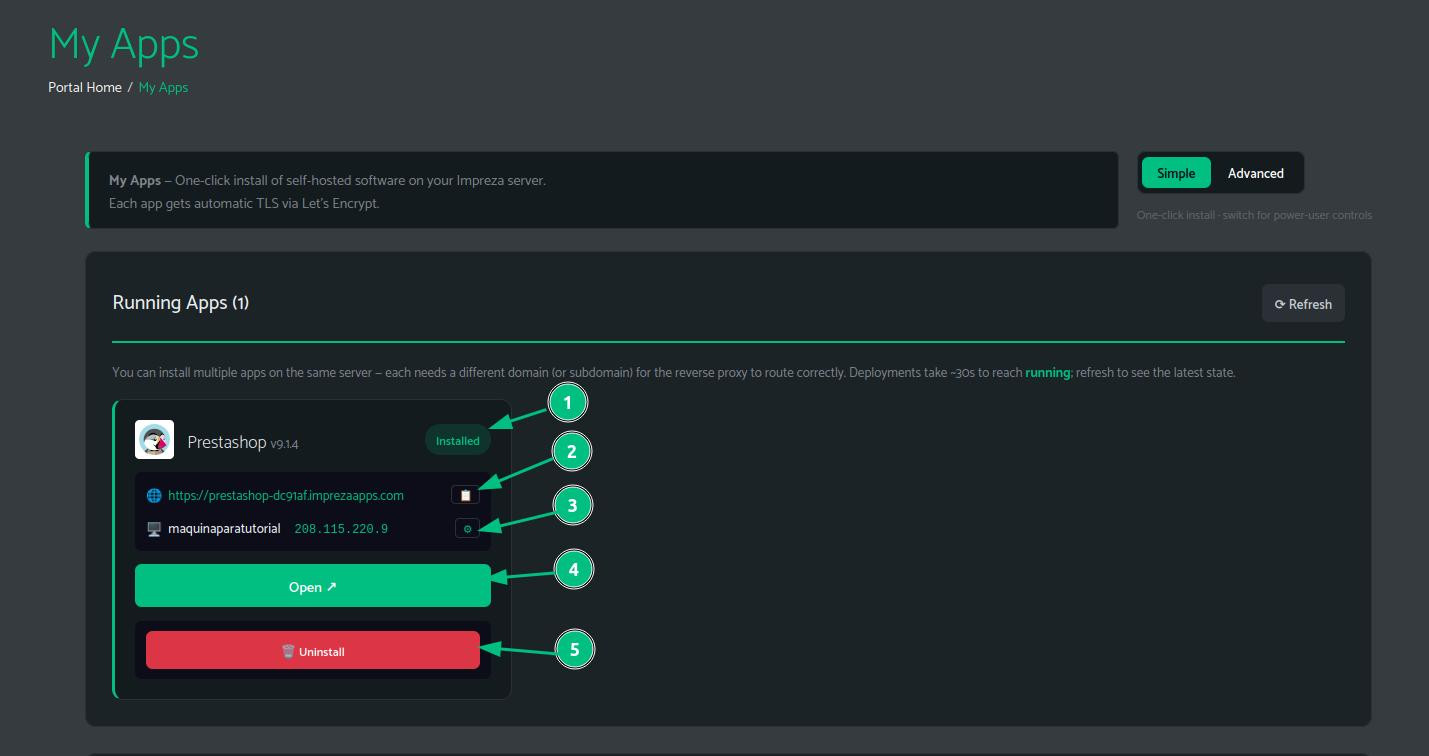
Back in My Apps, the app card turns green and shows Installed. Click Open to go straight to it.
The Advanced view
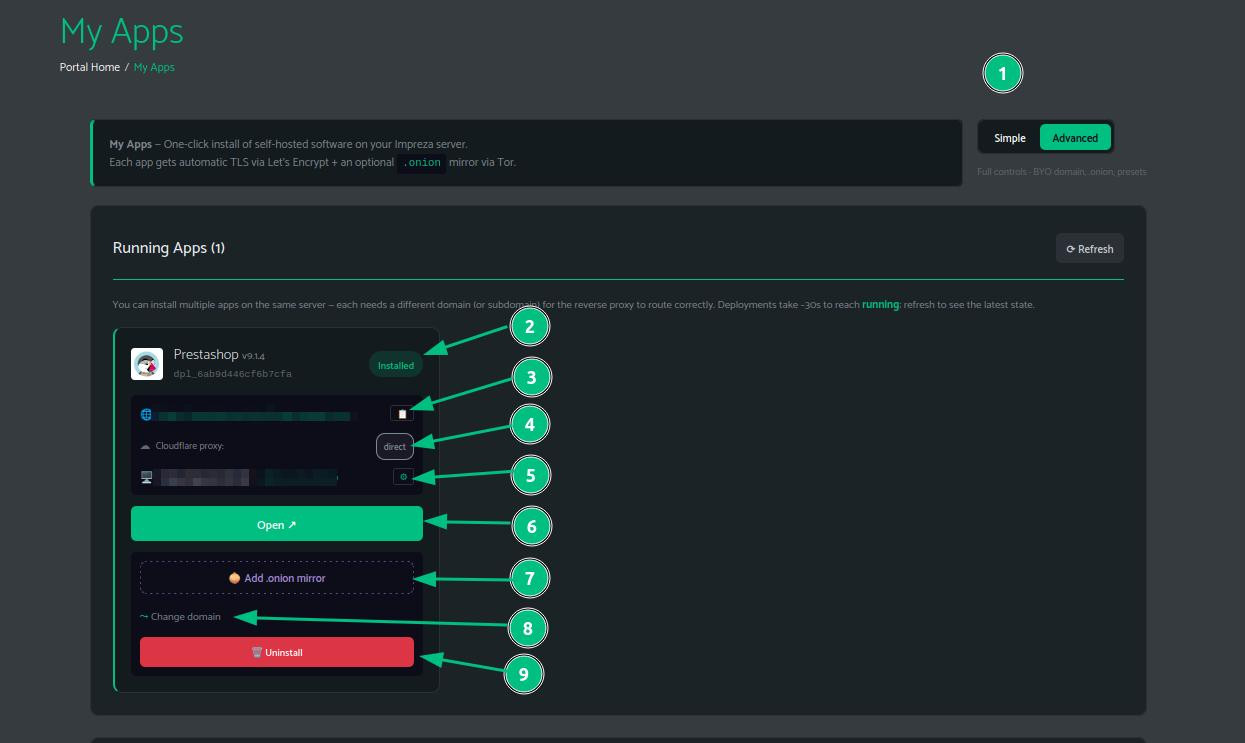
Switch to Advanced mode in the top right of My Apps for more controls. Each app card now shows the deployment ID, Cloudflare proxy status, server details, and extra actions.
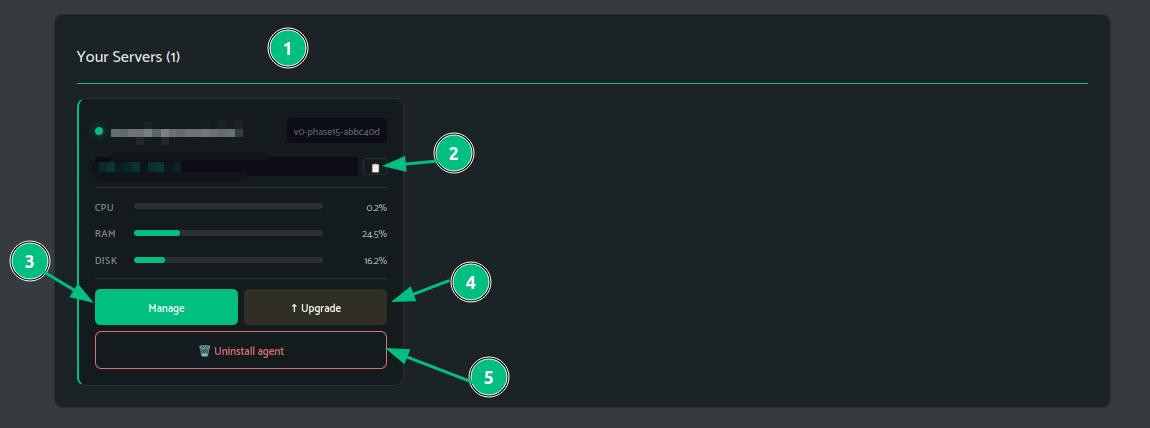
The Your Servers section shows live CPU, RAM, and disk usage for each connected agent. From here you can manage the agent, upgrade the server plan, or uninstall the agent entirely.
Deploying a custom Docker app
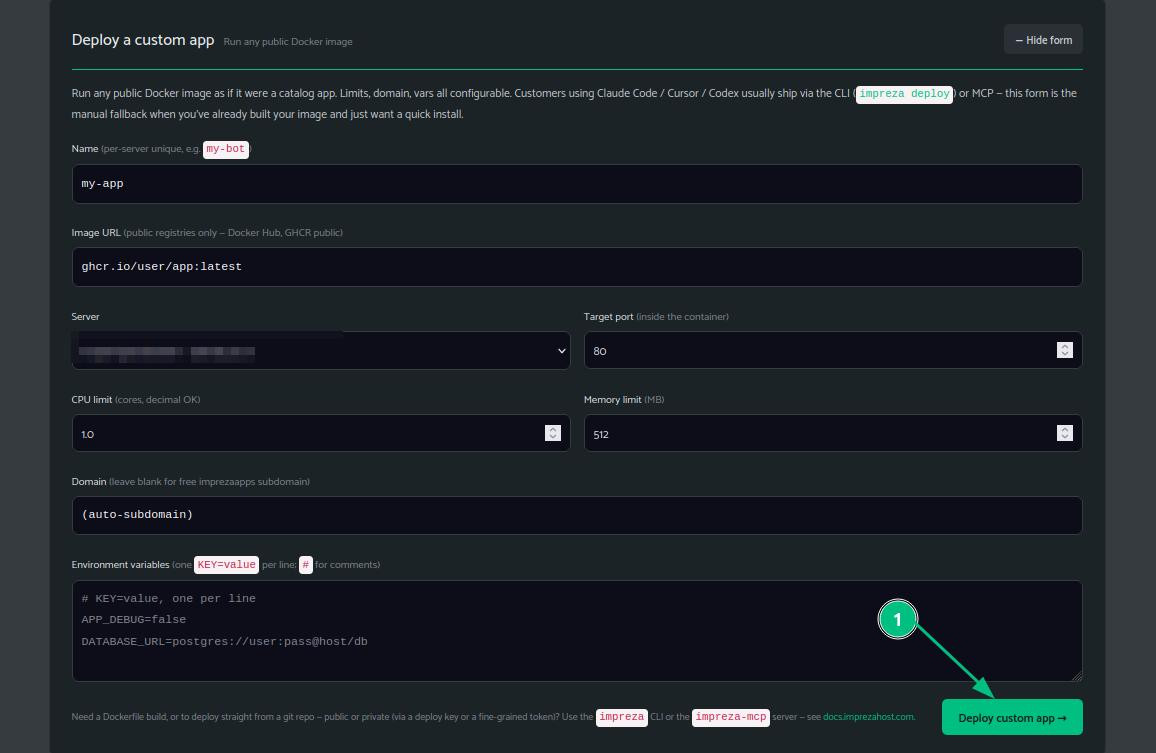
If you have your own Docker image, use Deploy a custom app in the Advanced view. Click + Show form.

Fill in the app name, image URL, server, target port, CPU and memory limits, domain, and any environment variables. Leave the domain blank for an auto-generated subdomain. Click Deploy custom app.
Servers without an agent
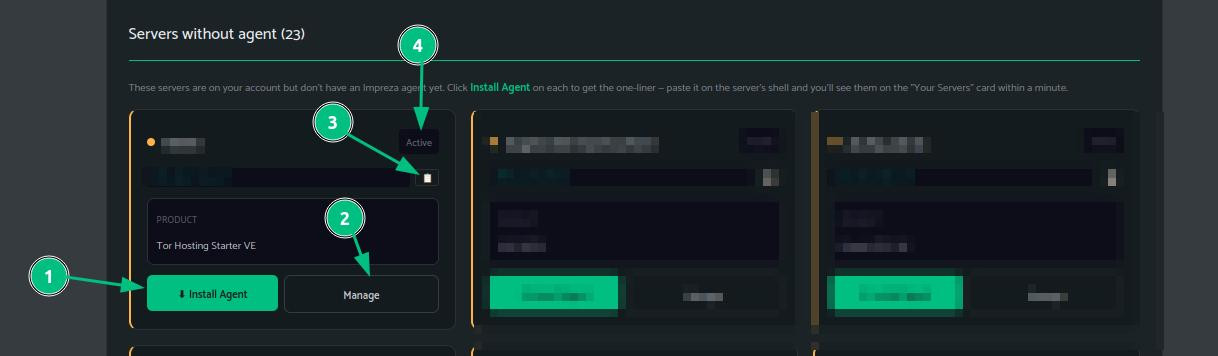
The Advanced view also shows all servers on your account that do not have an agent yet. Click Install Agent on any card to get the bootstrap one-liner for that server.
The panel route
If Docker is not what you need and you want a classic hosting panel, pick one at checkout. The panel installs automatically and the My Apps card shows you the login URL, username, and a click-to-reveal password when it is ready.
Available options, all auto-provisioned:
- aaPanel — free, lightweight, optional one-click nginx + PHP 8.4 + MariaDB stack
- CyberPanel — free, OpenLiteSpeed-based, LSCache and one-click WordPress
- CloudPanel — free, modern nginx for PHP, Node, and Python sites
- cPanel/WHM — license not included; installs unlicensed, start the 15-day trial or apply your own IP-bound license
Each panel only runs on certain operating systems. The cart checks this before you buy, and there is a second check at boot — if the OS is unsupported you get a clear message to reinstall, not a broken stack.
Note: there is no API, CLI, or MCP endpoint to provision a panel. Panels are a checkout and client area thing only. If you want both agent mode and a panel, you need two servers.