This guide walks you through connecting Claude Code to your Impreza VPS using MCP (Model Context Protocol). Once set up, you can deploy apps, tail logs, install software, and manage your server by just talking to your AI — no terminal switching, no config files, no copy-pasting IDs by hand.
What you need before starting:
- A VPS or dedicated server (Impreza or bring your own Linux box)
- Claude Code | cursor | continue | zed | codex-cli installed on your local machine
- Node.js on your local machine (you already have it if you use
npx)
Step 1 — Install the Impreza Agent on your VPS
The agent is the muscle. It lives on your server, takes orders from the Impreza API, and runs them locally with Docker. Without it, the platform cannot see your server at all.
If you bought a VPS from Impreza and selected "Impreza Agent" at checkout, the agent is already installed — skip to Step 2.
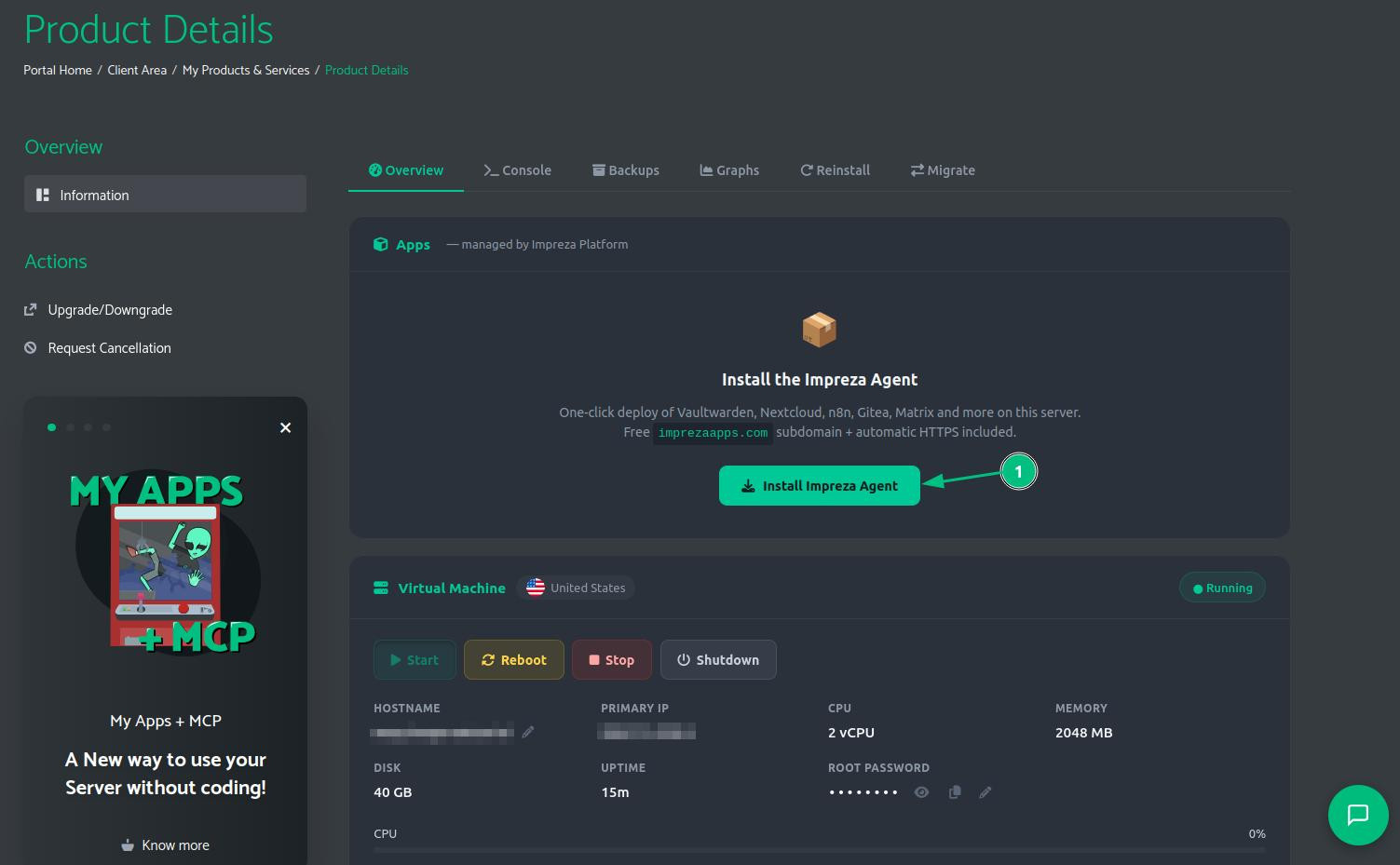
If not, go to your server's Product Details page in the client area and click Install Impreza Agent.
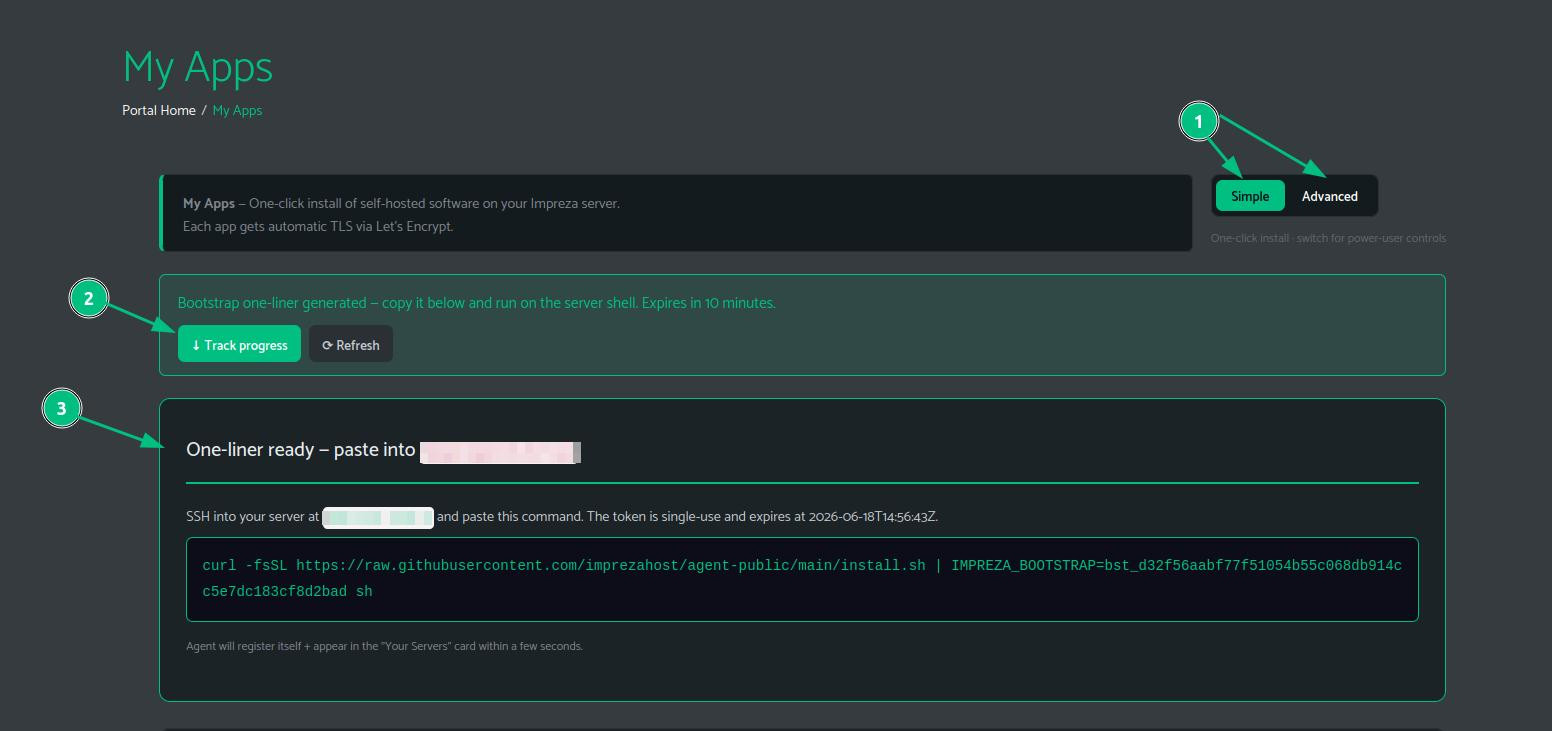
This takes you to My Apps, where a bootstrap one-liner is generated for you. The token is single-use and expires in 10 minutes.
(
SSH into your VPS as root and paste the command into the terminal.
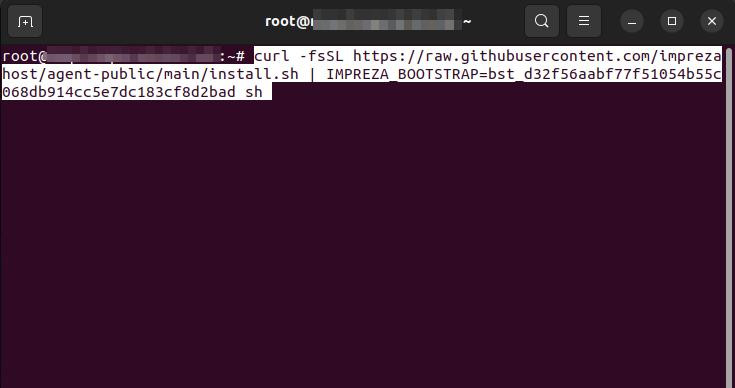
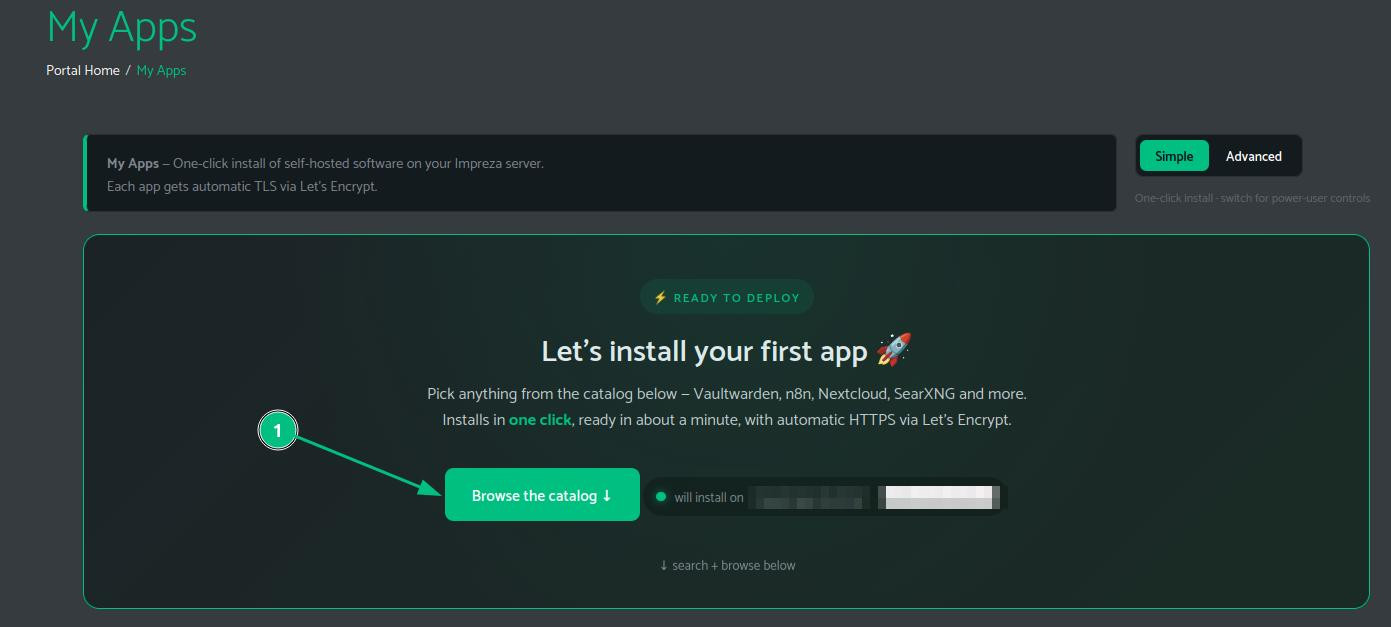
The script installs Docker if missing, drops the agent binary, wires up a systemd service, and starts polling. Within a few seconds your server appears in My Apps as Ready to Deploy.
Step 2 — Create an API Key
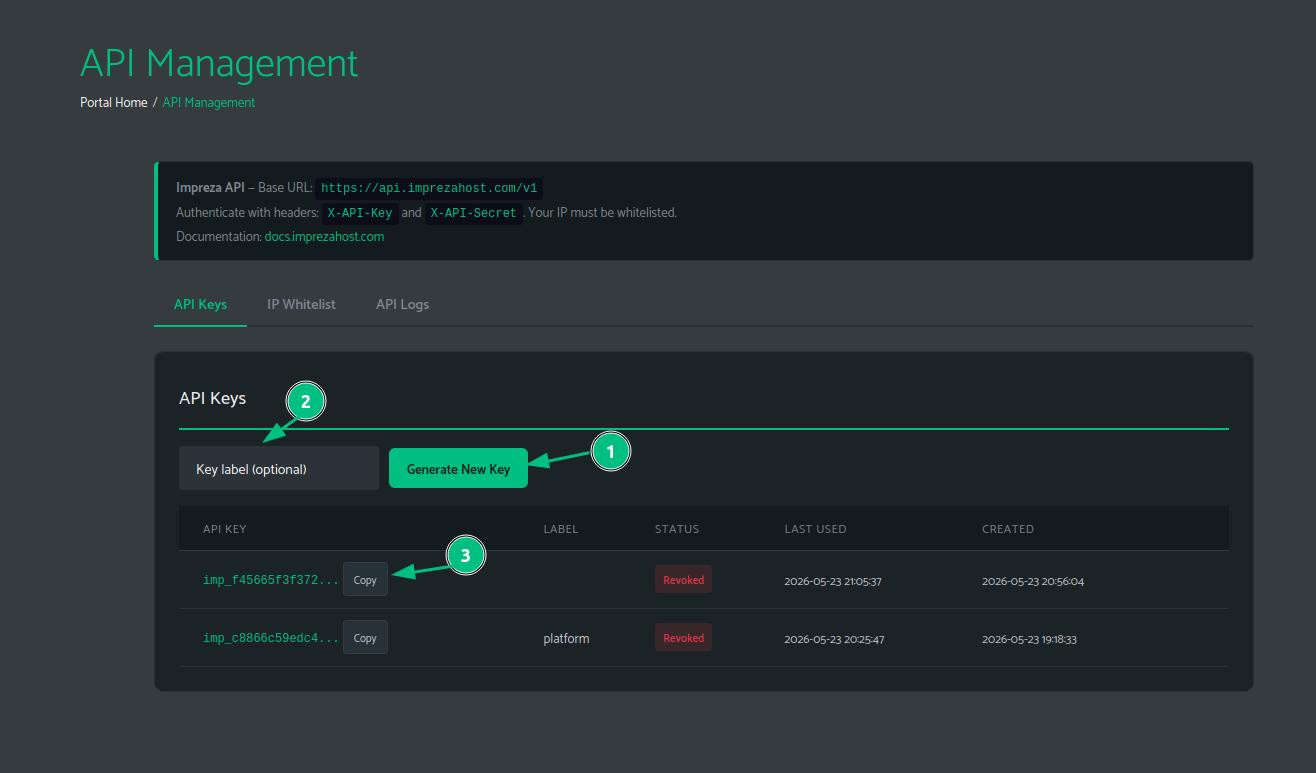
The MCP server on your local machine authenticates to Impreza using an API key and secret. Go to API Management in the portal.
Under the API Keys tab, optionally give your key a label and click Generate New Key.
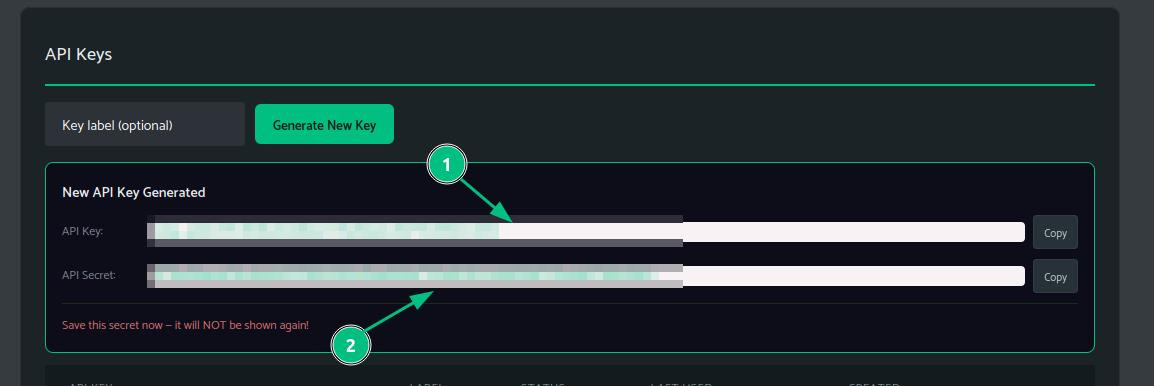
Your key and secret appear immediately. Copy the secret now — it is shown exactly once and cannot be recovered.
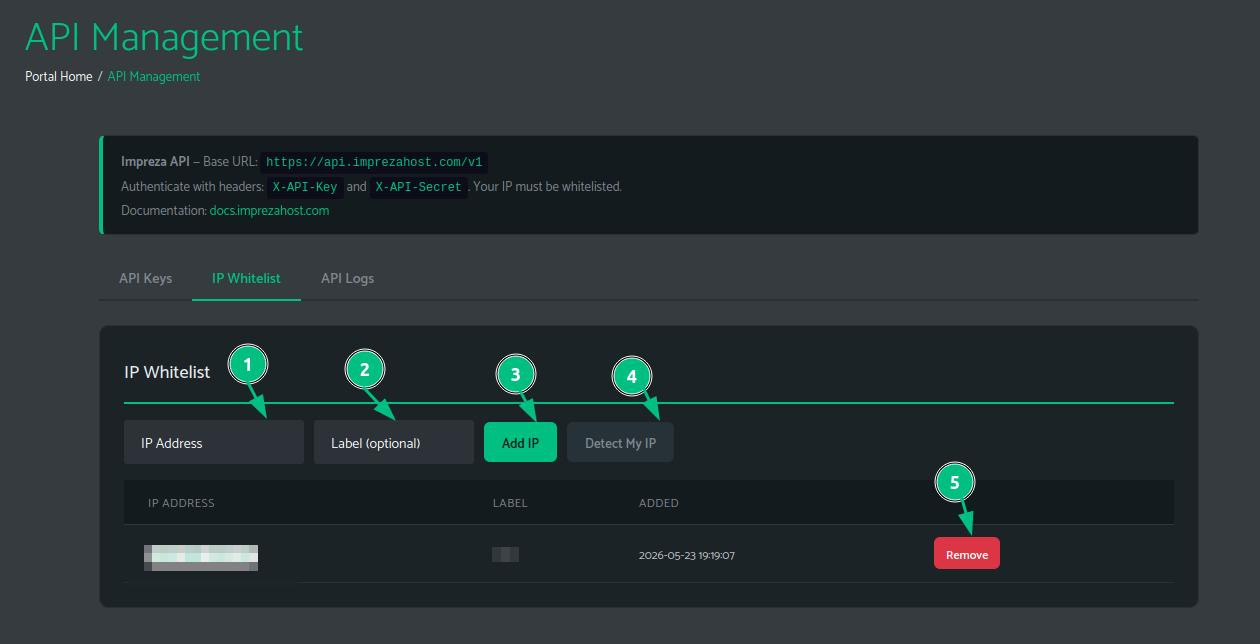
Switch to the IP Whitelist tab. Click Detect My IP to auto-fill your current machine's IP, then click Add IP. The MCP server runs on your local machine, so this is the IP it will call from.
Step 3 — Connect Claude Code to Impreza via MCP
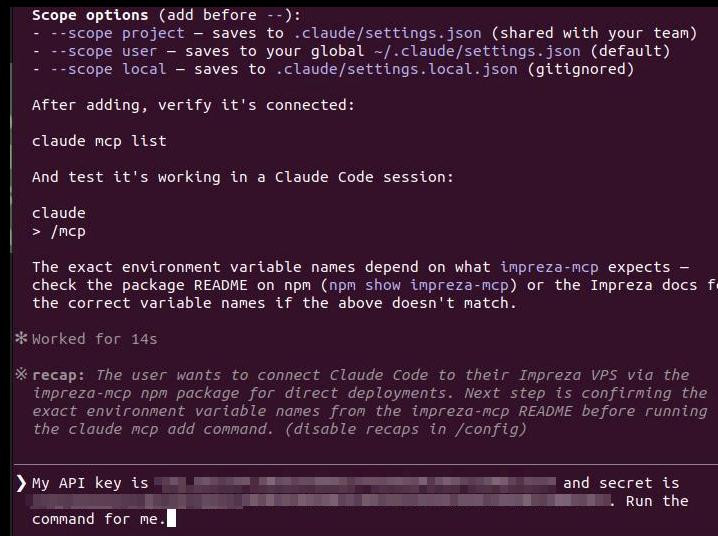
Open Claude Code on your local machine. You do not need to know any commands yet — just tell the AI what you want to do.
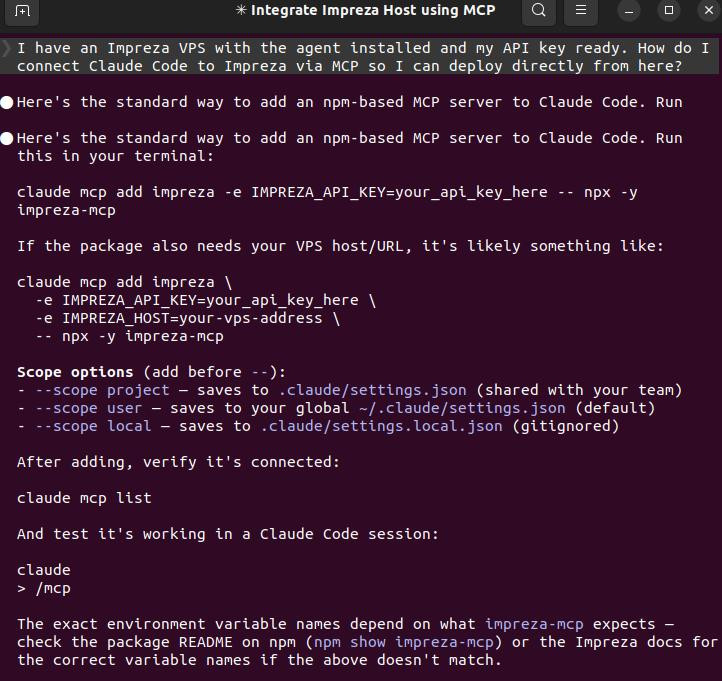
Claude Code looks up the impreza-mcp package, identifies the correct environment variables (IMPREZA_API_KEY and IMPREZA_API_SECRET), and runs the setup command for you automatically.
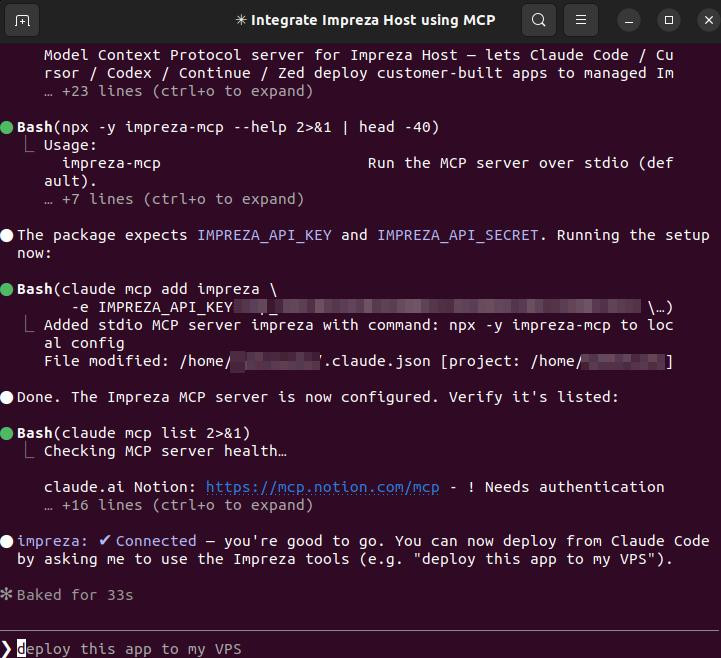
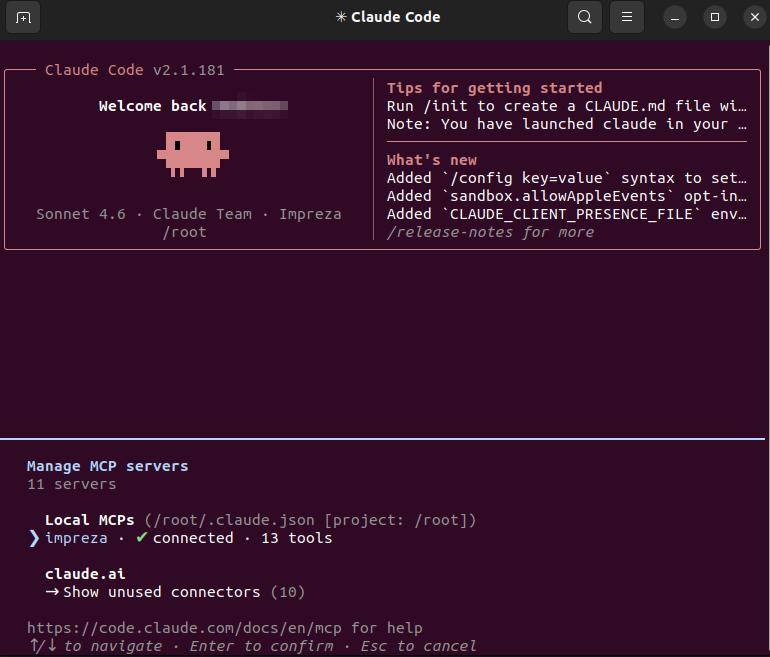
To confirm the connection, type /mcp inside Claude Code. You should see impreza · connected · 13 tools.
Step 4 — List your servers
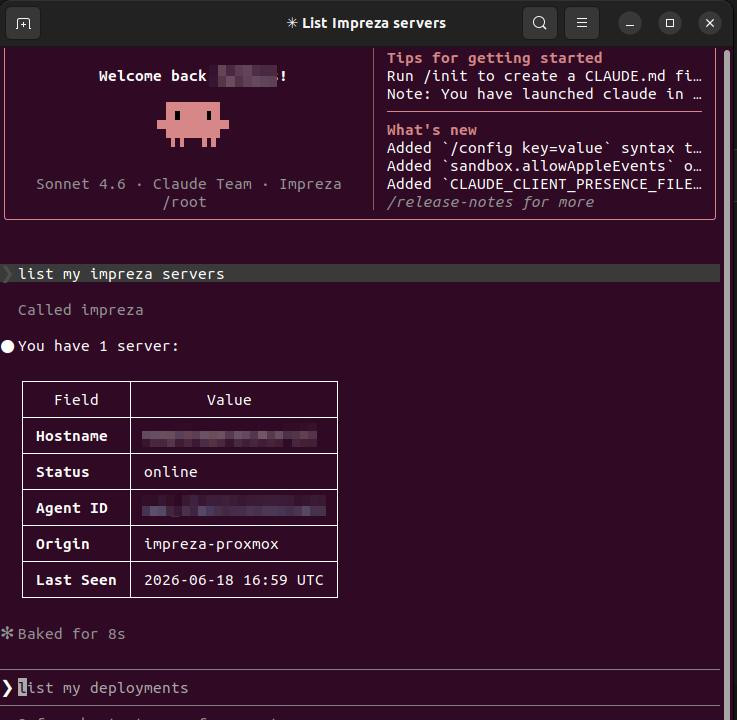
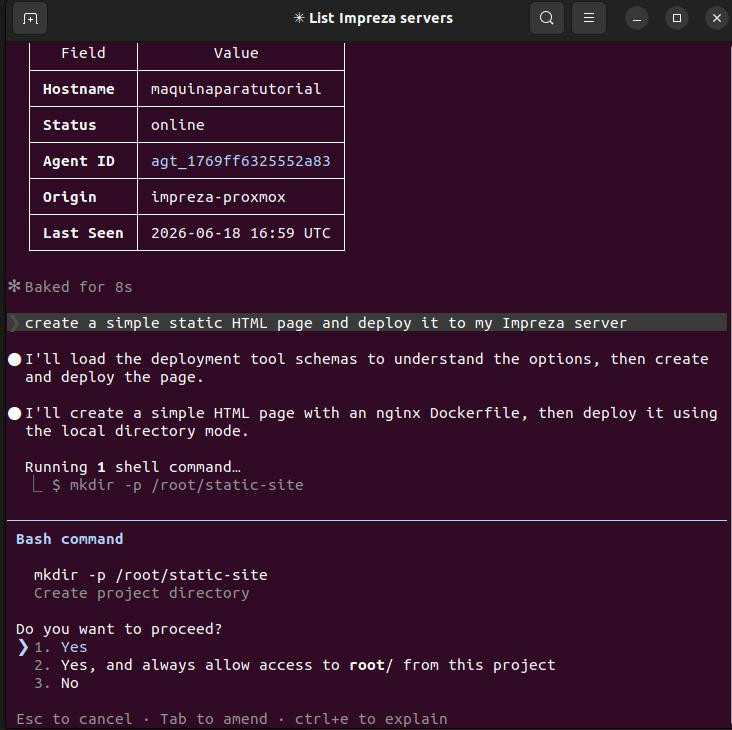
Ask Claude to list your Impreza servers. It will call the MCP tool, find your agent, and return the hostname, status, and agent ID — no copying IDs by hand.
Step 5 — Deploy something
Now the fun part. Ask Claude to create a project and deploy it:
"Create a simple hello world HTML page and deploy it to my Impreza server."
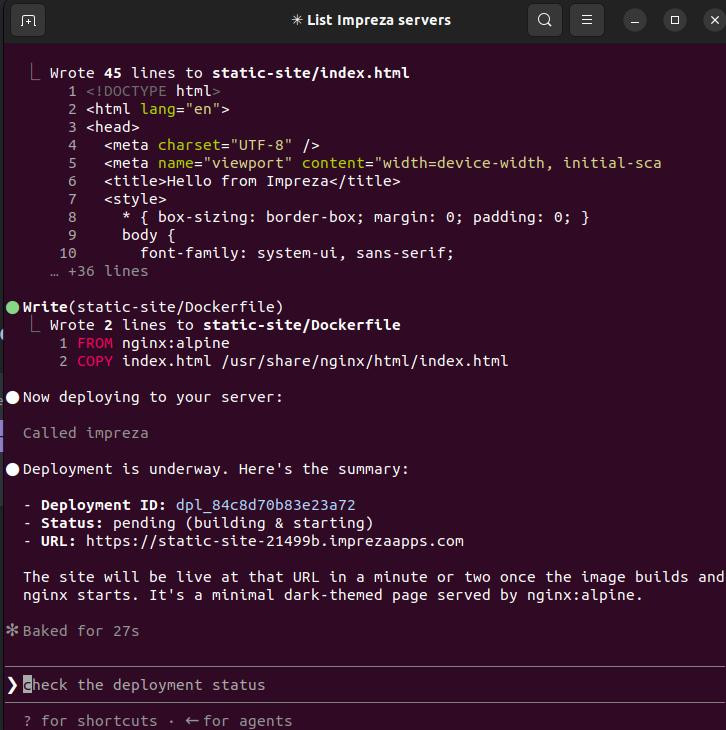
Claude creates the project directory, writes the HTML file, creates a Dockerfile, and asks for your permission before each step.
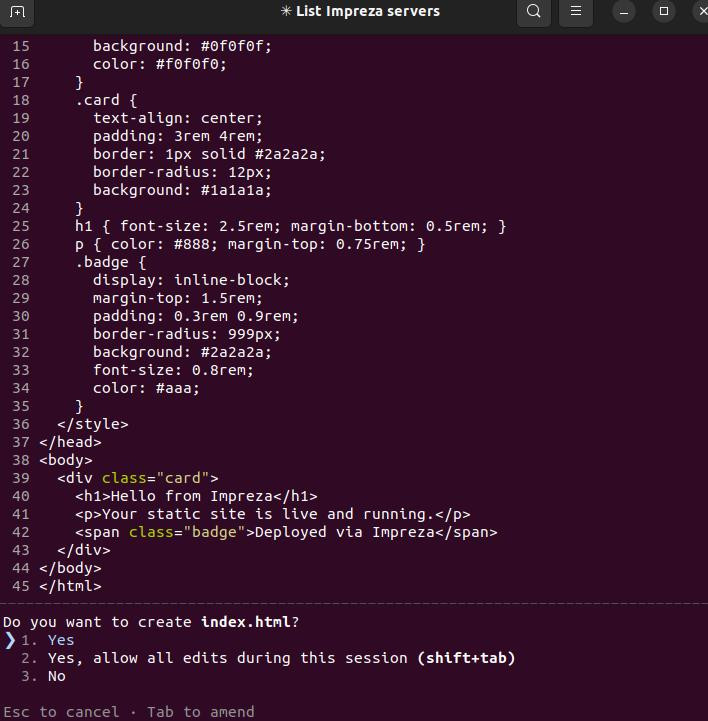
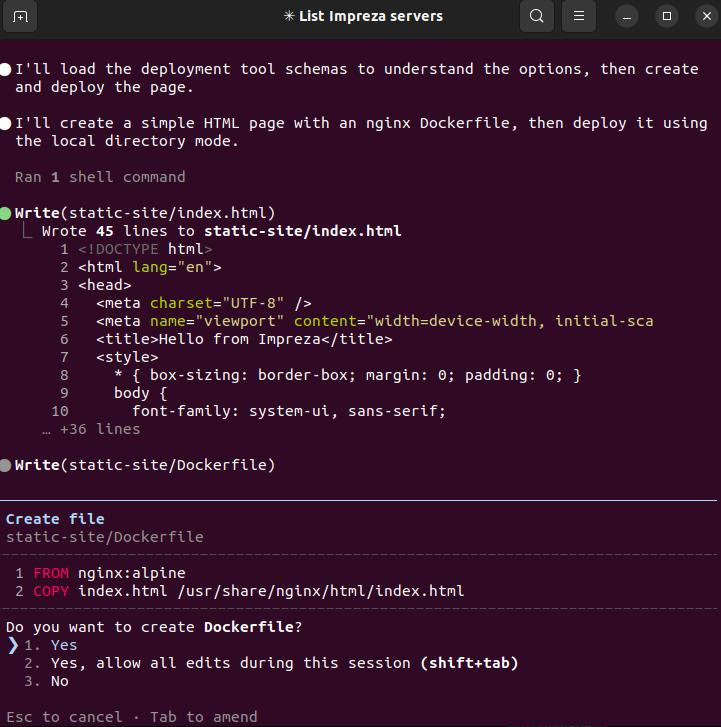
Once the files are ready, Claude calls the impreza_deploy_custom MCP tool, tarballs the directory, uploads it to your server, and starts the build.
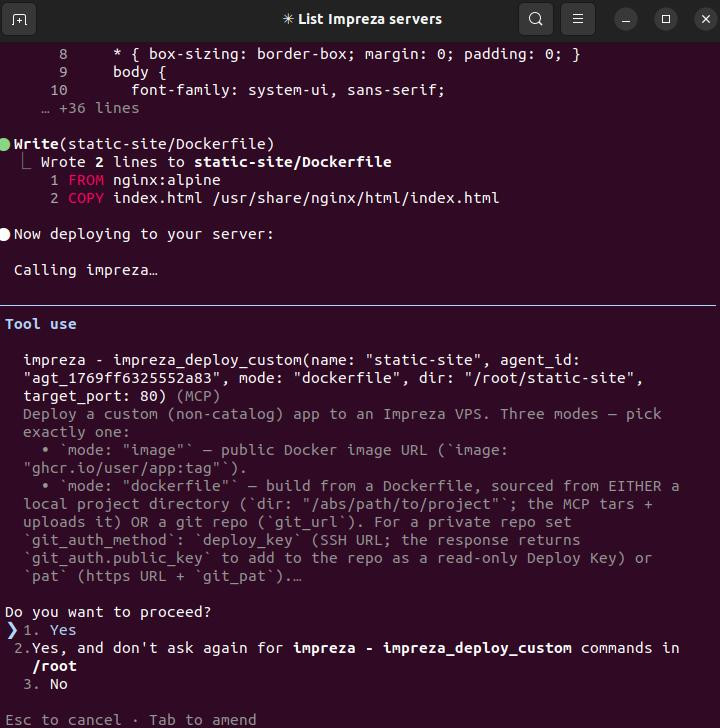
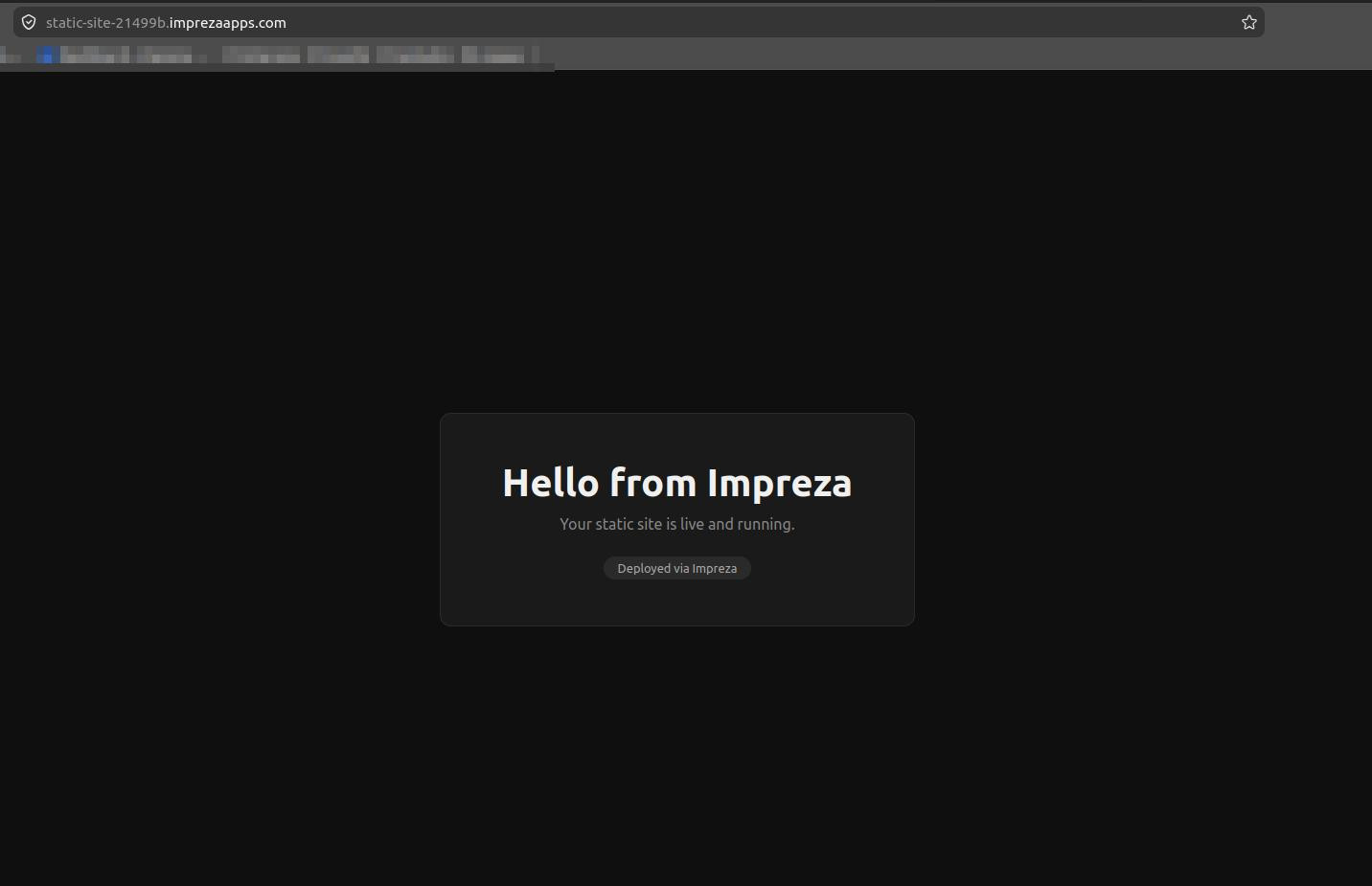
When the deployment is done, Claude hands you the URL — with automatic HTTPS via Let's Encrypt, no DNS setup required.
Open the URL in your browser. Your site is live.
What else can you do from here
Now that the MCP is connected, you can talk to your server in plain English. A few things that work today:
"Install Vaultwarden on my VPS at vault.mydomain.com" — catalog install with custom domain"Tail the logs for my n8n deployment and restart it if it looks stuck" — read logs, conditional restart"Add a Tor onion address to my site" — spins up a sidecar and returns the .onion URL"Hook up git auto deploy so every push to main ships a new build" — webhook setup in one sentence
You never need to copy an agt_ or dpl_ ID by hand. Just describe what you want.
The three errors you might hit
403 IP_NOT_WHITELISTED — the machine running Claude Code is calling from an IP you never added. Run curl https://api.ipify.org, paste that into the IP Whitelist, done.
no servers on your account — your VPS exists but has no agent. Go back to Step 1.
BOOTSTRAP_EXPIRED — the 10-minute install token expired. Go back to My Apps and click the button again for a fresh one.