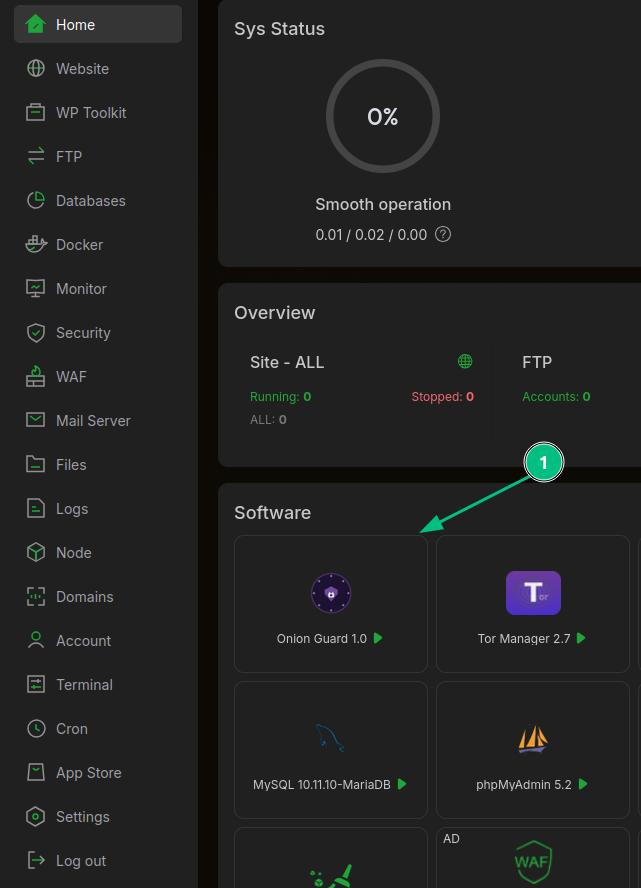
1) Locate the add-on in your "Home" page;
Firstly you'll need to locate your add-on and install it.
2) The "Status" tab;
Here you'll be able to check the general status for your addon.
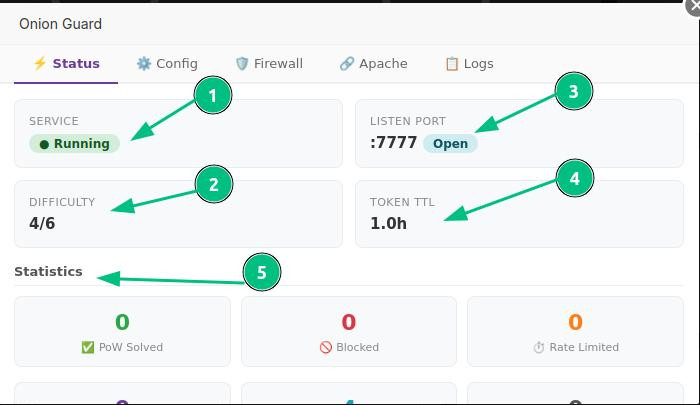
Description:
- Service: Here you'll be able to check the general status for your add-on;
- Difficulty: How hard is it for bots to disrupt your websites;
- Listen Port: Port which your add-on is listening to;
- Token TTL: Current TTL token for your add-on;
- Statics: General statics for your add-on configuration.
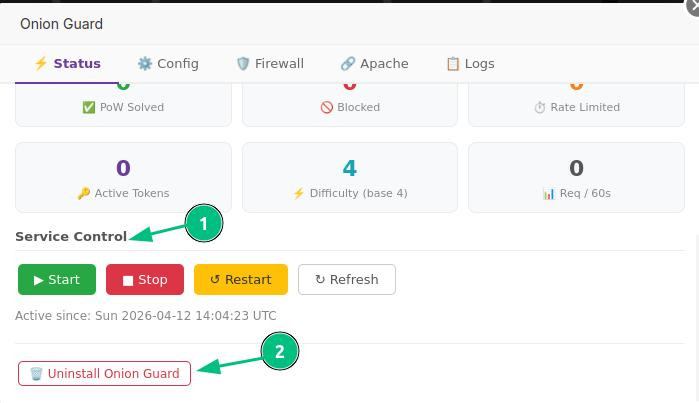
Description:
- Service Control: Here you'll be able to send power commands to your add-on;
- Uninstall Onion Guard: You'll be able to reinstall the add-on by clicking here.
3) The "Config" tab;
Here you'll configure your add-on for your own liking.
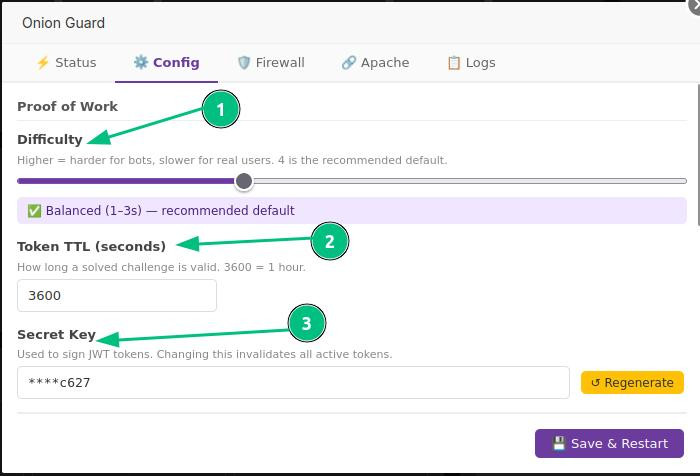
Description:
- Difficulty: In this option you'll configure how hard it will be for bots to access your website. with the drawback of it making the website slower for your users;
- Token TTL: Configure for how long a solved challenge is valid for;
- Secret Key: This option is used to sign JWT tokens, changing it will invalidate all active tokens.
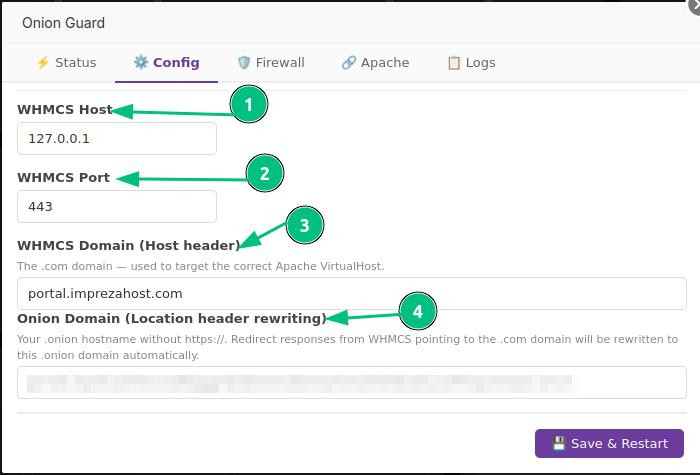
Description:
- WHMCS Host: Here you'll be able visualize your add-on host in WHMCS;
- WHMCS Port: You'll be able to visualize your add-on port in WHMCS;
- WHMCS Domain: The domain in which your server's located;
- Onion Domain: Your .onion domain hostname.
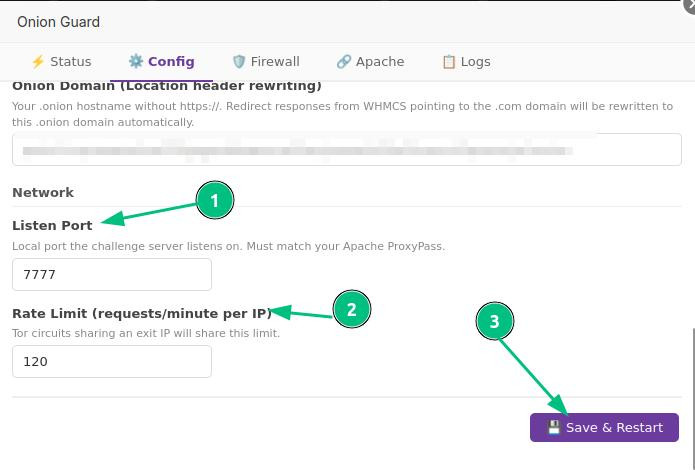
Description:
- Listen Port: Local port which the challenge server will listen to, must match your Apache ProxyPass;
- Rate Limit: Limits the amount of requests per IP;
- Save & Restart: Option which you'll need to click after changing something within the "Config" tab;
4) The "Firewall" tab:
Here you'll be able to further configure blocking for your website.
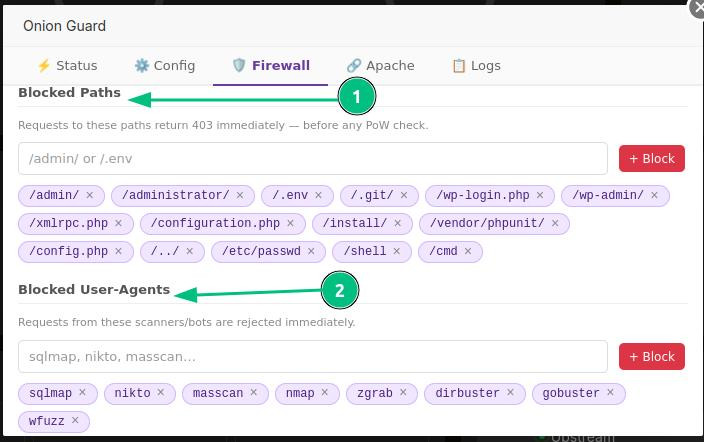
Description:
- Blocked Paths: Allows you to block specific paths within your website before any PoW check;
- Blocked User-Agents: Allows you to block requests from specific bots.
5) The "web-server" tab;
Here you'll be able setup some configs for your selected web-server.
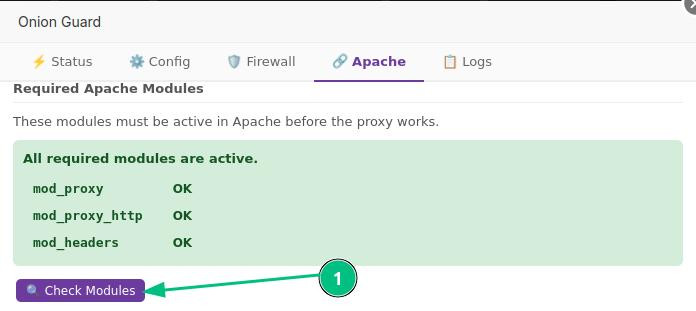
Description:
- Required Apache Modules: Here you'll be able to check if the necessary modules for your web-server are active;
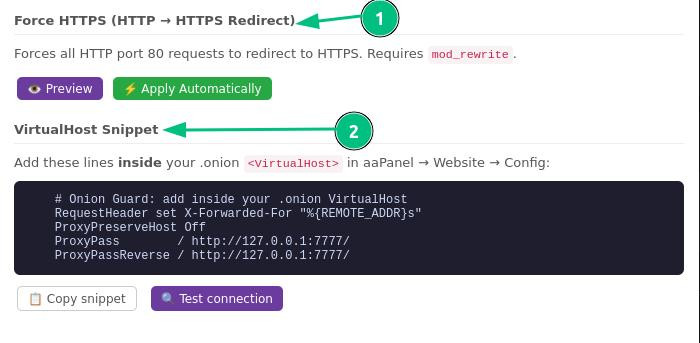
Description:
- Force HTTPS: Here you'll be able to force all HTTP requests to redirect to HTTPS;
- VirtualHost Snippet: Further settings you'll need to add in your hosting.
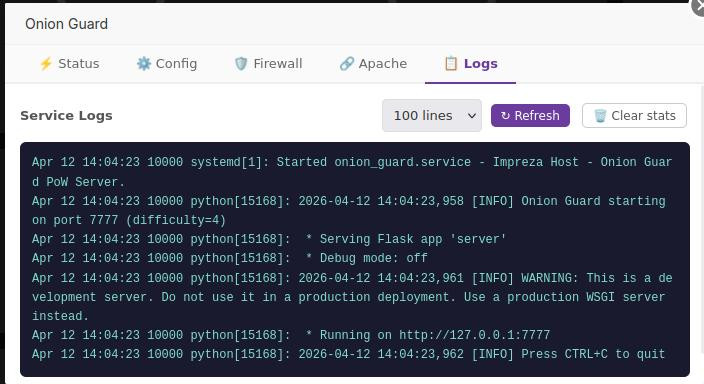
5) The "Logs" tab:
Here you'll be able visualize all running processes within this add-on.