Introduction;
In this tutorial we will learn how to properly install and use our new addition to our TOR hosting services which bring many new functionalities for our users;
Finding it
Your plugin will be able found in the "Home" section when looking into your panel.
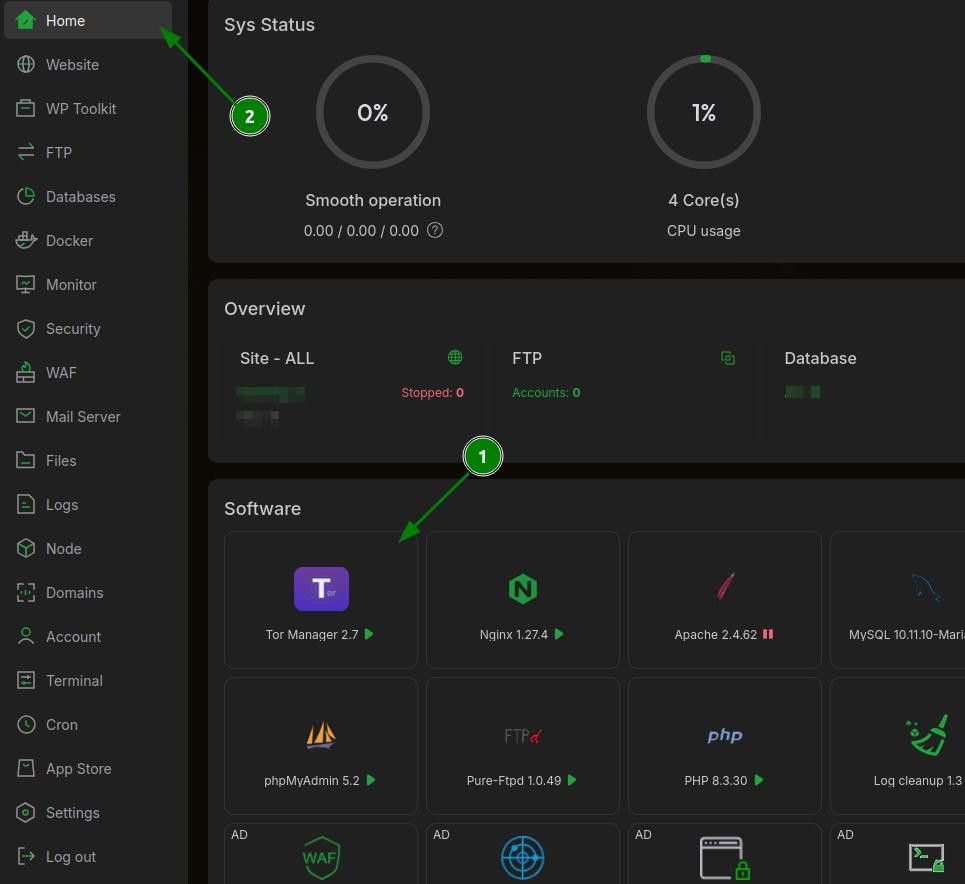
Installation:
When Tor is not installed, the plugin shows the install screen with automatic OS detection. After that you'll just need to verify the following;
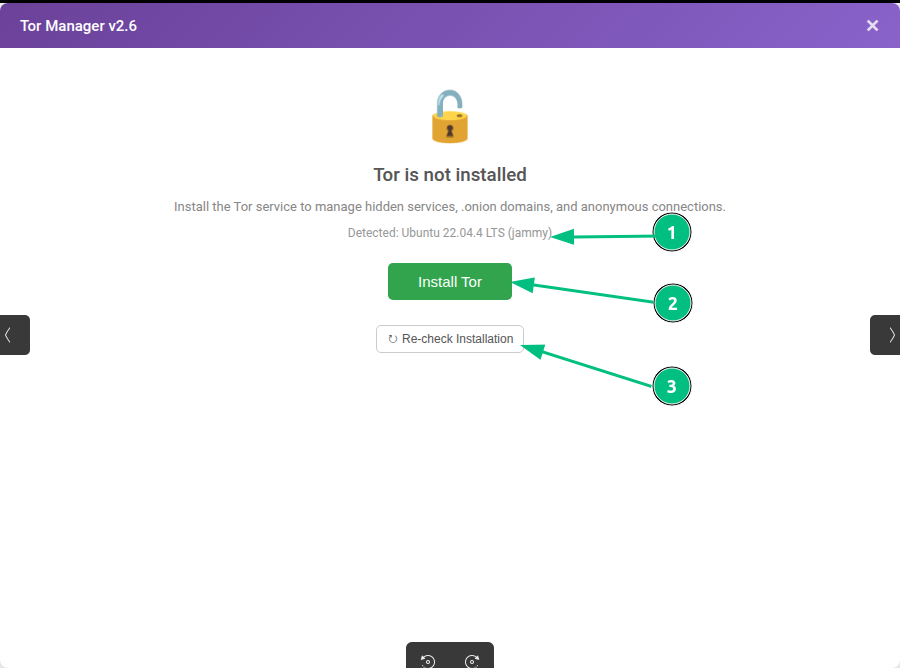
Description;
- OS detection — auto-detects your distro and version for the correct Tor APT repository.
- Install Tor — one-click install from the official Tor Project repo. Adds GPG key, installs, enables and starts.
- Re-check — re-detect if Tor was installed manually via SSH.
Status Tab
Main dashboard — loads automatically when you open the plugin. You'll use this tab to check on more general info about your service and it's status.
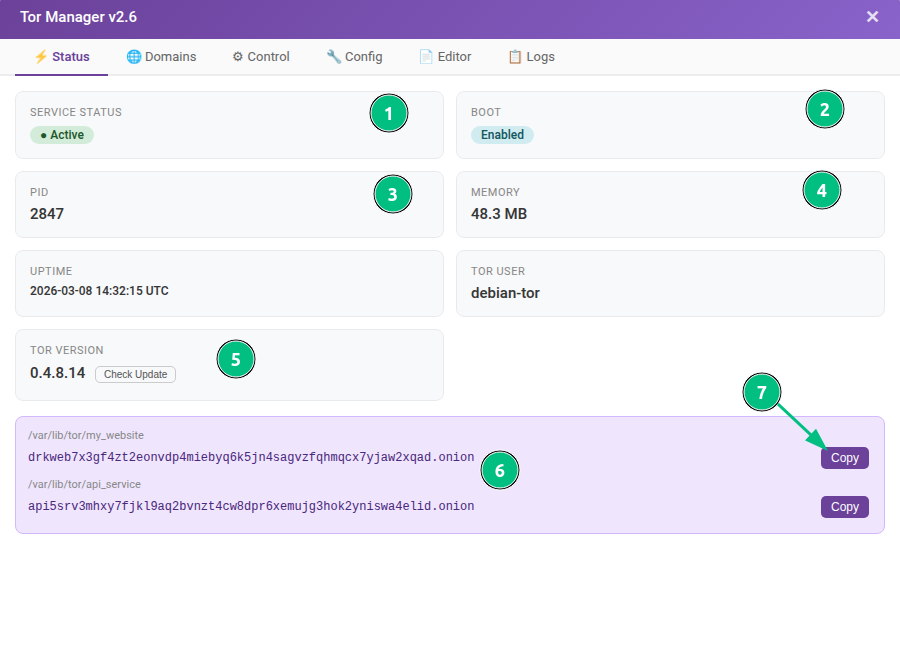
Description;
- Service Status — Active (green) = running, Inactive (red) = stopped.
- Boot — Enabled = starts on boot, Disabled = manual start.
- PID — process ID of the Tor daemon
- Memory — current RAM usage.
- Tor Version — installed version + Check Update button.
- onion Addresses — all active hidden service hostnames with directory paths.
- Copy — copies the .onion address to clipboard.
Domains Tab;
Here you'll be able to create,manage and monitor all of your TOR hidden services.
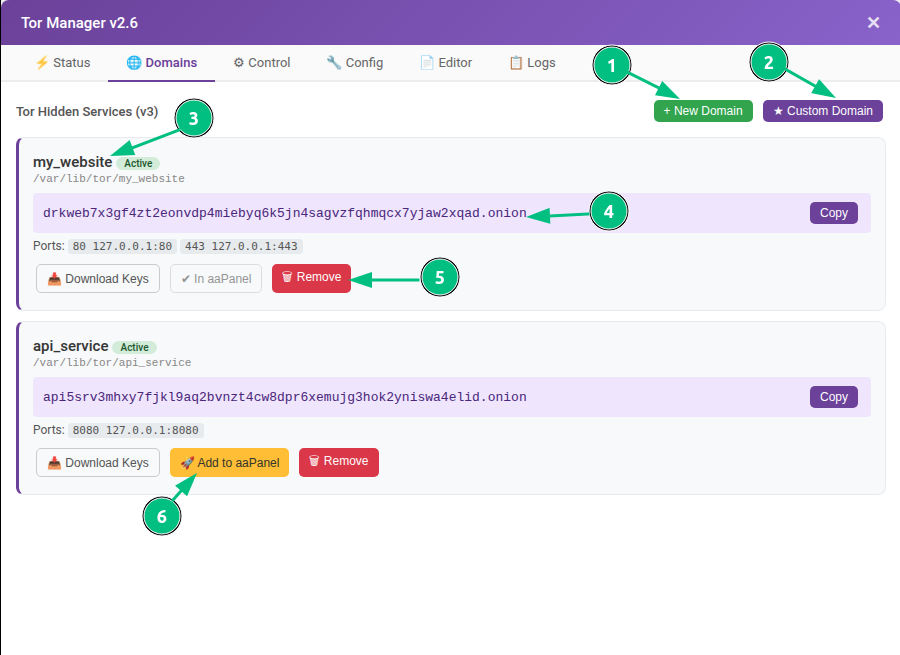
Description;
- New Domain — create a new hidden service.
- Custom Domain — vanity address generator (custom prefix)
- Service card — name, Active/Pending badge, directory path.
- onion address — full 56-char v3 hostname + Copy button.
- Actions — Download Keys (backup), In aaPanel (registered), Remove (delete).
- Add to aaPanel — register .onion as a website in aaPanel's site manager.
Creating a New Domain;
Here you'll be able to create new create a new .onion domain for your service.
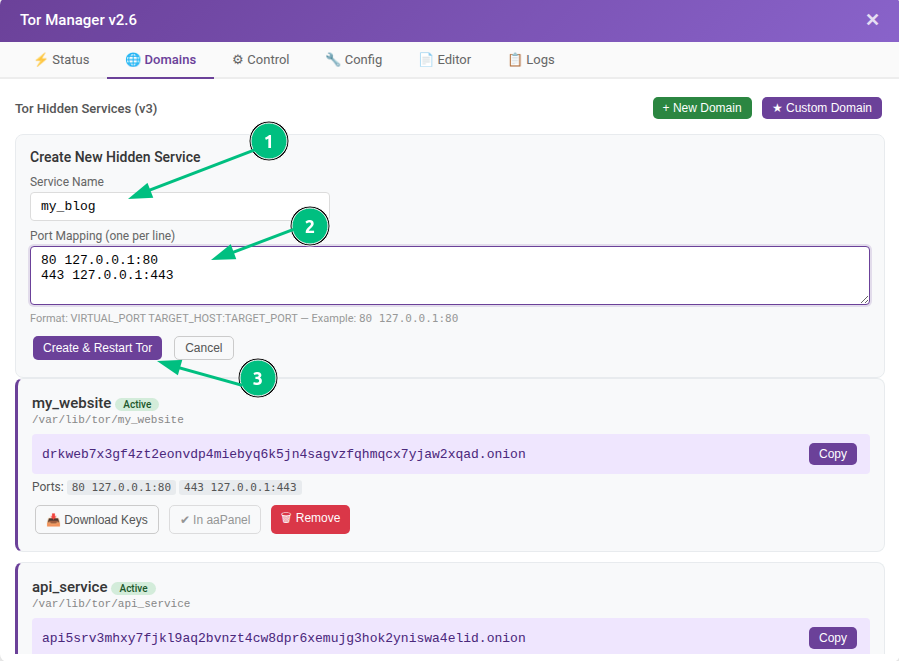
Description;
- Service Name — unique identifier (letters, numbers, dashes, underscores). Becomes the directory under
/var/lib/tor/
- Port Mapping — one per line:
VIRTUAL_PORT TARGET:PORT. Example: 80 127.0.0.1:80
- Create & Restart — writes to torrc, creates directory, restarts Tor. New .onion generated in seconds
Observation: Common ports: Web 80 127.0.0.1:80 · HTTPS 443 127.0.0.1:443 · SSH 22 127.0.0.1:22
Custom Vanity Address Generator;
Here you'll be able to create a custom onion address starting with your chosen prefix using mkp224o.
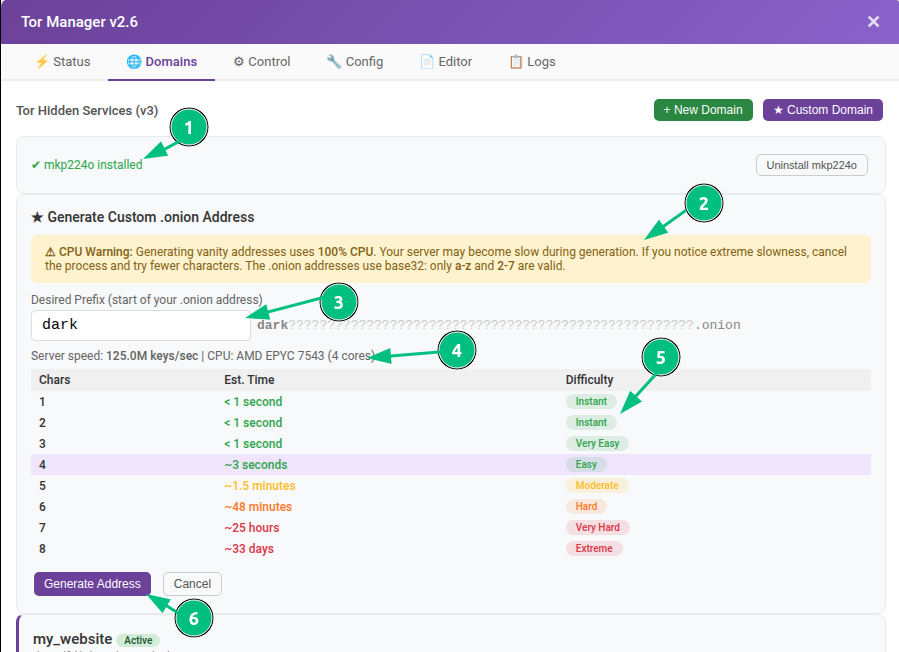
Description;
- mkp224o status — installed or not. Install button compiles from source (1 min).
- CPU warning — generation uses 100% CPU (N-1 cores to stay responsive).
- Prefix input — type desired prefix. Only
a-zand 2-7(base32). Live preview on the right.
- Benchmark — auto-runs: shows keys/sec, CPU model, core count.
- Estimate table — time per prefix length (1-3 chars instant, 4 3s, 5 1.5min, 6 48min, 7+ hours/days).
- Generate — starts background process. Real-time progress. Cancel anytime.
Observation: Use 4-5 character prefixes for practical generation times. 6+ characters can take hours.
Control Tab:
Here you'll be able to perform service management — start, stop, restart, and system-level settings.
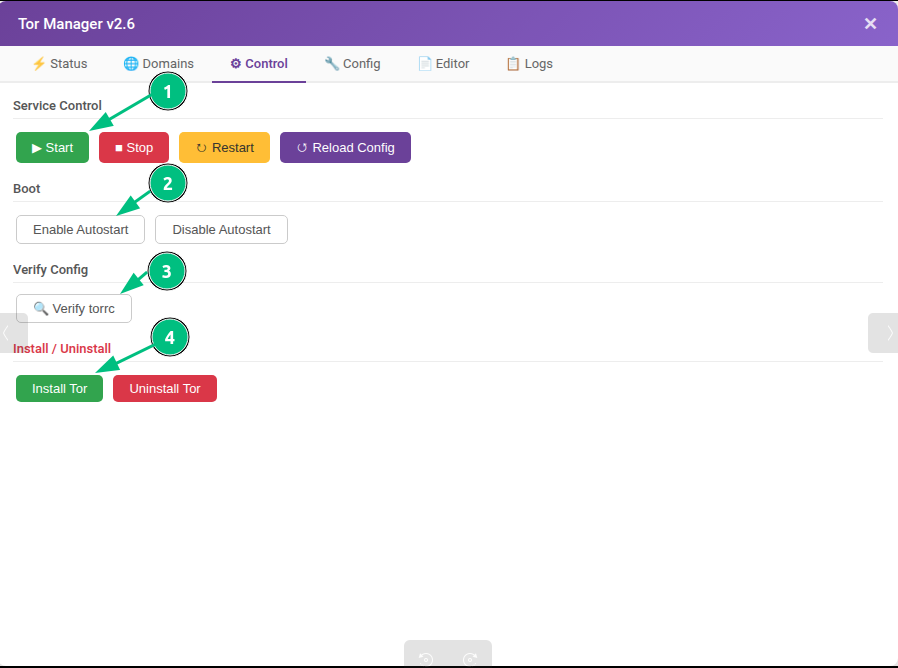
Description;
- Service Control — Start / Stop / Restart / Reload Config (graceful, no circuit drop).
- Boot — Enable/Disable auto-start on server boot.
- Verify torrc — runs
tor --verify-config to check syntax without restarting.
- Install / Uninstall — install from Tor repo, or uninstall (preserves
/etc/tor/ ).
Config Verification Result:
If the results are like the example below, it confirms that the operation was a success. If it shows as red it means that errors were found and need to be corrected.
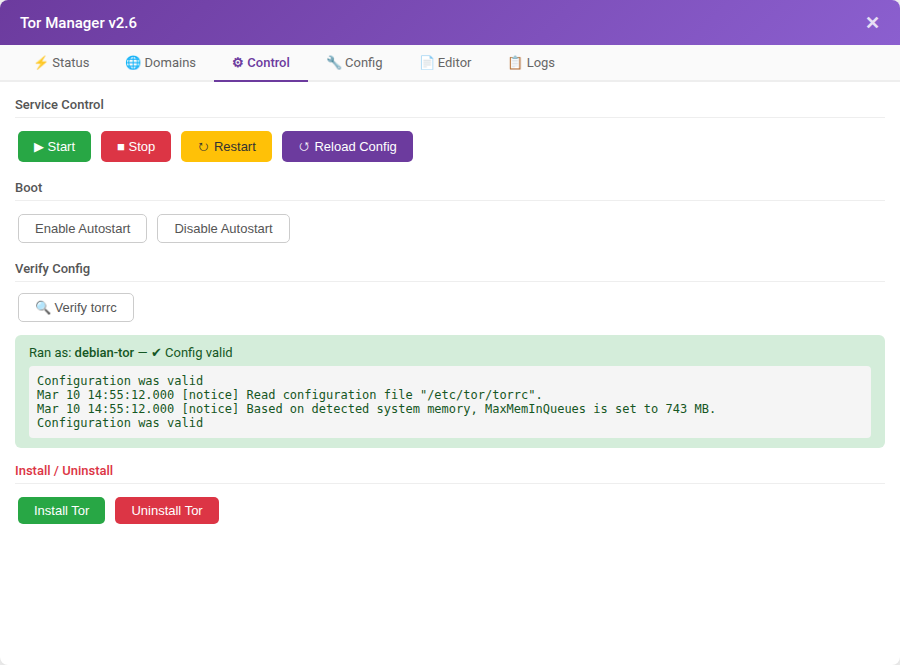
Observation: Always verify torrc after manual edits, before restarting the service.
Config Tab
Visual form-based editor for torrc directives. Each setting has a label, description, and proper input type.
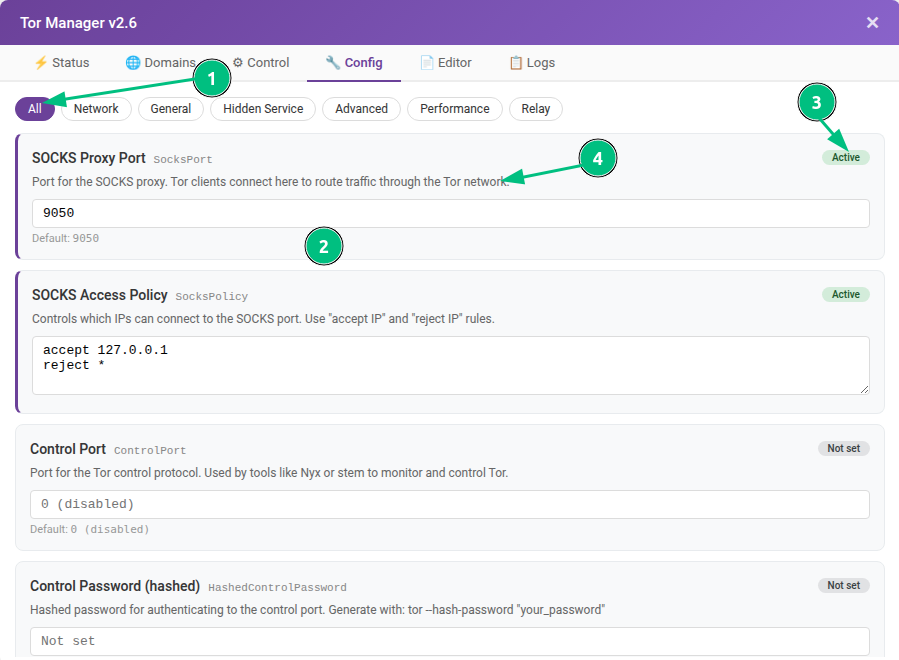
Description:
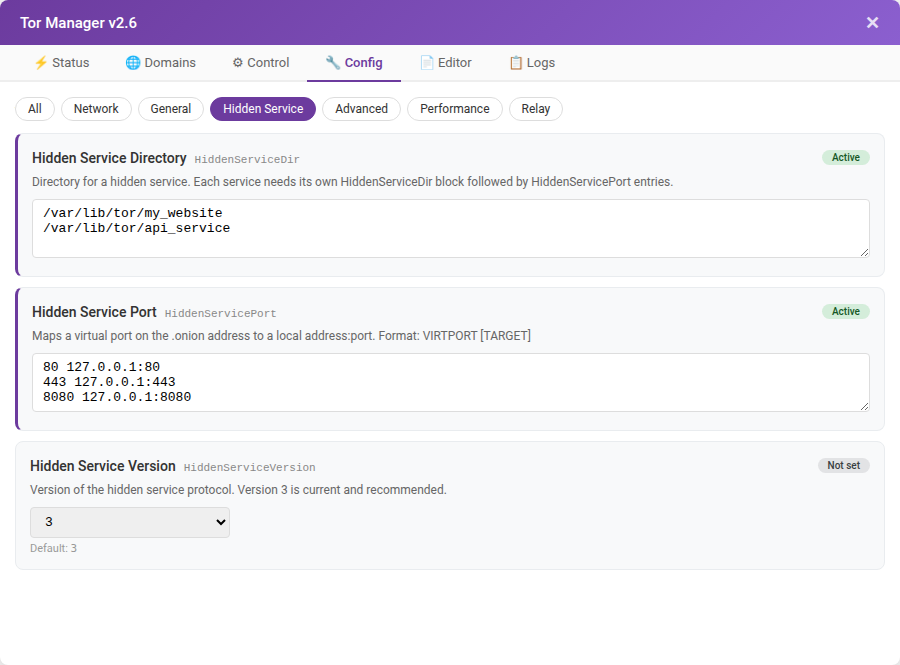
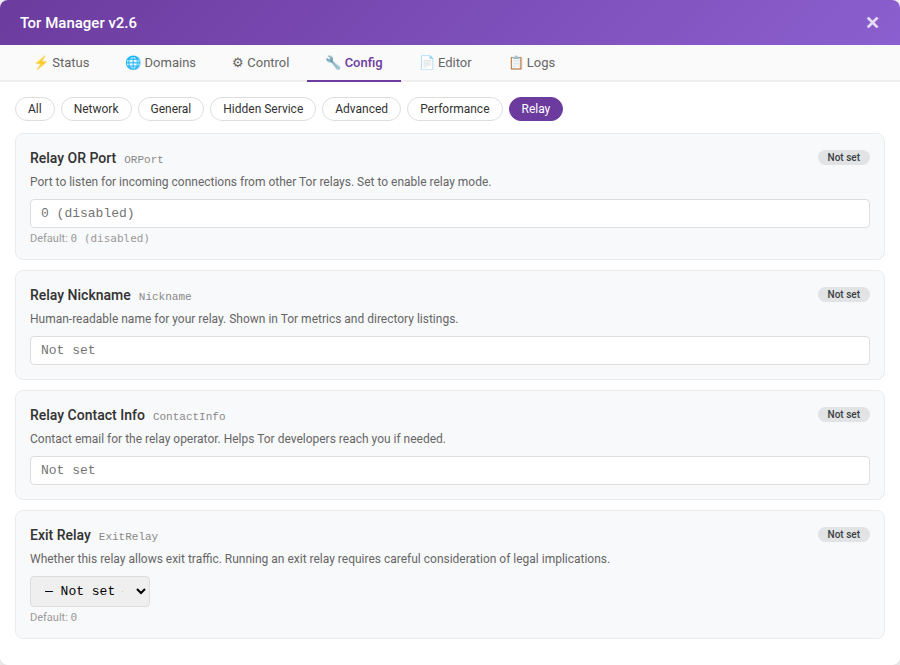
- Category filters— All, Network, General, Hidden Service, Advanced, Performance, Relay.
- Config card — label + torrc keyword + input. Purple left border = actively set in torrc.
- Status badge — Active (green) = set, Not set (gray) = default.
- Description — explains what the directive does.
Configuration Categories
List of categories for the previous topic;
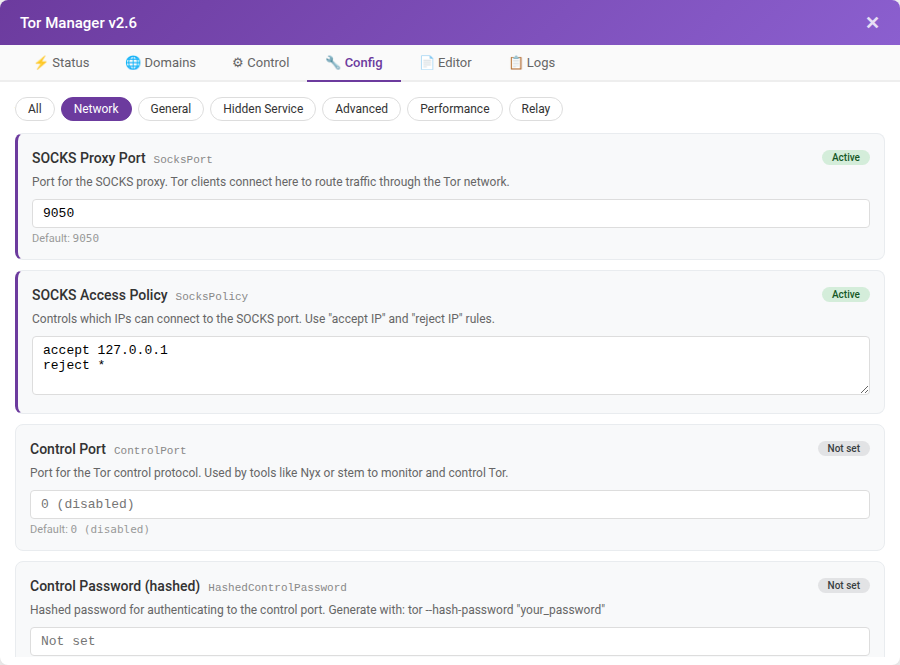
Network — SOCKS port, access policy, control port
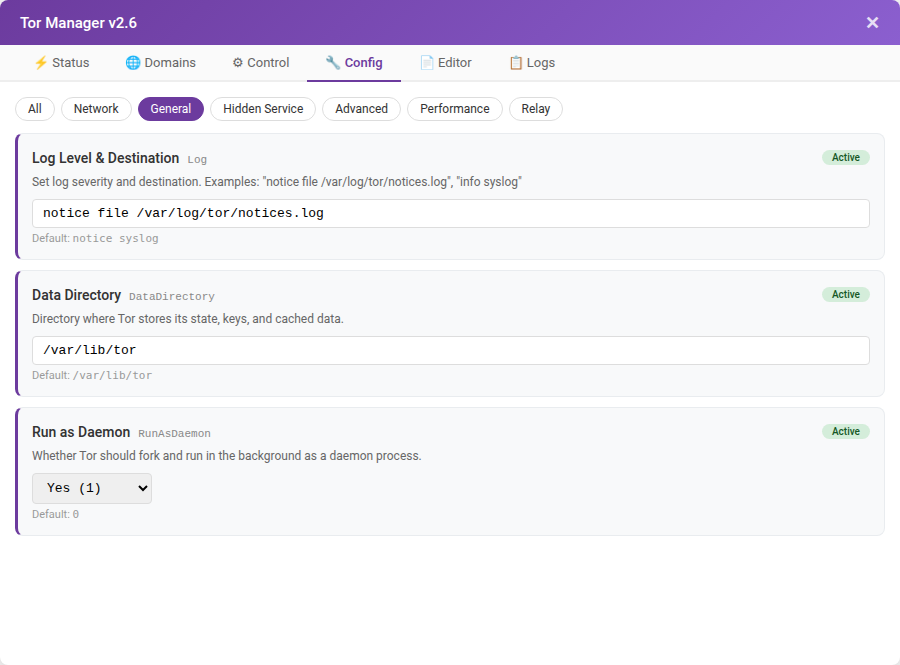
General — logging, data directory, daemon
Hidden Service — dirs, ports, protocol version
Advanced — padding, disk writes, safe logging

Performance — guards, circuit timeouts

Relay — OR port, nickname, contact, exit policy
Saving Changes
Modified values highlight yellow. A sticky bar appears at the bottom with:
- Save to torrc — writes changes (creates a .bak backup first). Does not restart.
- Save & Reload Tor — saves and reloads immediately without dropping circuits.
- Discard — reverts all unsaved changes.
Editor Tab
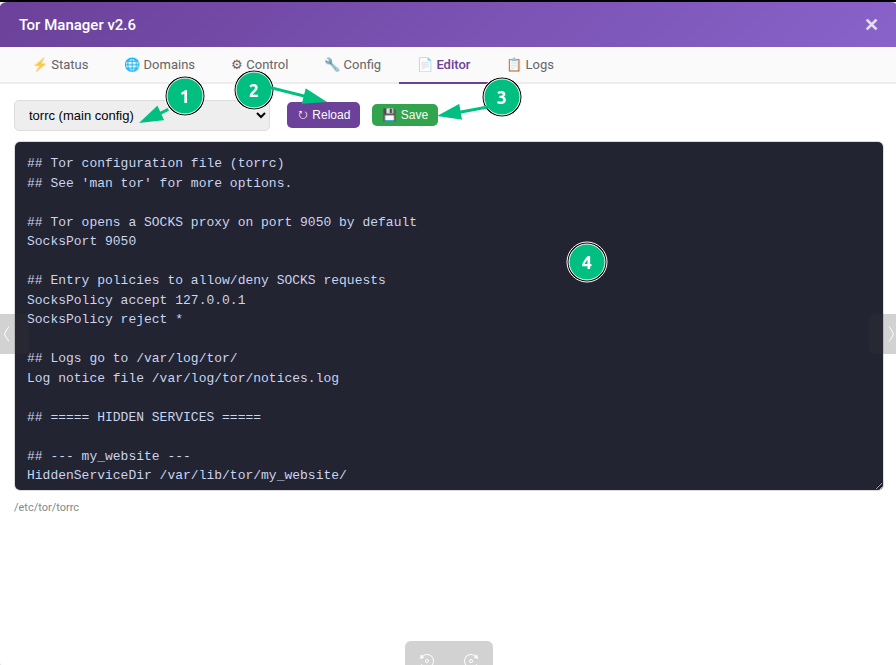
Here you'll be able to edit your files inside your application.
Description;
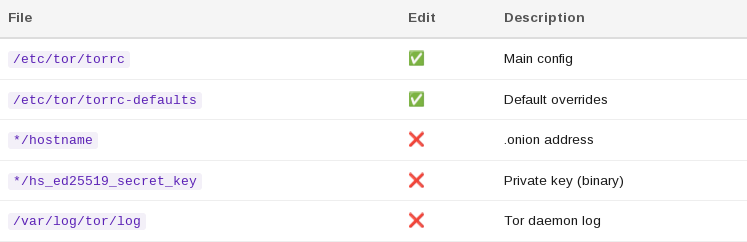
- File selector — torrc, defaults, hostnames, keys, logs.
- Reload — refresh from disk.
- Save — only for editable files under
/etc/tor/
- Editor — dark theme, monospace. Binary files (keys) shown read-only.
Examples:
Web server tab:
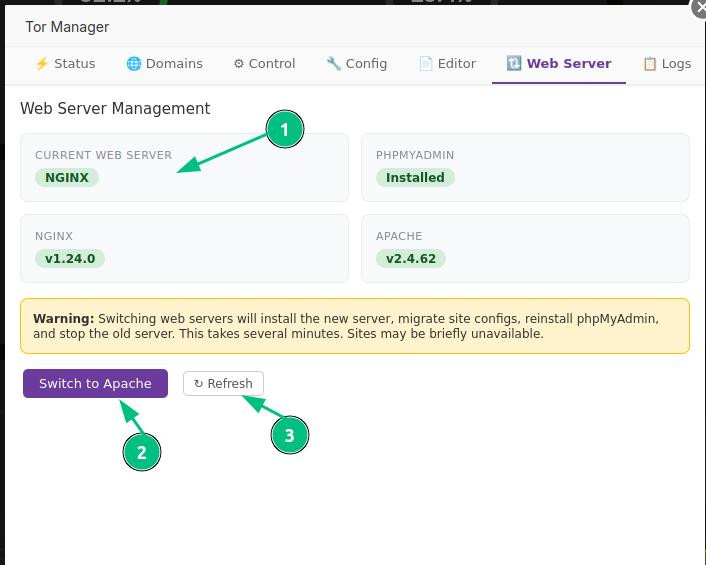
In this tab you'll be able to switch the current webserver being used in your TOR application.
Important notice: The webserver being used in this tab needs to match the webserver being used in your AApanel, otherwise conflicts and bugs will be present.
Description;
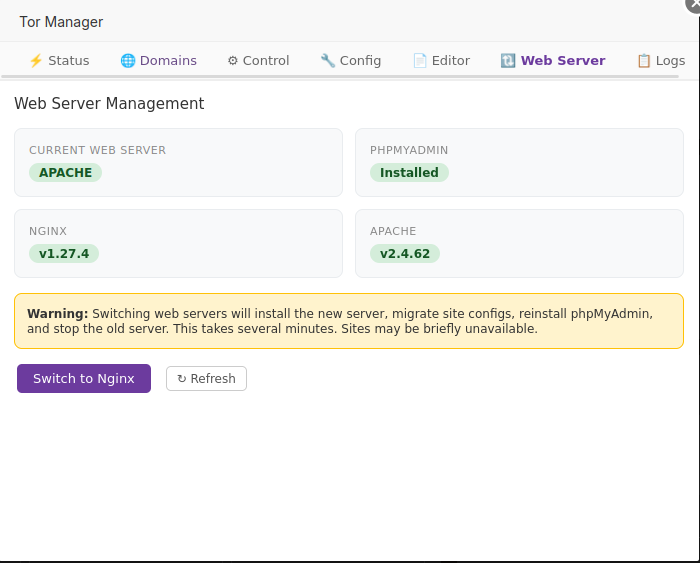
1.Current web server — shows the current webserver being used in this application.
2.Switch to Apache/Nginx — Will allow you to switch webservers.
3.Refresh — Will allow you to refresh this page.
Logs Tab:
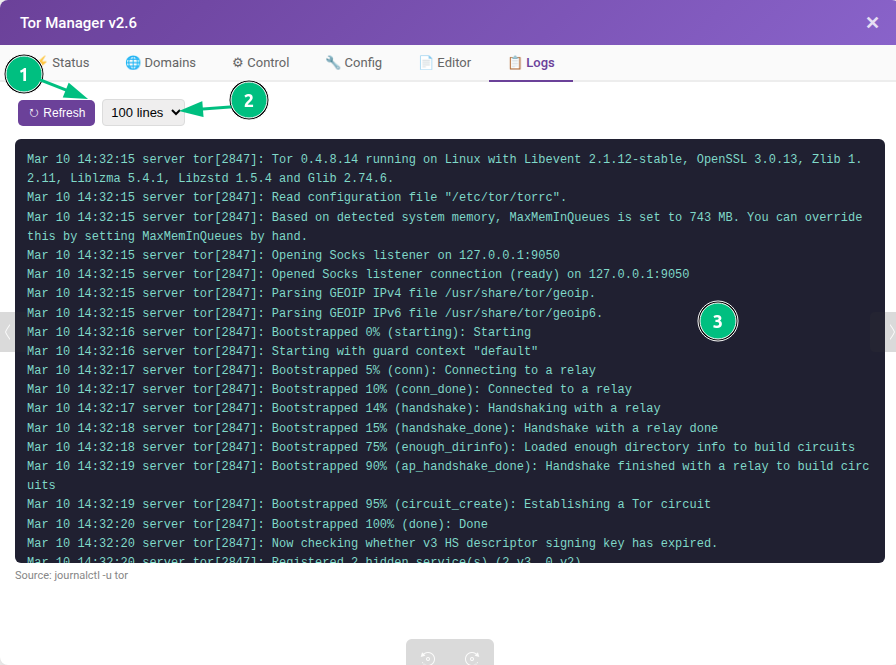
Here you'll be able to check the logs for your TOR service.
Description;
- Refresh — reload latest entries
- Line count — 50, 100, 200, or 500 lines.
- Log viewer — dark terminal, auto-scrolls to latest. Source shown below.
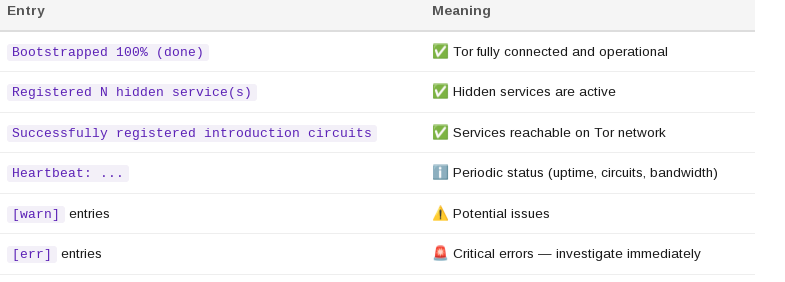
Key Log Messages
Web Server Management
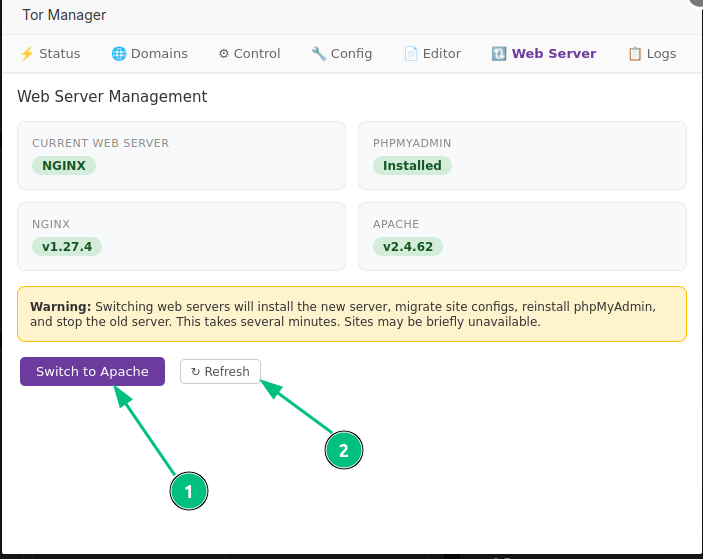
In this tab you'll be able to change between Apache or Nginx using your TOR management plugin;
Description:
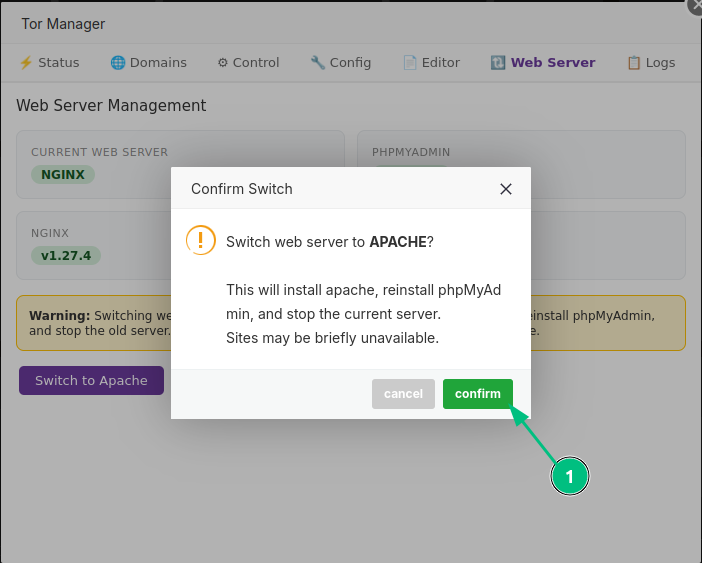
- Switch to Apache — By clicking on this button, you'll proceed on switching the web-server you're currently using.
- Refresh — By using this button you'll be able to refresh this page and check if your changes were applied.
You'll simply need to follow the reinstall, by agreeing on it.
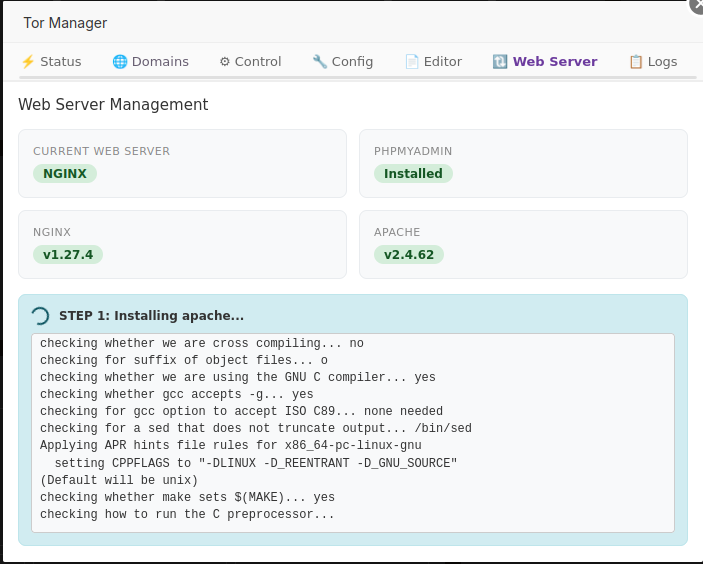
Your page will look like this during the reinstall.
Once done, your page will look like this.
Common Workflows:
Host a website on Tor
- Domains tab → + New Domain
- Name:
my_site, Port: 80 127.0.0.1:80
- Click Create & Restart Tor
- Copy the generated .onion address
- Click Add to aaPanel to manage it as a website
- Deploy your files to
/www/wwwroot/<hostname>/
Generate a custom .onion address
- Domains tab → Custom Domain
- Install mkp224o if prompted (first time only)
- Enter prefix (4-5 chars recommended)
- Click Generate Address and wait
- When found: enter service name + ports → Create Domain
Backup your keys
- Domains tab → click Download Keys for each domain
- Store the
.tar.gz files securely offline
- To restore: extract keys to
/var/lib/tor/, fix permissions, restart Tor
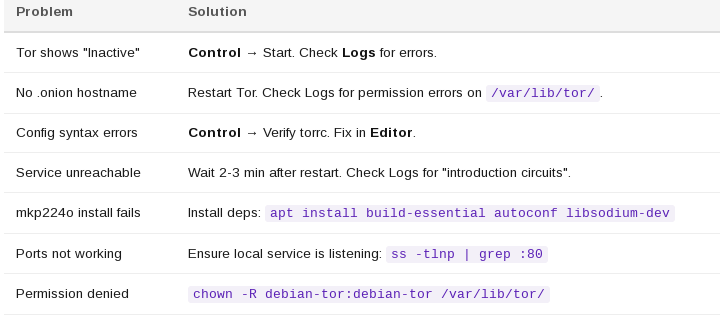
Troubleshooting: