1° Upon accessing your instance you'll be greeted with the following panel, read below what each button is supposed to do;
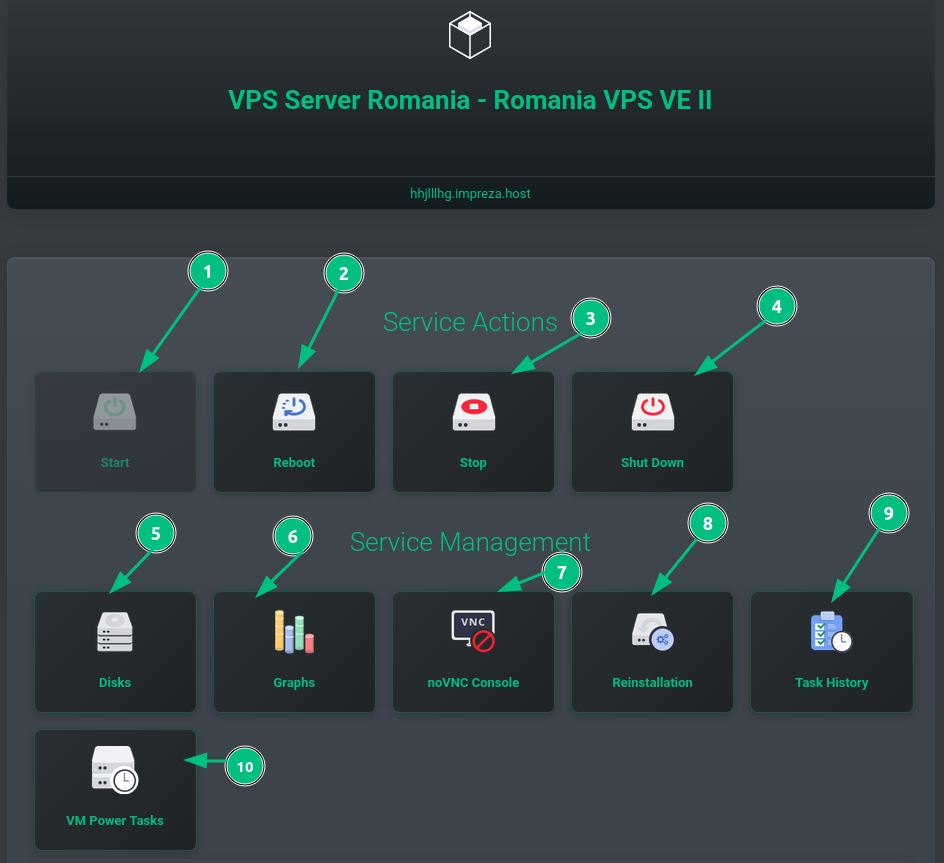
1) Start: Start your instance after stopping it or shutting it down.
2) Reboot: Reboot your instance,sometimes this function won't work if your instance is currently halted, For these occurrences it's necessary to use the stop button, followed by the start button.
3) Stop: Stop will be the equivalent of shutting down the power for your instance.
4) Shut down: Shut down will hard turn off your instance.
6) Disks: You'll be able to check the disks installed within your server,enabling you to check on it's size.
7) noVNC Console: Using this button you'll be able to access your server VNC console, here you'll be able to check on how a new OS install is going or even if your server system is currently halted.
8) Reinstallation: This button will allow you to reinstall your instance OS.
9) Task History: Here you'll be able to check a log of the tasks which were executed in your server.
10) VM Power Tasks: Here you'll be able to add power tasks for your server,such as when shut down,reboot etc.
2° After clicking on "Reinstallation" you'll be greeted by the following page;
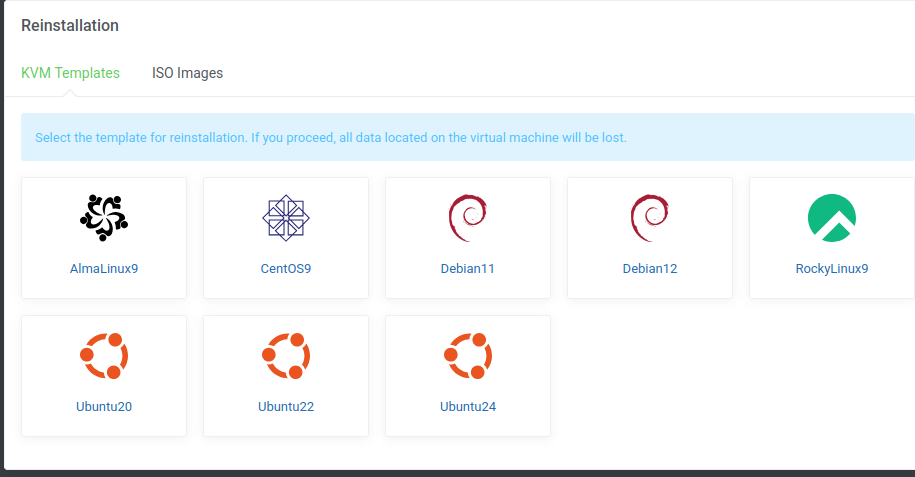
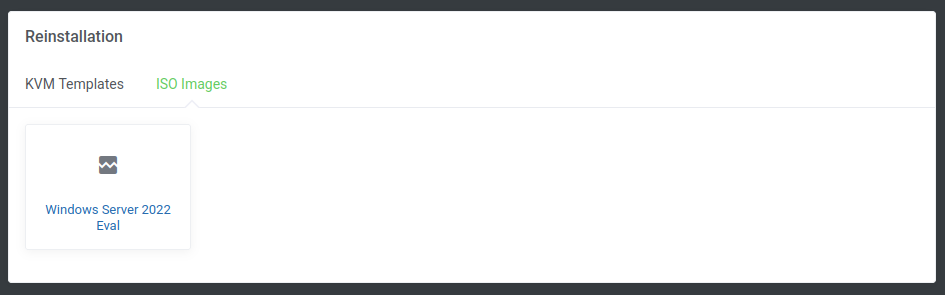
After selecting your desired OS, confirm your password for the instance and wait for it to be concluded, it should take around 20 minutes.
3° Checking on the lateral of your server management panel you'll see some additional options;
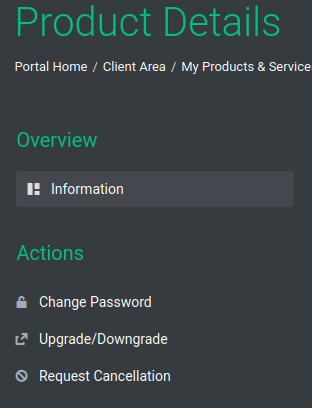
1) Change Password: Here you'll be able to easily change your server's password.
2) Upgrade/Downgrade: Here you'll be able to either downgrade or upgrade your current server, if chosen to upgrade it will be generated an invoice which once paid our system will automatically work with upgrading your server.
3) Request Cancellation: With this option you'll be able to request the cancellation for your server.